Yandex GPT Provider is the focus of this documentation page. Connect Yandex GPT with an API key and Folder ID for Russian-language text generation and YandexART images in SmartyPress AI Engine.
Yandex GPT is available only when your WordPress locale is ru_RU (get_locale() === 'ru_RU'). On other locales the Yandex provider card does not appear in Settings.
ru_RU (Settings → General → Site Language → Russian). Always-available providers on every locale are OpenAI, DeepSeek, Claude, and OpenRouter.
Getting Your Yandex API Key and Folder ID
Use a Yandex Cloud service account API key with permission to execute Foundation Models requests. SmartyPress sends the key as Authorization: Api-Key. The same key powers YandexGPT text, YandexART images, and the SEO analyzer (competitor search and Wordstat).
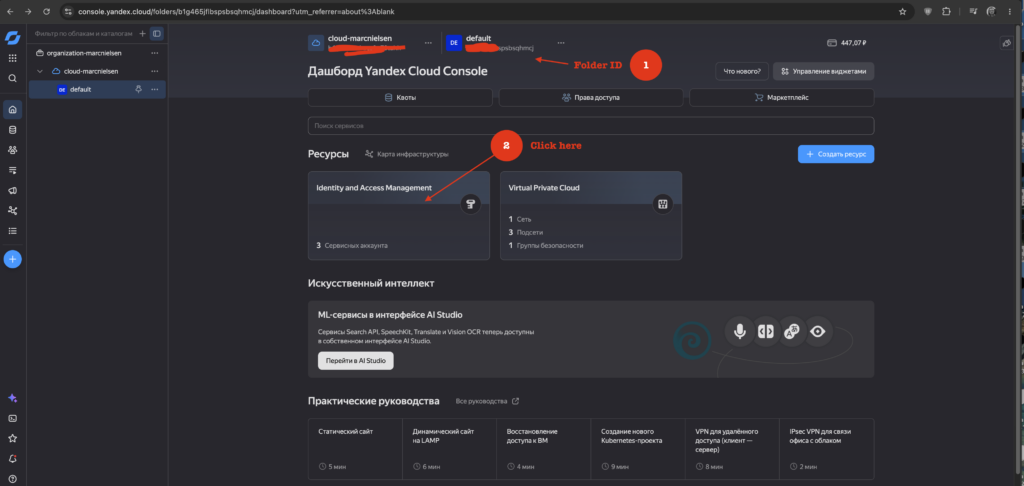
- Sign in to console.yandex.cloud, open your folder, and copy the Folder ID from the URL (the string after
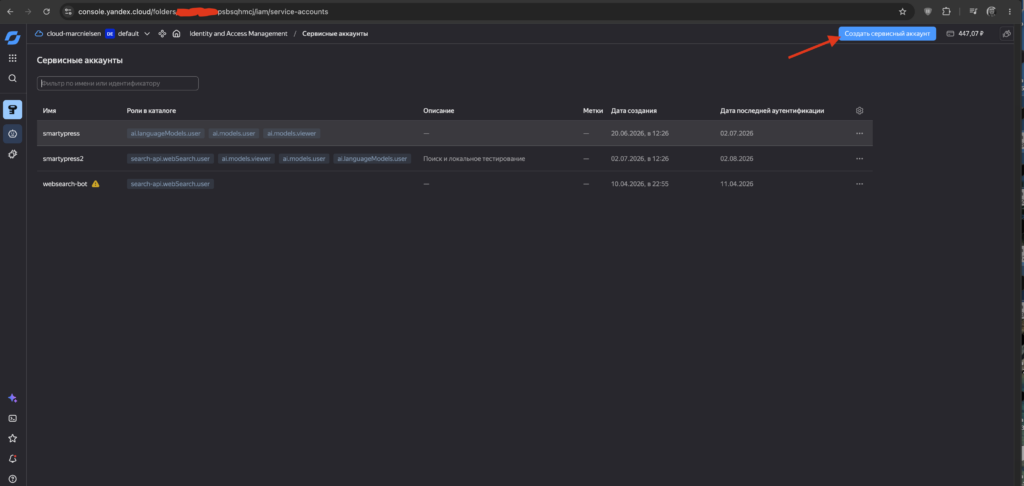
/folders/). Then open the Identity and Access Management tile. - On the Service accounts page, click Create service account.
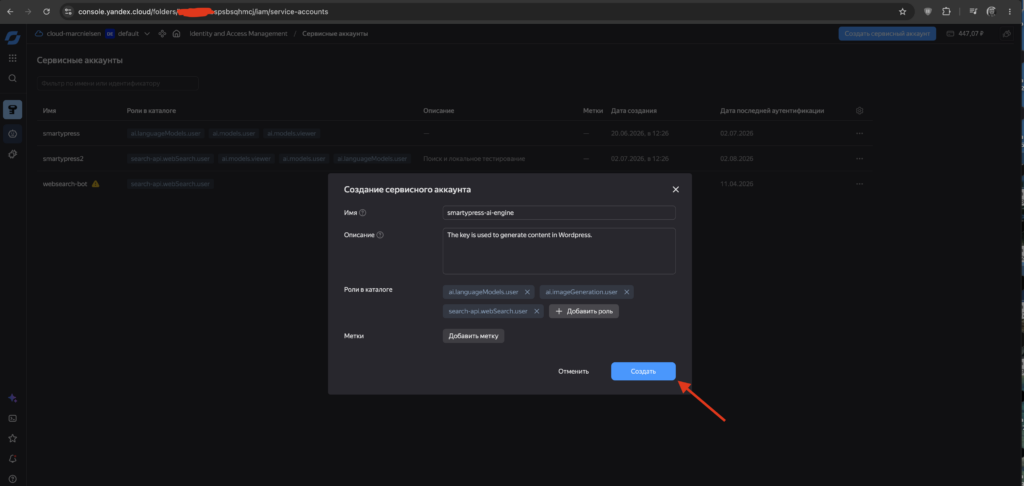
- Name the account (for example,
smartypress-ai-engine), add a short description, and assign these folder roles:ai.languageModels.user— YandexGPT text generationai.imageGeneration.user— YandexART imagessearch-api.webSearch.user— SEO analyzer: competitor search and Wordstat
Then click Create.
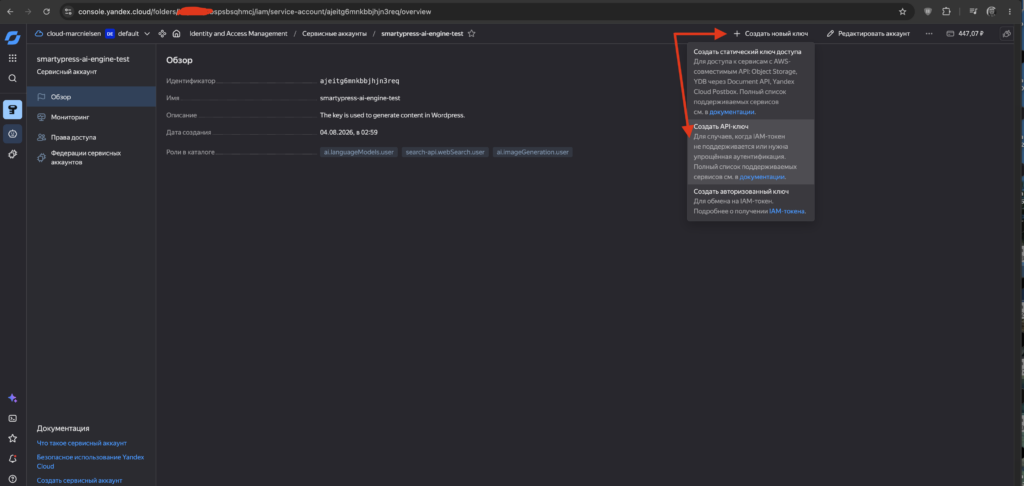
- Open the new service account, click + Create new key, and choose Create API key (not a static access key).
- In the New key dialog, select all three scopes:
yc.ai.languageModels.executeyc.ai.imageGeneration.executeyc.search-api.execute
A key limited to a single scope will not work for the SEO analyzer. Click Create and copy the secret immediately — it is shown only once.
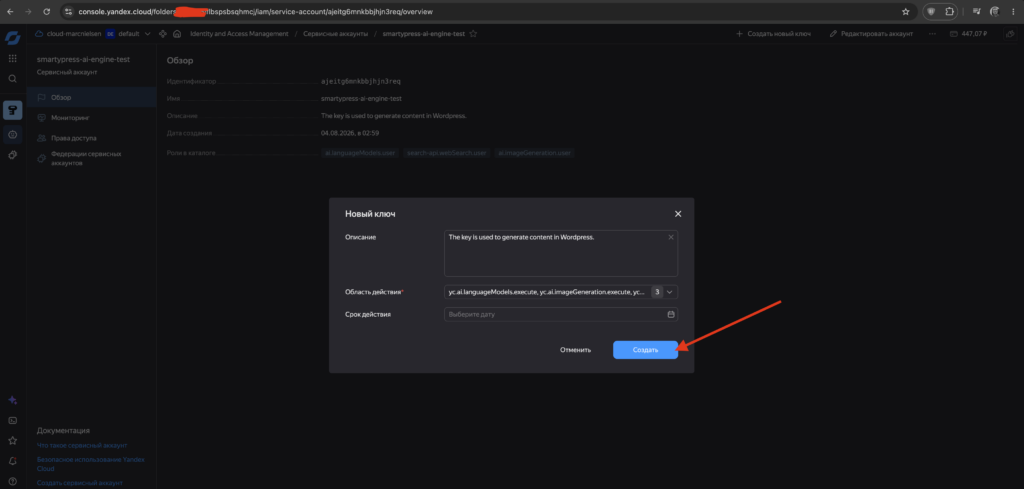
403 Permission denied, so the SEO analyzer cannot run competitor search or Wordstat.
Configuring in SmartyPress
- Go to SmartyPress AI → Settings (
#/settings) and open the Yandex provider card. - Paste the secret into API Key (sent as
Authorization: Api-Key) and enter the Folder ID you copied from the console URL. - Click Save Provider Settings — SmartyPress saves the credentials and automatically tests the connection. There is no separate Test Connection button.
- Return to General Settings, select Yandex as the Default Provider if needed, choose a Default Model (YandexGPT Lite is the plugin default), and click Save Changes.
Available Models
Text models are a static list shipped with the plugin:
- YandexGPT Lite — fast and affordable (default)
- YandexGPT Pro — higher quality output
Image generation uses YandexART when you run image features through the Yandex provider.