Deepseek Provider is the focus of this documentation page. Set up DeepSeek API for affordable bulk content generation. Follow the sections below to configure the feature correctly, choose the right settings, avoid common mistakes, and verify the result inside WordPress.
DeepSeek offers powerful reasoning models — V4 Flash and V4 Pro — at a fraction of OpenAI’s cost. Both models support chain-of-thought reasoning and excel at content generation, SEO optimization, and analytical tasks. Setup takes under 2 minutes.
Getting Your DeepSeek API Key
- Sign in to platform.deepseek.com.
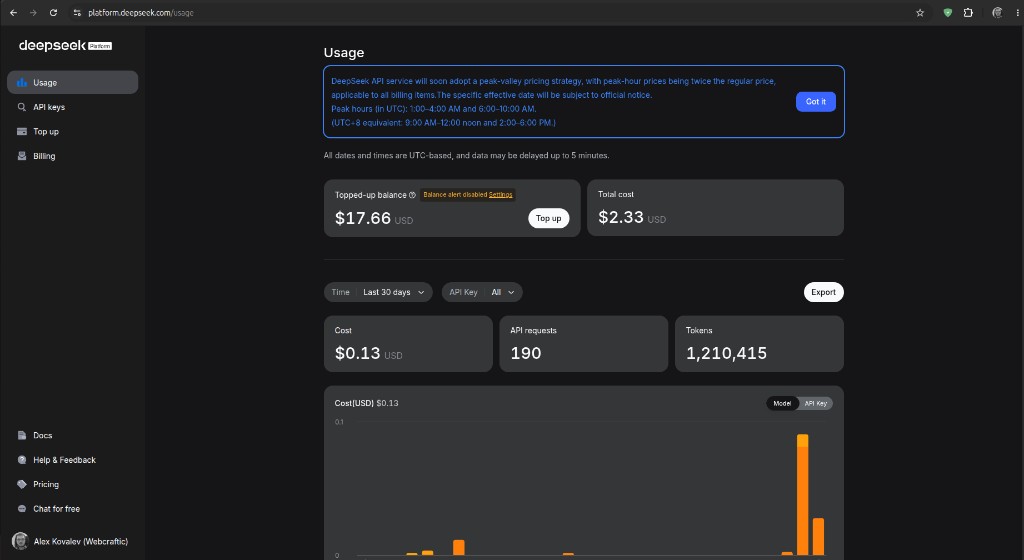
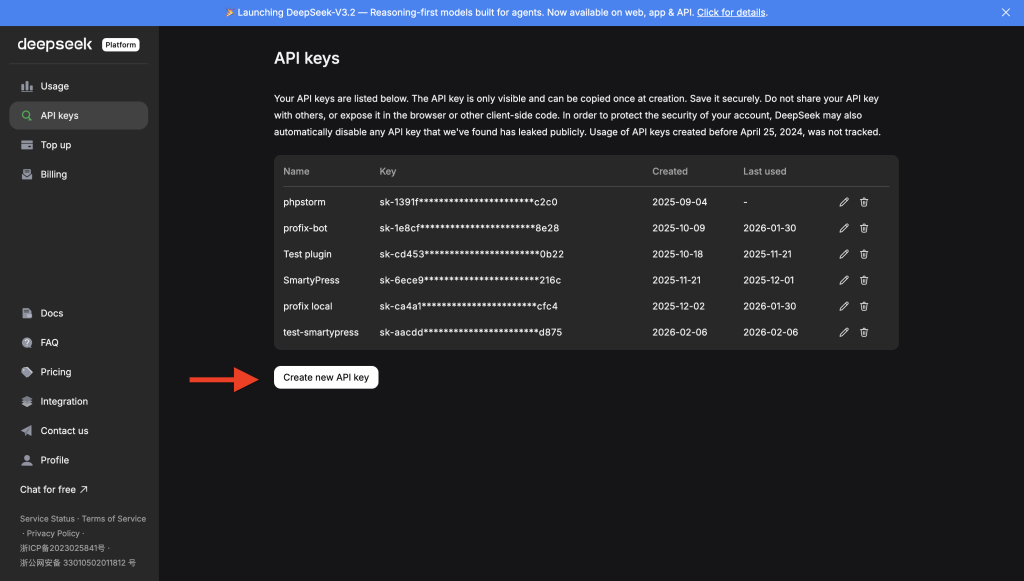
- In the left sidebar, open API keys (or go directly to platform.deepseek.com/api_keys). The sidebar also lists Usage, Top up, and Billing.
- Click Create new API key.
- Copy the key immediately — DeepSeek shows the full value only once.
- If needed, open Top up in the sidebar and add credits before generating content in SmartyPress.
Tip: Create and manage keys at platform.deepseek.com/api_keys. From any DeepSeek Platform page (for example Usage), use the left sidebar link API keys, create a new key, and copy it immediately. Top up your balance under Top up or Billing before API calls.
Configuring in SmartyPress
- Go to SmartyPress AI → Settings (
#/settings). - Open the Deepseek provider card.
- Paste your key into the API Key field. The Deepseek card has only this credential field.
- Click Save Provider Settings — SmartyPress saves the key and automatically tests the connection (
smartypress/v1/settings/test-provider). There is no separate Test Connection button. - Return to Settings and, under General Settings, choose Default Provider = Deepseek and a Default Model (DeepSeek V4 Flash is recommended for most tasks). Click Save Changes.
Available Models
DeepSeek models are a static list shipped with the plugin:
| Model | Type | Best For |
|---|---|---|
| DeepSeek V4 Flash | Fast / Reasoning | Everyday content, fast drafts, bulk generation (very affordable) |
| DeepSeek V4 Pro | Premium / Reasoning | Complex tasks, marketing copy, detailed articles (higher quality, still cheap) |
Reasoning support: Both V4 models support chain-of-thought (thinking) mode. The plugin automatically disables thinking tokens when JSON output is required (e.g., structured content generation), ensuring reliable structured responses.
When to Use DeepSeek
- Bulk generation — 10–50x cheaper than OpenAI for similar quality
- Drafts and outlines — V4 Flash is extremely fast for first drafts
- Blog posts — excellent quality for everyday content
- SEO optimization — reasoning models handle keyword placement and content strategy well
- Complex analytical content — V4 Pro excels at structured, multi-step generation
Tip: You can use OpenAI, DeepSeek, Claude, and OpenRouter simultaneously. Switch between providers per task — use GPT-4o or Claude for critical marketing copy and DeepSeek for routine blog content.