Openrouter Provider is the focus of this documentation page. Single API key for 100+ AI models. Configure text and image model lists. Follow the sections below to configure the feature correctly, choose the right settings, avoid common mistakes, and verify the result inside WordPress.
OpenRouter provides a single API key that gives you access to 100+ AI models from multiple providers including OpenAI, Anthropic, Google, Meta, and more. It also supports image generation models.
Getting Your OpenRouter API Key
- Sign in to OpenRouter.
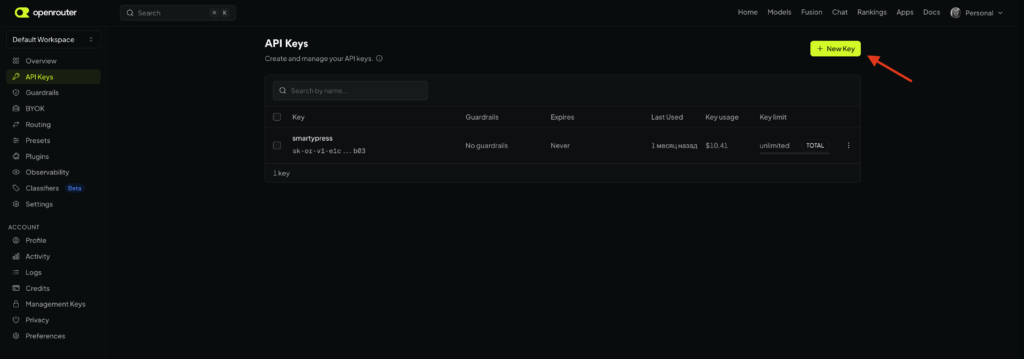
- Open openrouter.ai/workspaces/default/keys.
- Click + Create Key.
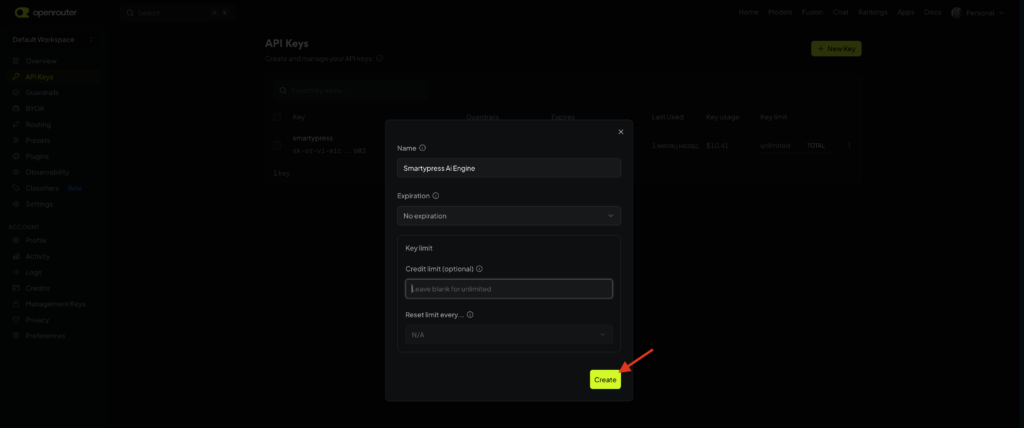
- In the Create API Key modal fill:
- Name — for example,
SmartyPress - Expiration — leave No expiration, or choose a date if you want the key to expire
- Credit limit — optional; leave blank for unlimited
- Reset limit every… — leave N/A unless you set a credit limit that should reset
- Name — for example,
- Click Create, copy the key immediately (it starts with
sk-or-v1-...), and add credits to your account if needed.
Configuring in SmartyPress
- Go to SmartyPress AI → Settings (
#/settings). - Open the OpenRouter provider card.
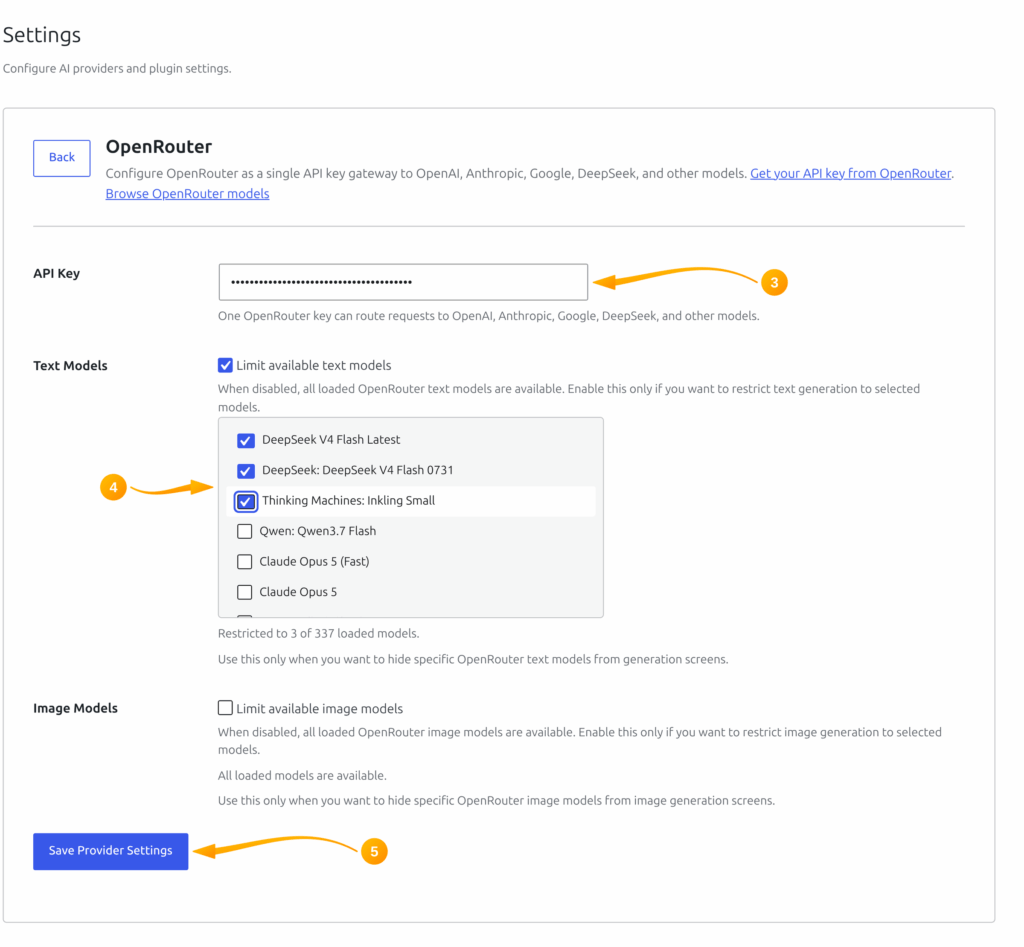
- Paste your key into the API Key field.
- Optionally configure the Text Models and Image Models limit toggles (see below). These fields control which models appear later; they are not the Default Model selectors.
- Click Save Provider Settings — SmartyPress saves the credentials and automatically tests the connection (
smartypress/v1/settings/test-provider). There is no separate Test Connection button. - Return to Settings and, under General Settings, choose Default Provider = OpenRouter and a Default Model (for example,
openai/gpt-4o-mini). Click Save Changes.
Filtering Available Models
OpenRouter model catalogs are loaded from the OpenRouter API (https://openrouter.ai/api/v1/models), cached for 12 hours, and fall back to a small built-in list if the request fails. On the OpenRouter card you can optionally restrict which models appear in generation screens:
- Text Models — enable Limit available text models, then check the text models that should stay available
- Image Models — enable Limit available image models, then check the image models that should stay available
When a limit toggle is disabled, all loaded OpenRouter models of that type remain available. When enabled, only the checked models appear in the provider/model dropdowns throughout the plugin.
Web Search Capability
Some OpenRouter models support web search (for example, Perplexity Sonar models such as perplexity/sonar). When available, the SEO Analysis module can use these models to research competitors during content plan generation.