Generating Images is the focus of this documentation page. Create images from text prompts with auto-generated title, alt text, caption, description, and filename. Follow the sections below to configure the feature and generate images with the right settings.
Generate images from text prompts using AI. Images are saved to the WordPress Media Library with auto-generated title, alt text, caption, description, and filename.
How to Generate an Image
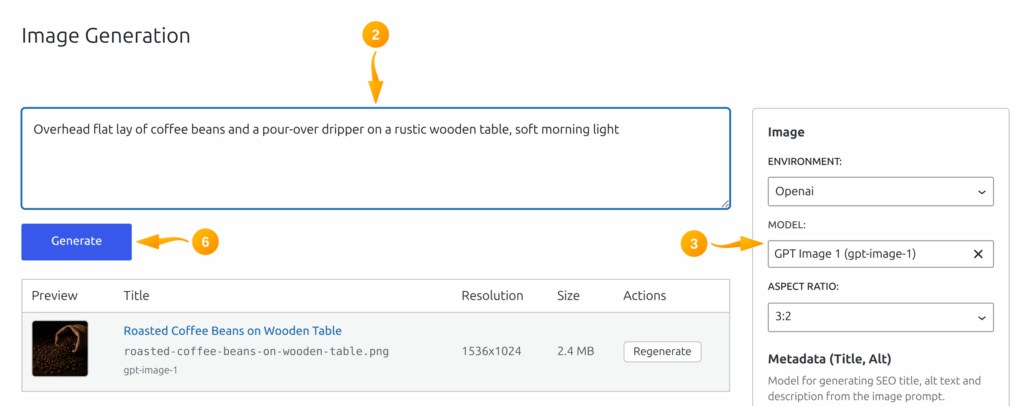
- Go to SmartyPress AI → Image Generation.
- Enter your prompt — describe the image you want (e.g., “A modern WordPress dashboard with AI features, flat illustration style”).
- In the right sidebar, choose the image Environment (provider) and Model.
- Choose an Aspect ratio (the plugin maps it to the model’s supported resolution).
- Optionally set the Text provider and Text model used for metadata.
- Click Generate (or press Ctrl+Enter / Cmd+Enter in the prompt field).
Auto-Generated Metadata
Before generating the image, the plugin uses a text AI model to automatically create:
- Title — descriptive media title
- Alt text — accessibility text, max 125 characters
- Caption — short caption stored as the attachment excerpt
- Description — longer description for the media library
- Filename — SEO-friendly lowercase ASCII slug (no extension)
Visible metadata (title, alt, caption, description) follows the site language / locale policy used by the plugin. The filename stays English ASCII even when the prompt is in another language.
Result
After generation:
- The image appears in the generated-images table with preview, title, filename, model, resolution, and file size
- It is automatically saved to the WordPress Media Library
- You can open a lightbox preview, use the image as a featured image, or insert it into content

Image Generation Settings
The right sidebar is split into image settings and metadata settings:
- Environment — AI provider for image generation
- Model — the image model
- Aspect ratio — output shape; mapped internally to a supported resolution
- Text provider — provider used to generate title, alt, caption, and description
- Text model — text model used for that metadata