Magic Wand Overview is the focus of this documentation page. Seven prompt templates: Rewrite, Expand, Fix Grammar & Spelling, Summarize, Generate FAQs, Simplify Tone, and Translate — plus a custom prompt option. Follow the sections below to learn how Magic Wand templates and generation work in the editor.
Magic Wand is an inline AI editing tool built into the block toolbar. Open it on a supported text block, pick a template or write your own prompt, generate a draft, review the diff, then apply the result to the block.
Prompt Templates
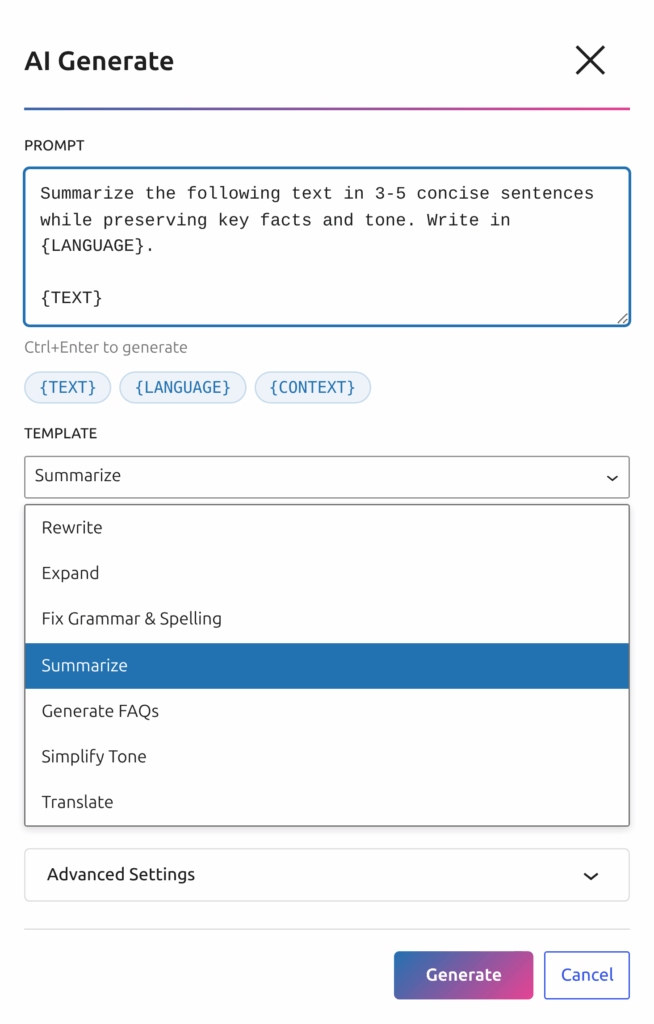
In the Magic Wand modal, the Template dropdown offers these built-in options (plus — Custom prompt —):
| Template | What It Does |
|---|---|
| Rewrite | Improve clarity and engagement while preserving meaning |
| Expand | Add more details and examples |
| Fix Grammar & Spelling | Correct spelling and grammar mistakes |
| Summarize | Condense the text into a short summary |
| Generate FAQs | Create FAQ questions and short answers from the text |
| Simplify Tone | Rewrite in a friendly, simple tone |
| Translate | Translate the text to the target language |
Supported Blocks
Magic Wand appears only on these Gutenberg text blocks:
- Paragraph
- Heading (H1–H6)
- List (ordered and unordered)
- Quote
- Code
- Preformatted
How Generation Works
After you click Generate, the modal shows a compare view with a diff of removed and added text. Review the changes, then click Apply to update the block, Re-generate to try again, or Cancel to discard the draft. Content is not written into the block until you apply it.
Custom Prompts
Every generation run uses the prompt field. Select a template to pre-fill it, or leave — Custom prompt — and write your own instructions. Use variables like {TEXT}, {LANGUAGE}, and {CONTEXT} for dynamic content.
smartypress_ai_wand_features filter. See the Developer Guide.
Recommended Settings
For most magic wand overview tasks, start with a balanced model such as GPT-4o Mini, GPT-4o, DeepSeek Chat, or a carefully selected OpenRouter model. Keep temperature around 0.5 to 0.8 for documentation and tutorials, because these pages need clarity more than experimentation. Increase temperature only when you need more creative headlines, introductions, or alternative wording.
Use a clear default language and keep prompt variables consistent across articles. For documentation pages, a neutral or professional writing tone usually works best. If the generated result is too short, increase the number of sections or paragraphs per section rather than asking the model to “write more” after the fact. Structured settings create more stable output and make Magic Wand Overview easier to reproduce later.