Prompt Variables And Customization is the focus of this documentation page. Configure writing tone, style, sections, and create custom variables for AI prompts. Follow the sections below to configure the feature and use it in your WordPress workflow.
Prompt Variables let you customize AI behavior globally. Define writing tone, style, section structure, and create your own custom variables.
Built-in Variables
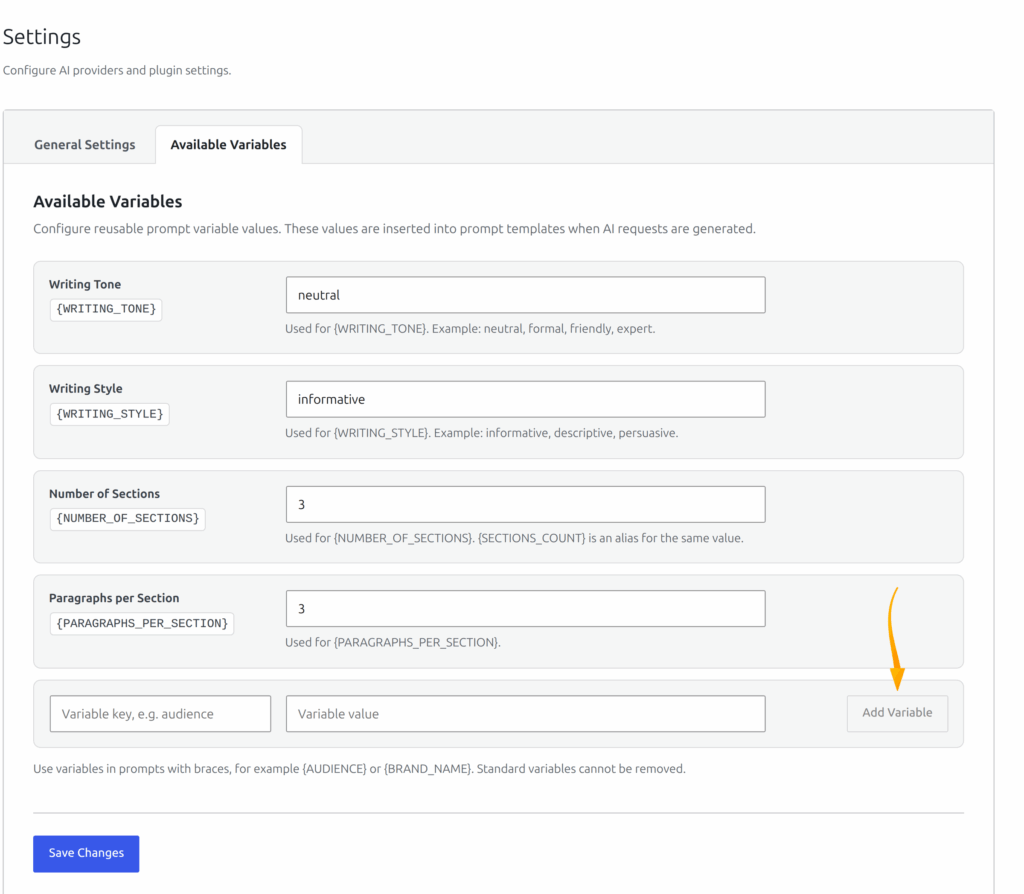
Configure in SmartyPress AI → Settings → Available Variables tab:
| Setting key | Prompt token | Default | Description |
|---|---|---|---|
writing_tone |
{WRITING_TONE} |
neutral | Tone of voice (for example: neutral, formal, casual, friendly, professional) |
writing_style |
{WRITING_STYLE} |
informative | Writing style (for example: informative, descriptive, creative, narrative, persuasive) |
number_of_sections |
{NUMBER_OF_SECTIONS} |
3 | Number of H2 sections in generated articles. {SECTIONS_COUNT} is an alias for the same value. |
paragraphs_per_section |
{PARAGRAPHS_PER_SECTION} |
3 | Paragraphs per section |
Custom Variables
You can add your own key-value variables in the settings. Keys are normalized to lowercase snake_case and exposed in prompts as uppercase tokens — for example, a key audience becomes {AUDIENCE}. Standard variables cannot be removed.
Using Variables in Prompts
Variables work in Content Generation prompts, Bulk Generation prompts, plan prompt templates, and Magic Wand custom prompts:
Write a {WRITING_STYLE} article about {TOPIC} in a {WRITING_TONE} tone.
The article should have {NUMBER_OF_SECTIONS} sections with {PARAGRAPHS_PER_SECTION} paragraphs each.
Language: {LANGUAGE}
System Variables
These runtime variables are populated by the plugin during generation (not stored as editable defaults on the Available Variables tab):
| Variable | Source |
|---|---|
{TOPIC} |
User-entered topic |
{TITLE} |
Generated or current post title |
{LANGUAGE} |
Selected generation language |
{CONTEXT} |
Shared/bulk context, editor context, or related prompt context |
{SECTIONS} |
Generated section headings |
{CONTENT} |
Generated article content |
{EXCERPT} |
Generated excerpt (when provided to the prompt processor) |
{SECTIONS_COUNT} |
Alias of {NUMBER_OF_SECTIONS} |
{TEXT} |
Selected text in Magic Wand / editor rewrite actions |
{SELECTED_TEXT} |
Highlighted text for actions such as Suggest Synonyms |
Magic Wand prompt chips commonly expose {TEXT}, {LANGUAGE}, and {CONTEXT}. Bulk Advanced prompts also list {TOPIC}, {TITLE}, {SECTIONS}, {CONTENT}, {WRITING_TONE}, {WRITING_STYLE}, {NUMBER_OF_SECTIONS}, {SECTIONS_COUNT}, and {PARAGRAPHS_PER_SECTION}.
Prompt Variables And Customization Workflow Checklist
The prompt variables and customization workflow should be treated as a repeatable process, not a one-time setting. Start by confirming that the SmartyPress AI Engine module related to this page is enabled, then check the default provider, model, language, and post type settings before you run the feature on production content. This keeps generated output predictable and makes it easier to compare results between OpenAI, DeepSeek, OpenRouter, Yandex GPT, and GigaChat.
Use this checklist whenever you document, test, or train another editor on Prompt Variables and Customization. It helps keep the setup aligned with WordPress permissions, Rank Math SEO fields, and the editorial workflow used by your site. If a result looks different from what you expected, repeat the same checklist with a smaller prompt and a lower temperature before changing global settings.
- Confirm that the required SmartyPress AI module is enabled in the Components screen.
- Open Settings and verify that the selected provider has a valid API key and a tested connection.
- Choose the model that fits the task: fast models for drafts, premium models for final marketing copy, and web-search models for research.
- Review the output language, temperature, max tokens, and prompt variables before generating content.
- Save the result as a draft first, then review headings, links, facts, and SEO fields before publishing.
Recommended Settings
For most prompt variables and customization tasks, start with a balanced model such as GPT-4o Mini, GPT-4o, DeepSeek Chat, or a carefully selected OpenRouter model. Keep temperature around 0.5 to 0.8 for documentation and tutorials, because these pages need clarity more than experimentation. Increase temperature only when you need more creative headlines, introductions, or alternative wording.
Use a clear default language and keep prompt variables consistent across articles. For documentation pages, a neutral or professional writing tone usually works best. If the generated result is too short, increase the number of sections or paragraphs per section rather than asking the model to “write more” after the fact. Structured settings create more stable output and make Prompt Variables and Customization easier to reproduce later.