Plan Based Content Generation is the focus of this documentation page. AI creates an editable content plan first, then generates the article from your approved structure. Follow the sections below to configure the feature and use it in your WordPress workflow.
Plan-Based Generation is the primary Single Post workflow: AI first creates an editable content plan, then writes the final article from your approved structure.
How It Works
- Choose Content Type and topic — pick a plan template (Article, WooCommerce Product, How-to Guide, Top List, Review, or News), describe the topic, and set language, post type, and article length
- Optional competitor research — use the Competitor Analysis Assistant on the topic step (SEO Analysis module) to set a focus keyword and select headings/keywords
- Generate Content Plan — AI fills an editable plan schema (title, meta description, keywords, sections)
- Review and edit — modify headings, reorder sections, adjust word budgets, and refine SEO fields
- Apply plan instructions — describe changes in natural language and click Apply to Plan
- Generate Article — AI writes the draft section by section from the approved plan, then you Save Draft
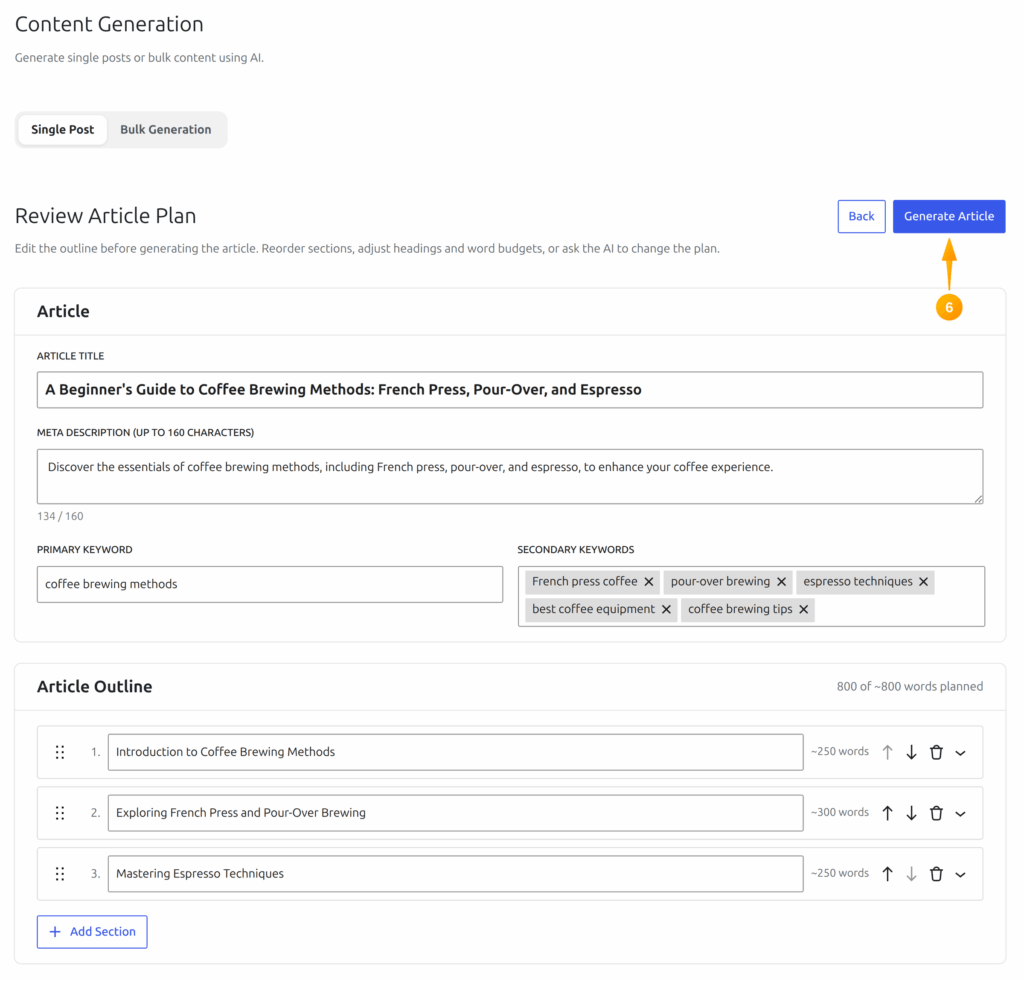
Plan Review Step
The Review Article Plan screen shows:
- Article Title, Meta Description, Primary Keyword, and Secondary Keywords — all editable
- Article Sections — each with a heading, goal, keywords, notes, and target word count (drag to reorder)
- Plan Instructions — ask AI to modify the plan, then click Apply to Plan or Regenerate Plan
- Generate Article — starts section-by-section draft generation from the plan
Content Types
On the topic step, Content Type tiles select which built-in plan prompt is active:
- Article — SEO article or blog post
- WooCommerce Product — product description and metadata (shown when the Product post type is available)
- How-to Guide — step-by-step tutorial
- Top List — Top-N roundup with a verdict
- Review — review or comparison
- News — news article or press release
Custom plan prompts can also be managed under Advanced Settings → Prompts for Plan Generation.
Expert Mode
The plan schema can include extra editorial fields (target audience, search intent, key questions, content angle, recommended tone, structure notes, practical examples). The Expert Mode toggle in Advanced Settings is temporarily disabled in the current UI while the feature is being reworked; backend support remains in place for future releases.
SEO Analysis Integration
When the SEO Analysis module is enabled, the Competitor Analysis Assistant is embedded directly on the Single Post topic step (above the topic field) — it is not a separate screen. Use it to:
- Research competitors for a focus keyword (Yandex Search API and/or OpenRouter Sonar models, depending on configuration)
- Select competitor headings and keywords to guide the plan
- Pass that research into plan generation so the primary keyword and outline reflect your choices
Selected research can also appear on the plan review step under Competitor Research. See SEO Analysis for provider setup details.
Article Block Renderer
The final draft uses a structured JSON block format internally, which is then rendered into proper WordPress blocks (Gutenberg) or HTML (Classic Editor). Supported block types include headings, paragraphs, lists, callouts, tables, image placeholders, and separators. This keeps formatting consistent when the draft is saved.
Plan Based Content Generation Workflow Checklist
The plan based content generation workflow should be treated as a repeatable process, not a one-time setting. Start by confirming that the SmartyPress AI Engine module related to this page is enabled, then check the default provider, model, language, and post type settings before you run the feature on production content. This keeps generated output predictable and makes it easier to compare results between OpenAI, DeepSeek, OpenRouter, Yandex GPT, and GigaChat.
Use this checklist whenever you document, test, or train another editor on Plan-Based Content Generation. It helps keep the setup aligned with WordPress permissions, Rank Math SEO fields, and the editorial workflow used by your site. If a result looks different from what you expected, repeat the same checklist with a smaller prompt and a lower temperature before changing global settings.
- Confirm that the required SmartyPress AI module is enabled in the Components screen.
- Open Settings and verify that the selected provider has a valid API key and a tested connection.
- Choose the model that fits the task: fast models for drafts, premium models for final marketing copy, and web-search models for research.
- Review the output language, temperature, max tokens, and prompt variables before generating content.
- Save the result as a draft first, then review headings, links, facts, and SEO fields before publishing.
Recommended Settings
For most plan based content generation tasks, start with a balanced model such as GPT-4o Mini, GPT-4o, DeepSeek Chat, or a carefully selected OpenRouter model. Keep temperature around 0.5 to 0.8 for documentation and tutorials, because these pages need clarity more than experimentation. Increase temperature only when you need more creative headlines, introductions, or alternative wording.
Use a clear default language and keep prompt variables consistent across articles. For documentation pages, a neutral or professional writing tone usually works best. If the generated result is too short, increase the article length preset (or custom word count) rather than asking the model to “write more” after the fact. Structured settings create more stable output and make Plan-Based Content Generation easier to reproduce later.