Claude Provider is the focus of this documentation page. Set up Anthropic Claude for text generation, JSON workflows, and image analysis for ALT metadata.
Claude is available on every site locale alongside OpenAI, Deepseek, and OpenRouter. The plugin talks to the Anthropic Messages API (https://api.anthropic.com/v1/messages) using your Anthropic API key. Setup takes under 2 minutes.
Getting Your Claude API Key
- Sign in to platform.claude.com (Claude Console).
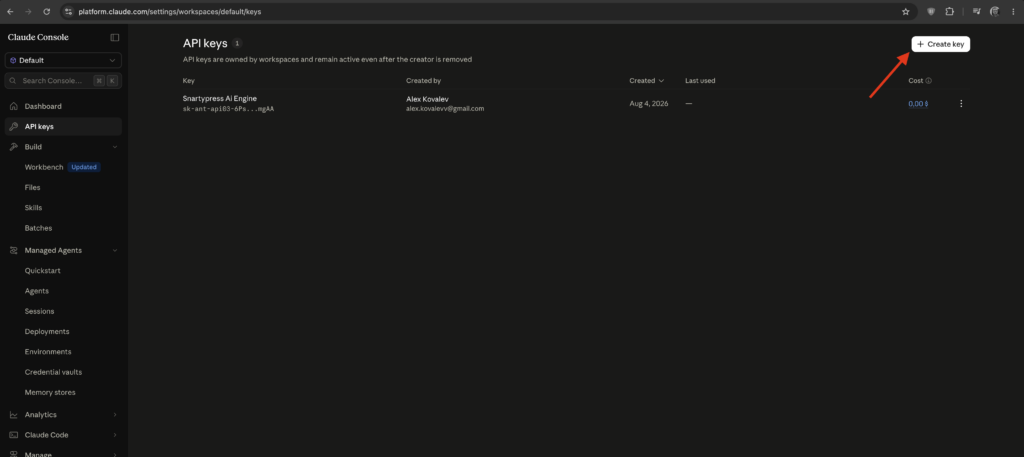
- Open API keys in the left sidebar, or go directly to platform.claude.com/settings/workspaces/default/keys. From the dashboard you can also click Get API key in the top bar.
- Click + Create key.
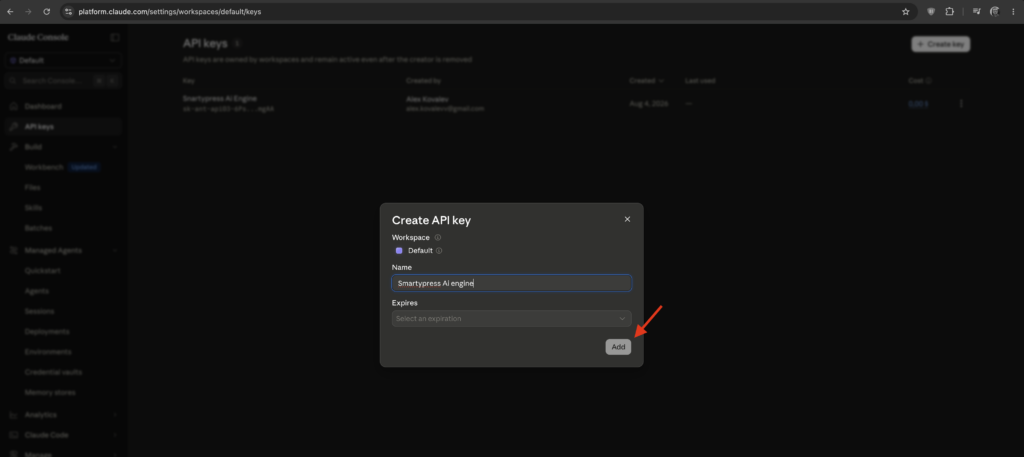
- In the Create API key modal fill:
- Name — for example,
SmartyPress AI Engine - Workspace — usually Default
- Expires — optional; choose an expiration date if you want the key to expire
- Name — for example,
- Click Add, then copy the key immediately — it starts with
sk-ant-and the full value is shown only once. - If needed, return to the dashboard and click Add funds so API requests are accepted.
Tip: Create and manage keys at platform.claude.com/settings/workspaces/default/keys. Sign in to the Claude Console, open API keys, click + Create key, fill the form, then copy the secret once. Add organization credits before testing the connection from SmartyPress.
Configuring in SmartyPress
- Go to SmartyPress AI → Settings (
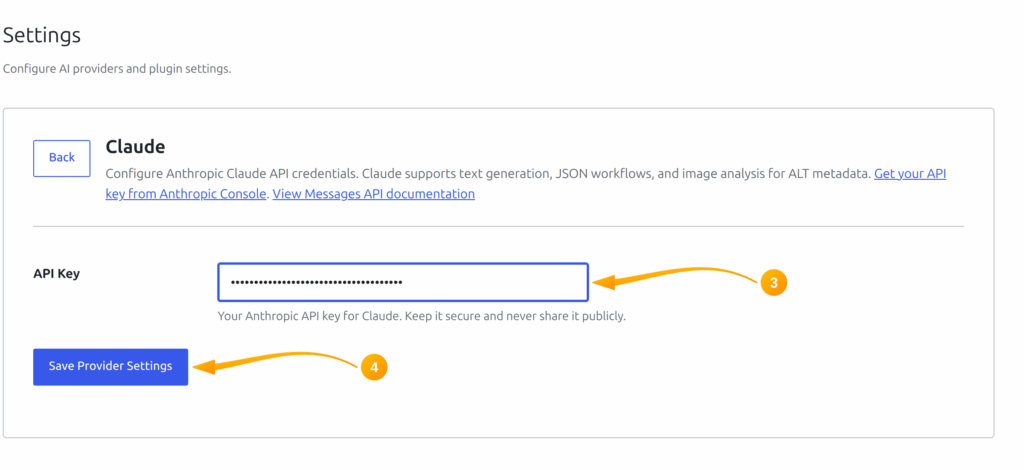
#/settings). - Open the Claude provider card in AI Providers.
- Paste your key into the API Key field. The Claude card has only this credential field.
- Click Save Provider Settings — SmartyPress saves the key and automatically tests the connection (
smartypress/v1/settings/test-provider). There is no separate Test Connection button. - Return to Settings and, under General Settings, choose Default Provider = Claude and a Default Model (Claude Sonnet 5 is the plugin default). Click Save Changes.
API details: Requests use header
x-api-key (not Bearer) and anthropic-version: 2023-06-01. When a workflow asks for JSON output, the plugin appends a strict “return only a valid JSON object” instruction to the system prompt, because Anthropic does not use OpenAI-style response_format.
Available Models
Claude models are a static list shipped with the plugin (not fetched from Anthropic at runtime). Every model below supports text output and image input (vision). Current Claude 5 models match the lineup on platform.claude.com:
| Model | API ID | Type | Best For |
|---|---|---|---|
| Claude Fable 5 | claude-fable-5 |
Premium / Reasoning | Highest widely available capability — long-horizon agents and the hardest tasks |
| Claude Opus 5 | claude-opus-5 |
Premium / Reasoning | Complex writing, analysis, and agentic coding at Opus pricing |
| Claude Sonnet 5 | claude-sonnet-5 |
Premium / Reasoning | Default plugin model — best balance of speed and intelligence |
| Claude Haiku 4.5 | claude-haiku-4-5 |
Budget | Fastest near-frontier option for drafts and bulk work |
| Claude Opus 4.8 | claude-opus-4-8 |
Premium / Reasoning | Previous Opus generation still available for compatibility |
| Claude Opus 4.7 | claude-opus-4-7 |
Premium / Reasoning | Earlier Opus 4.x retained for compatibility |
| Claude Opus 4.6 | claude-opus-4-6 |
Premium / Reasoning | Earlier Opus 4.x retained for compatibility |
| Claude Sonnet 4.6 | claude-sonnet-4-6 |
Premium / Reasoning | Previous Sonnet generation retained for compatibility |
| Claude Sonnet 4.5 | claude-sonnet-4-5 |
Premium / Reasoning | Earlier Sonnet 4.x retained for compatibility |
| Claude Opus 4.5 | claude-opus-4-5 |
Premium / Reasoning | Earlier Opus 4.x retained for compatibility |
Capabilities: Claude in SmartyPress supports text generation and vision (image → text). It does not provide image generation models. In Settings, expensive models are marked with 💰 and reasoning models with 🧠 in the Default Model control.
Where Claude Is Used
- Text generation — any SmartyPress text workflow that uses the selected / default AI provider
- JSON workflows — structured responses when a feature requests JSON output (system prompt gets a strict JSON-only instruction)
- Image ALT Generator — Claude is a vision provider alongside OpenAI and OpenRouter. The module message lists “OpenAI, OpenRouter, or Claude” for image analysis. When vision mode is enabled, you can choose Claude as the Vision provider and pick a Claude model with image input
- Default provider — after the key is connected, Claude can be selected as the site-wide default in General Settings
Tip: You can keep OpenAI, DeepSeek, Claude, and OpenRouter configured at the same time. Use Claude Haiku 4.5 for fast drafts, Claude Sonnet 5 for everyday work, and Claude Opus 5 or Claude Fable 5 when you need higher-quality final copy or careful image ALT metadata.