SmartyPress AI Engine is a free AI engine for WordPress that writes posts, draws images, fills in ALT text and repairs SEO checks — all inside the admin you already use. There is no subscription and no credit pack: you connect your own provider key, and the plugin charges nothing on top. This guide walks through every module in version 1.0.27, screen by screen, so you can decide what to switch on and what to leave alone.
What SmartyPress AI Engine Actually Does
Most AI plugins for WordPress do one thing: they add a “generate text” button and bill you monthly for the privilege. SmartyPress takes the opposite shape. It is a set of five independent modules sitting on a shared provider layer, and each module covers a different chore that eats an editor’s afternoon.
- Content Generator — titles, excerpts, full articles, editable plans, and bulk runs of up to 50 posts.
- Magic Wand — inline editing on a single block: rewrite, expand, fix grammar, summarise, translate.
- Image Generator — images from a text prompt, saved to the Media Library with their metadata already written.
- Image ALT Generation — ALT text, captions, titles and descriptions for the library, in bulk or automatically on upload.
- SEO Analysis and SEO Optimization — competitor research before writing, and one-click AI fixes for failing SEO tests afterwards.
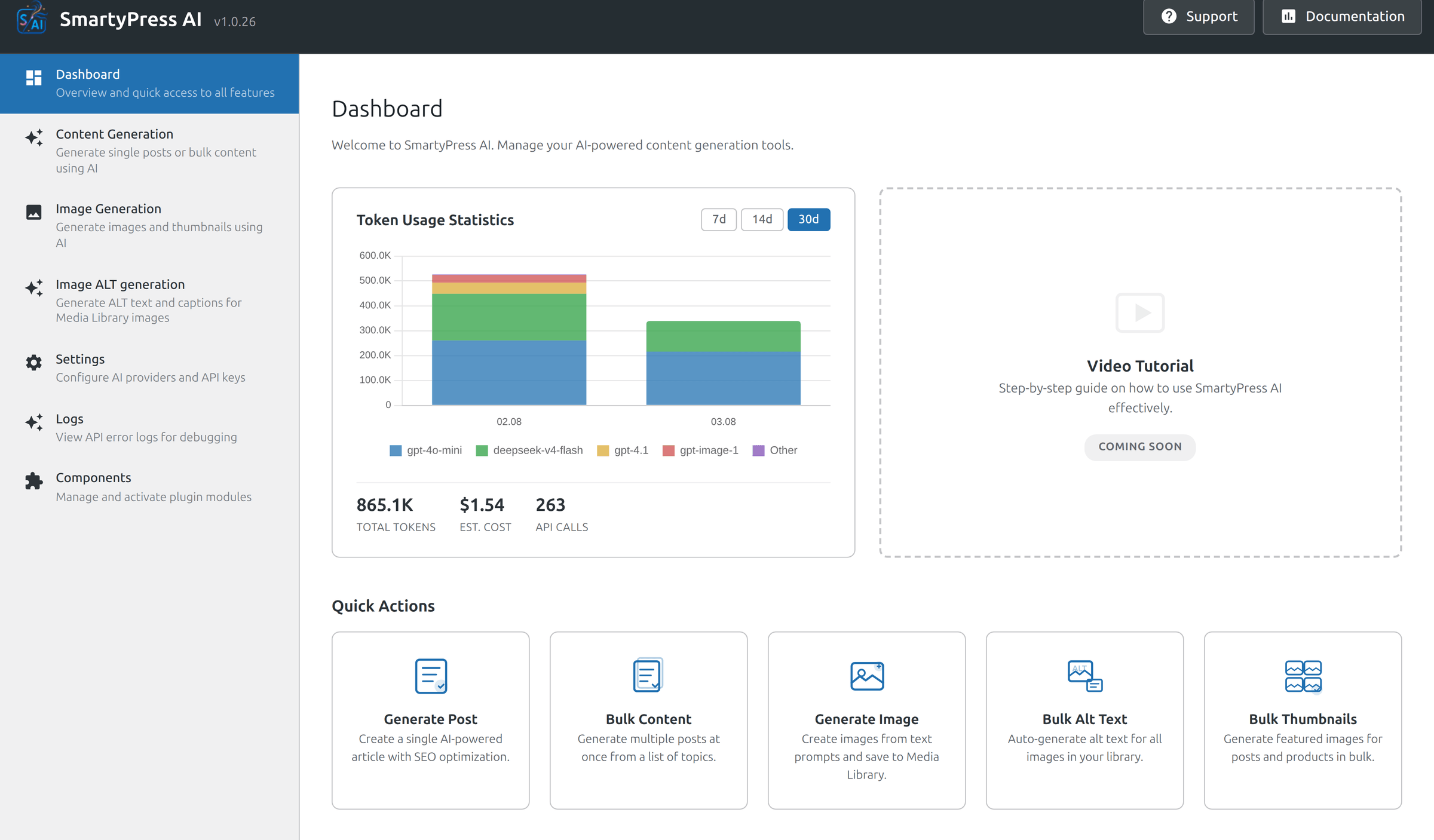
The dashboard is the map of all of it: modules on the left, token spend on the right, so the first thing you see after activation is what the plugin can do and what it has cost you so far.
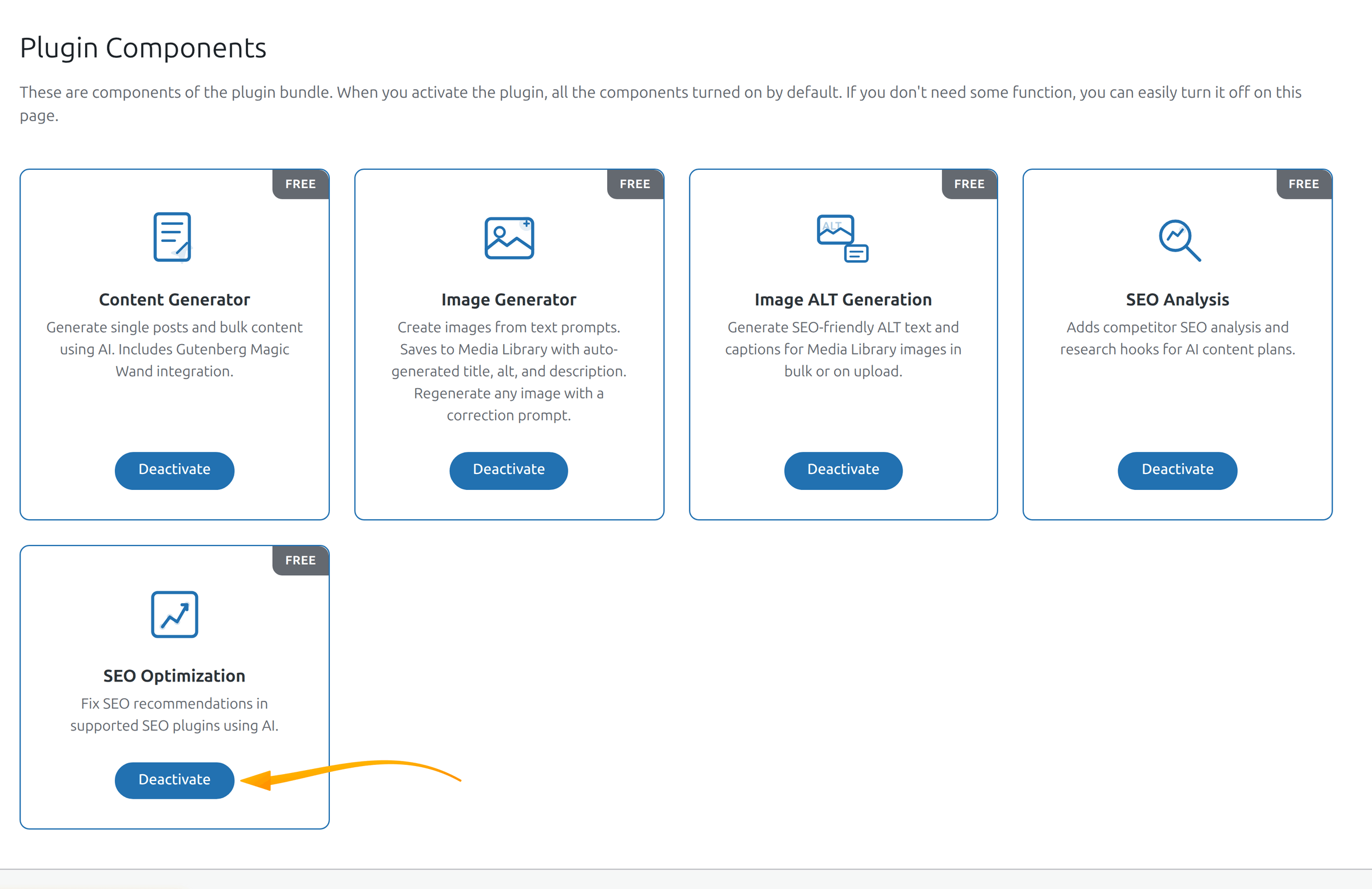
Modules are not a marketing list — each one is a real switch on the Components page. If you only came for ALT text, turn the other four off and the plugin stops loading their assets entirely. Nothing about the editor changes for features you are not using.
Why a Free AI Engine for WordPress Is Not a Trick
“Free” in the AI plugin market usually means a trial: a handful of generations, then a paywall priced per word. SmartyPress is free in the plain sense — GPL, published on WordPress.org, no seat limits, no credit balance inside the plugin, no upsell screen. What costs money is the model itself, and you pay the model’s owner directly with your own API key.
That arrangement is worth understanding before you start, because it changes how you budget. A generated title runs roughly $0.001–$0.01. A full 500–1000 word article lands around $0.02–$0.10 on OpenAI models, and considerably less on DeepSeek, which is an order of magnitude cheaper for the same job. You are not buying a plan sized for your worst month; you pay for the requests you actually make.
Installing the Plugin
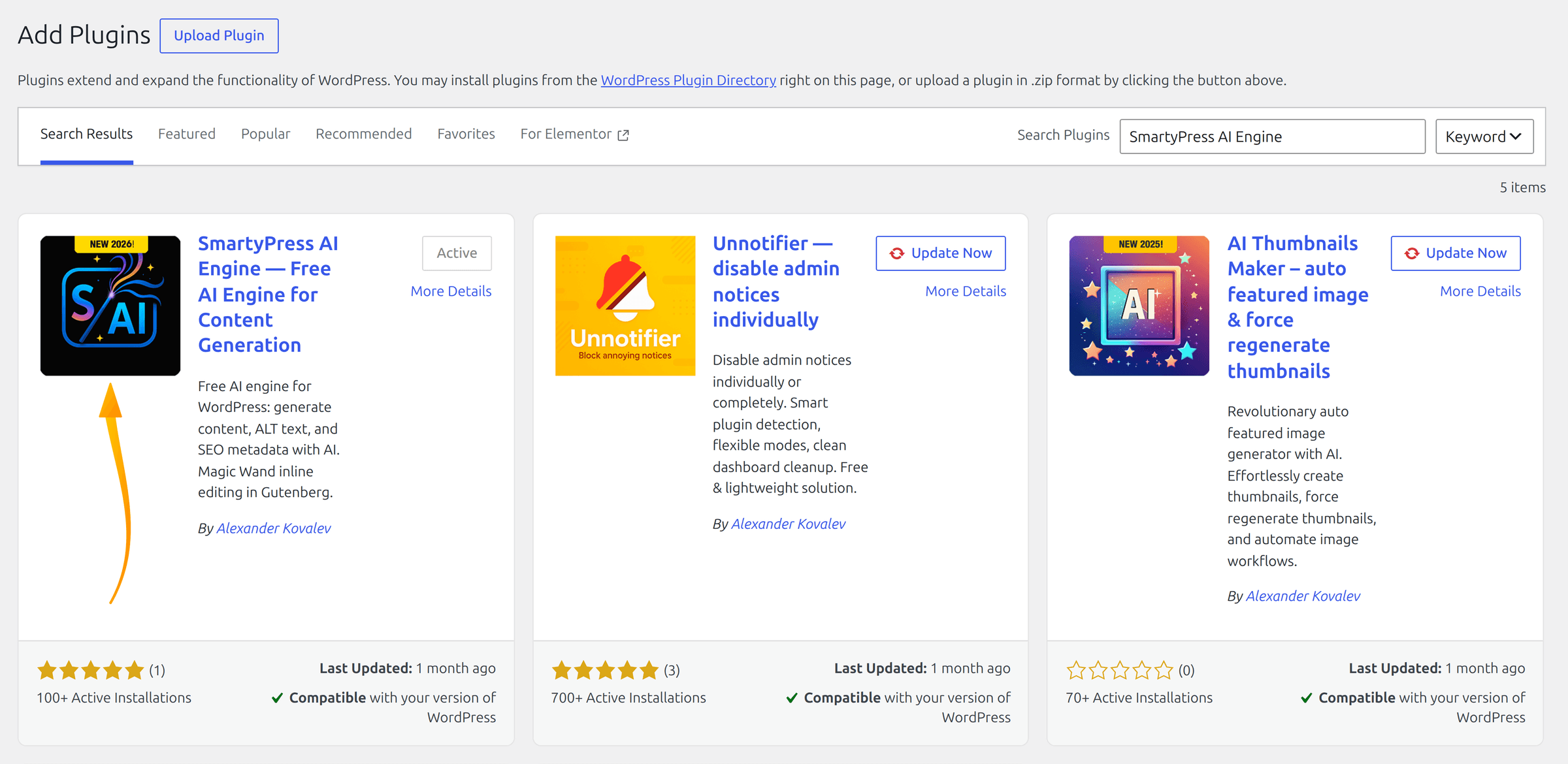
Installation is the ordinary WordPress route. Open Plugins → Add New, search for SmartyPress AI Engine, install and activate. The plugin needs WordPress 6.2 or newer and PHP 7.4 or newer, which any maintained host clears.
After activation a SmartyPress AI item appears in the admin sidebar with its own sub-pages: Content Generation, Image Generation, Image ALT Generation, Components, Logs and Settings. One caveat worth handling immediately — if your permalinks are set to “Plain”, the REST endpoints the admin screens rely on will not resolve. Set any other structure in Settings → Permalinks and the notice goes away. The installation and activation reference covers the ZIP route and system requirements in more detail.
Connecting a Provider: Seven Options Behind One Interface
Nothing generates until a provider has a key. SmartyPress speaks to seven of them, and they are not interchangeable in practice — each is good at something different.
| Provider | Best for | Worth knowing |
|---|---|---|
| OpenAI | Text, images, vision for ALT | The only card with a proxy field, for regions where the API is blocked |
| DeepSeek | Bulk runs and drafts | 10–50× cheaper than OpenAI for comparable text |
| Anthropic Claude | Long text, JSON workflows, vision | Key only, no proxy option |
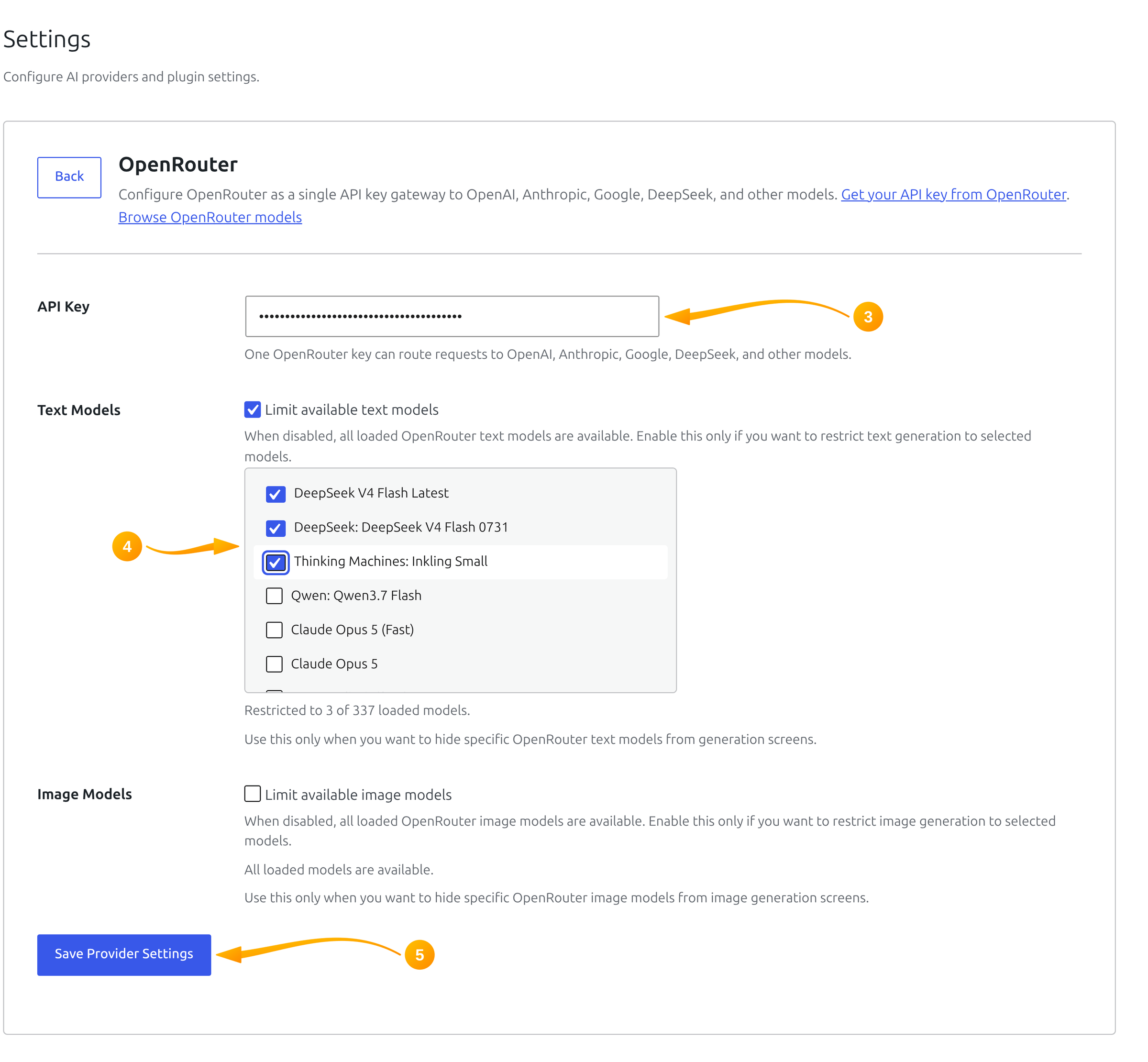
| OpenRouter | Trying many models cheaply | One key routes to 200+ models; you choose which appear in dropdowns |
| YandexGPT / YandexART | Russian-language content | Needs a service account key and Folder ID; visible only on ru_RU sites |
| GigaChat | Russian-language content | Authorization key plus scope; also ru_RU only |
All of them live on one screen. SmartyPress AI → Settings opens with provider cards on top and the general settings — default provider, model, language, temperature — underneath.
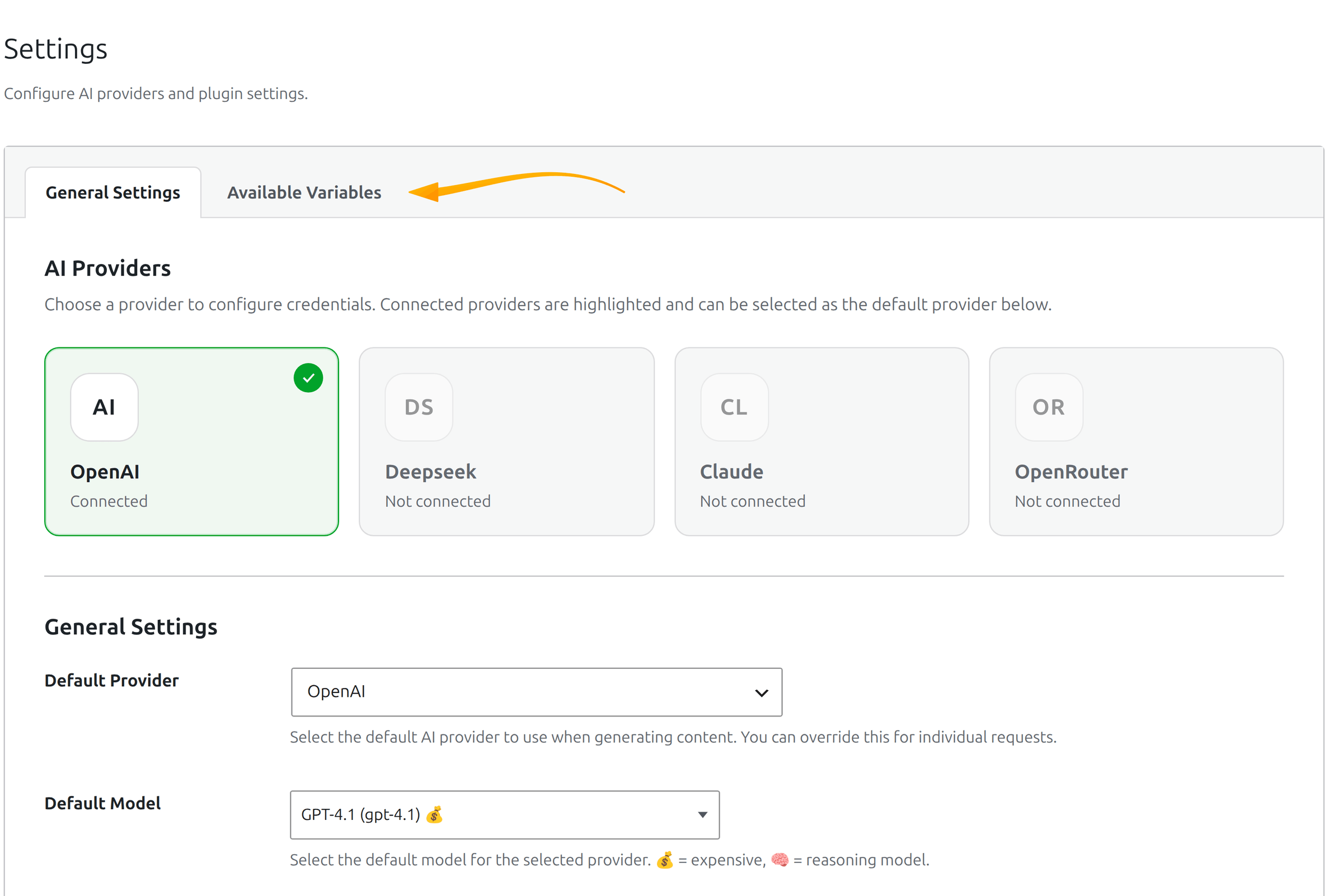
A card asks for a key and, where the provider supports it, a default model. There is no separate “Test connection” button on purpose: saving the card performs the test, so a bad key fails loudly at the moment you paste it rather than three screens later during a generation run.
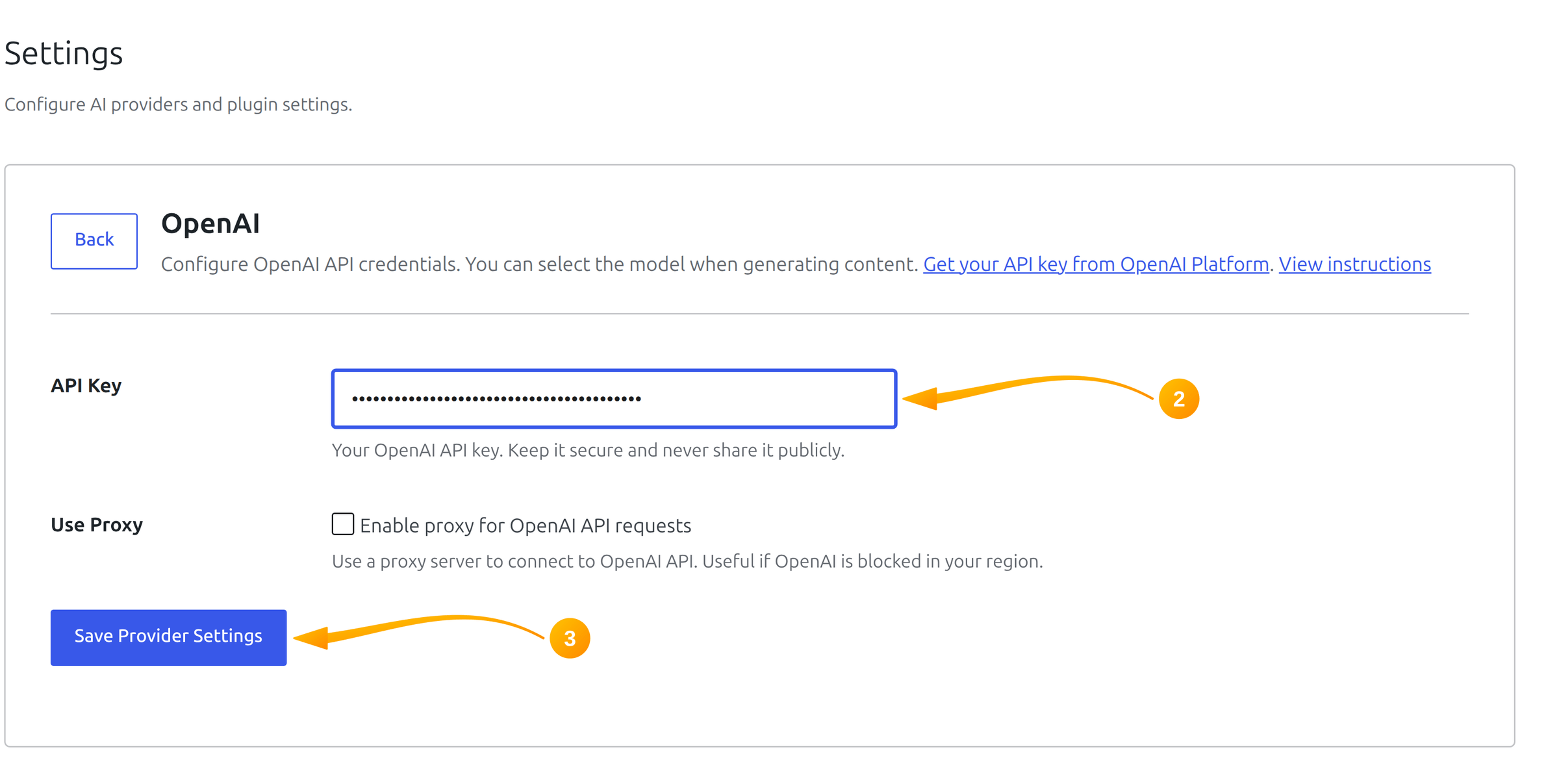
OpenRouter deserves a note of its own. It is an aggregator: one key, and behind it Llama, Mistral, Gemini, Anthropic and dozens more. Left unfiltered, its model list is unusable — hundreds of entries in every dropdown. The provider card is where you pick the handful you actually want to see.
Per-provider setup, including where to click inside each vendor’s console to mint a key, is documented separately: OpenAI, DeepSeek, Claude and OpenRouter.
AI Writer: Actions on the Whole Post
The first button most people press is SmartyPress AI Writer in the editor toolbar. It works on the post as a document rather than on whatever block your cursor happens to be in.
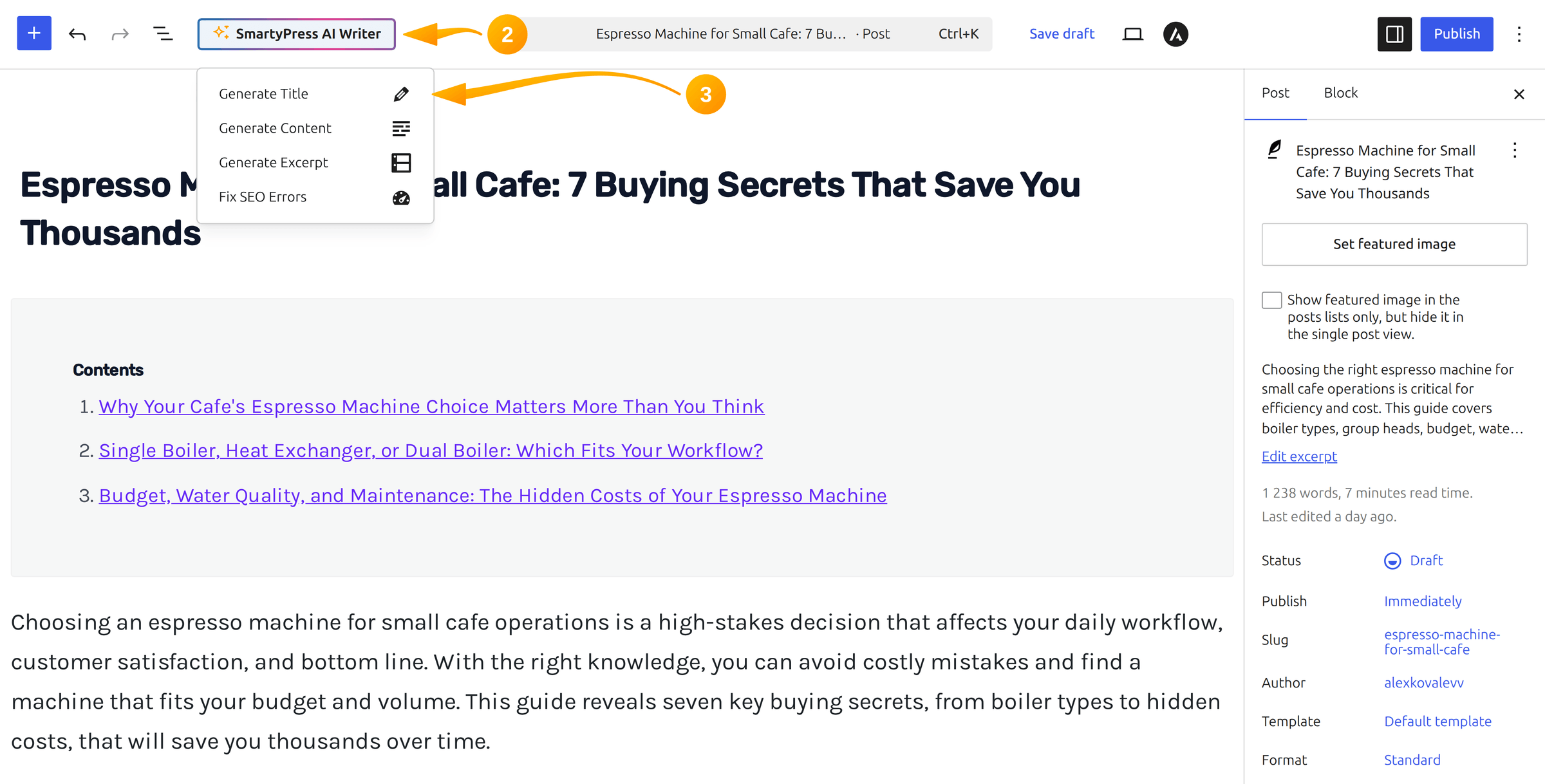
Its dropdown holds four whole-post actions: generate a title, generate content, generate an excerpt, and — once the SEO Optimization module is on — Fix SEO Errors. Title and excerpt generation come back with several variants to choose from instead of overwriting what you have, which is the difference between a suggestion and an accident.
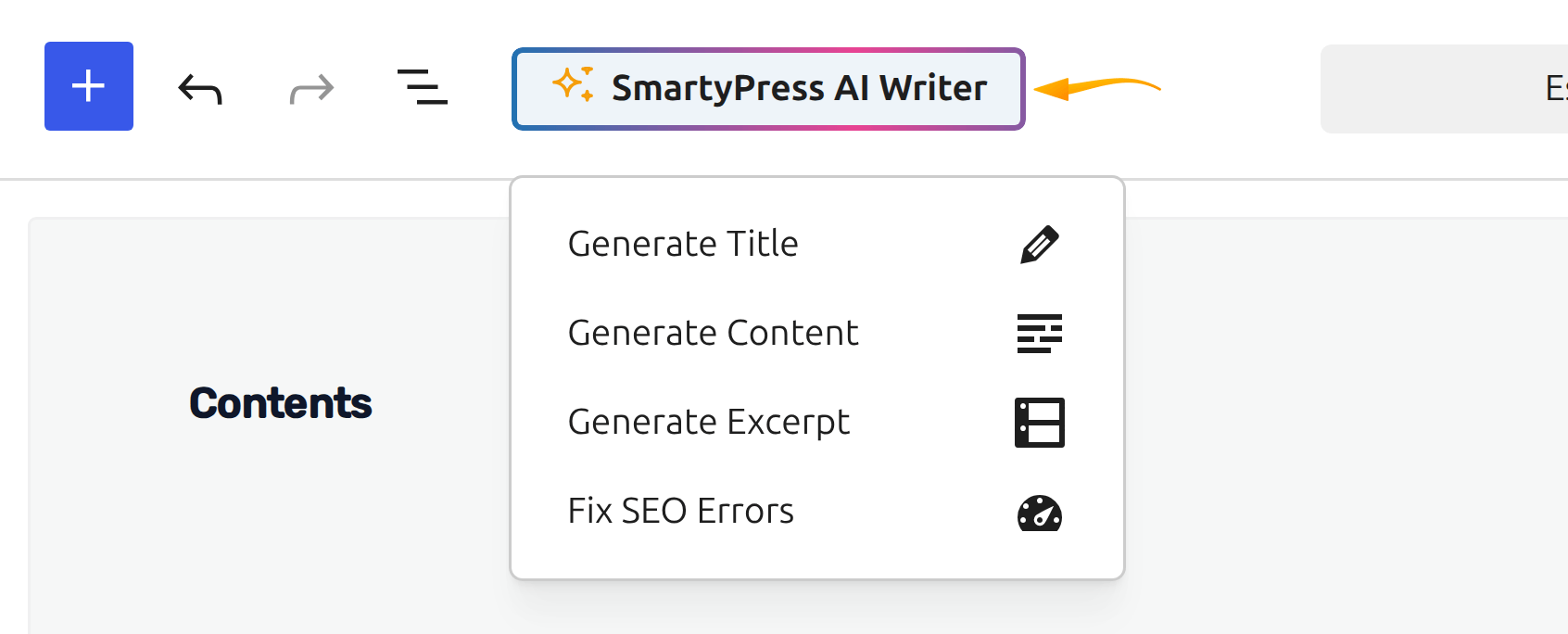
None of this is Gutenberg-only. The Classic Editor gets the same button next to Add Media with three of the four actions, TinyMCE gets its own Magic Wand, and WooCommerce products join in as soon as you enable Products under Enabled Post Types — useful when the job is two hundred product descriptions rather than a blog. See Classic Editor and WooCommerce for the specifics.
Magic Wand: Editing One Block at a Time
Magic Wand is the opposite tool: narrow, surgical, and the one you end up using daily. Select text in a block and a wand icon joins the usual formatting controls in the block toolbar.
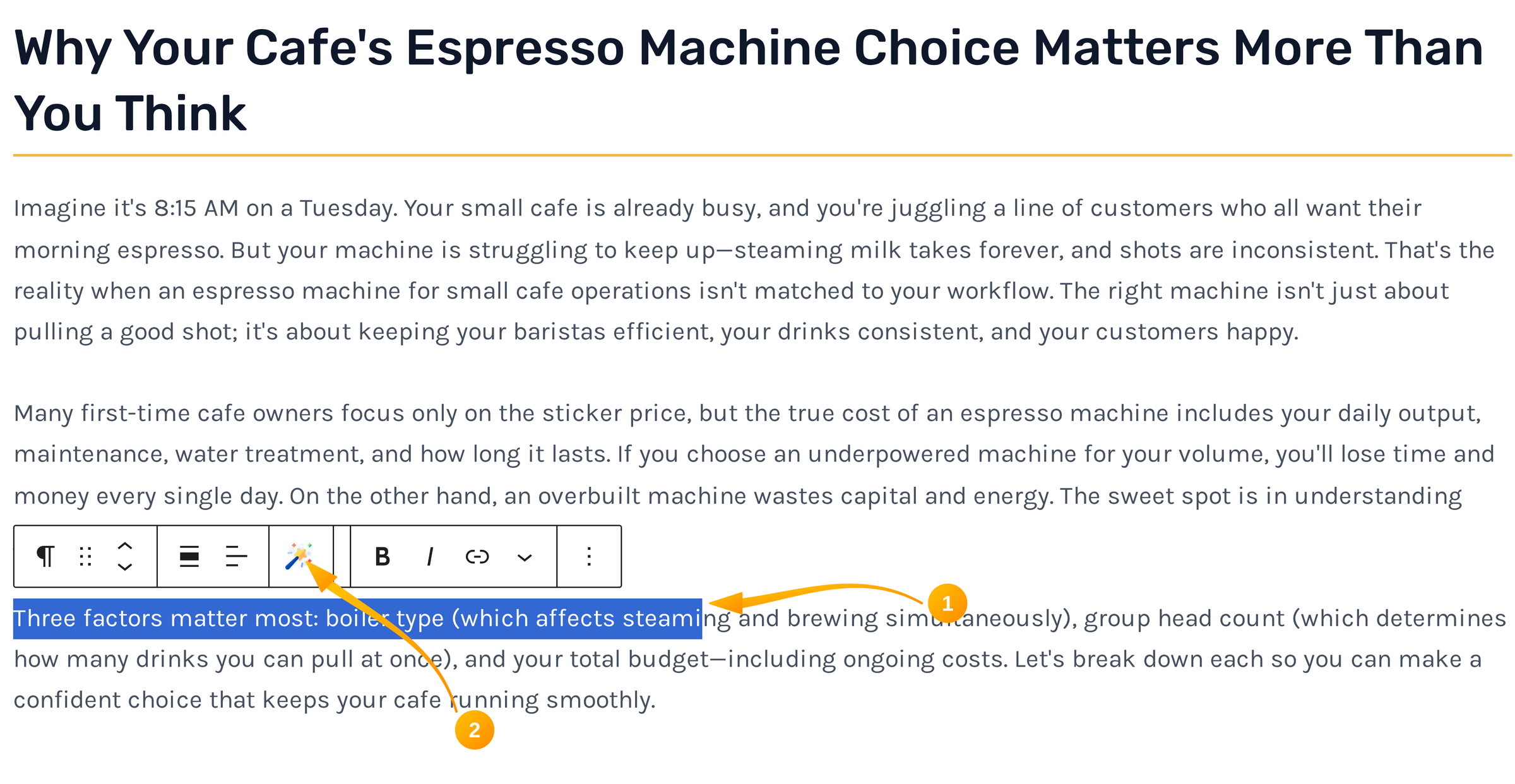
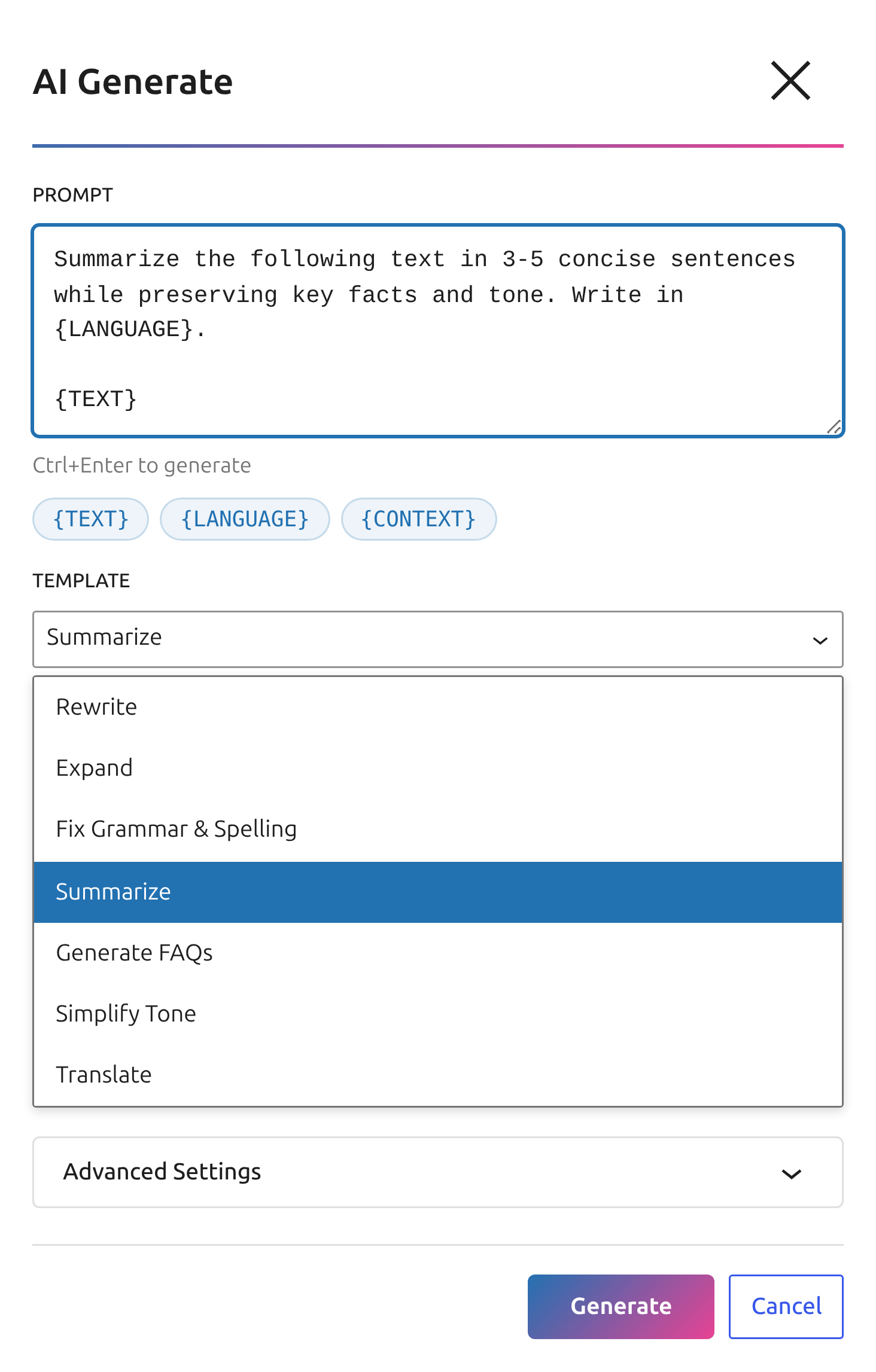
It appears on text blocks only — paragraph, heading, list, quote, code and preformatted — because those are the ones where rewriting means something. Seven prompt templates cover the common asks: Rewrite, Expand, Fix Grammar & Spelling, Summarize, Generate FAQs, Simplify Tone and Translate. Picking one fills the prompt field, and the prompt stays editable, so a template is a starting point rather than a fixed command.
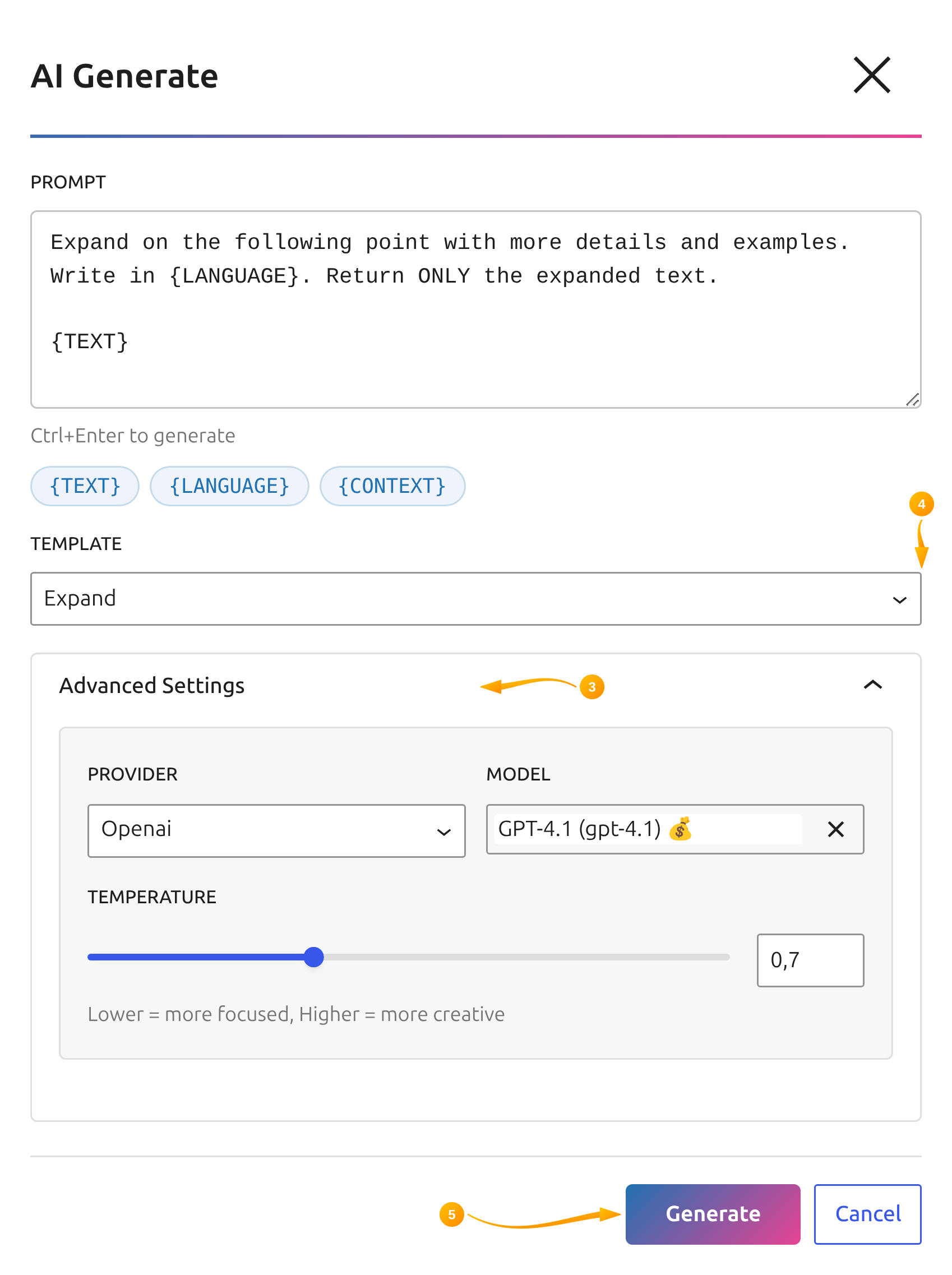
Two details make it safe to use on published text. First, Advanced Settings can override the provider, model and temperature for this single request — a stronger model for one stubborn paragraph without touching global settings. Second, nothing is written until you approve it: the modal shows a compare view with removals and additions marked, and Apply, Re-generate and Cancel all do exactly what they say.
Single Post Generation: Plan First, Draft Second
Ask any chat window for “an article about X” and it decides your heading order, section lengths and emphasis in one pass, before you can object. SmartyPress AI → Content Generation inverts that. Step one is a topic and a content type; what comes back is a plan, not prose.
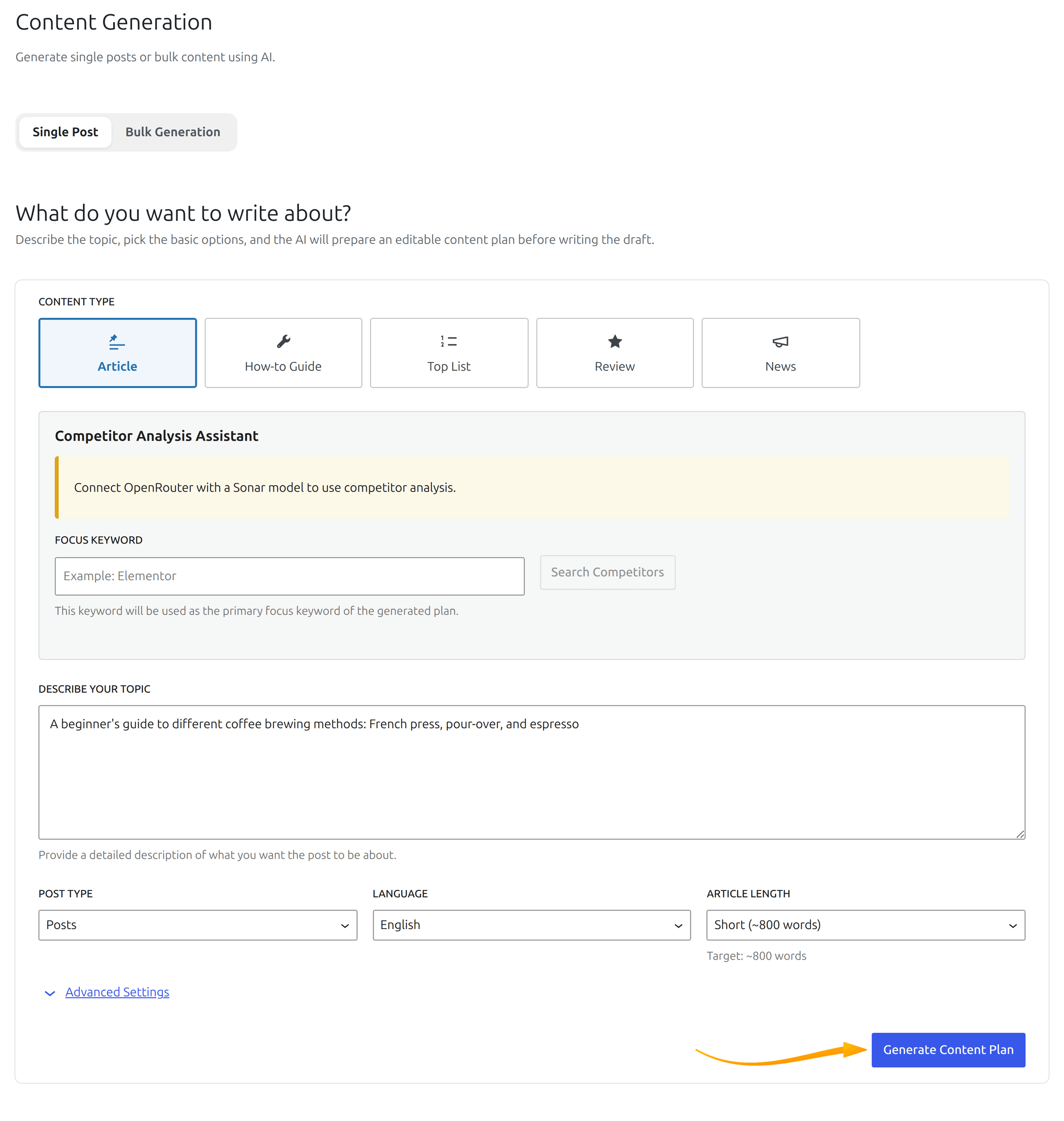
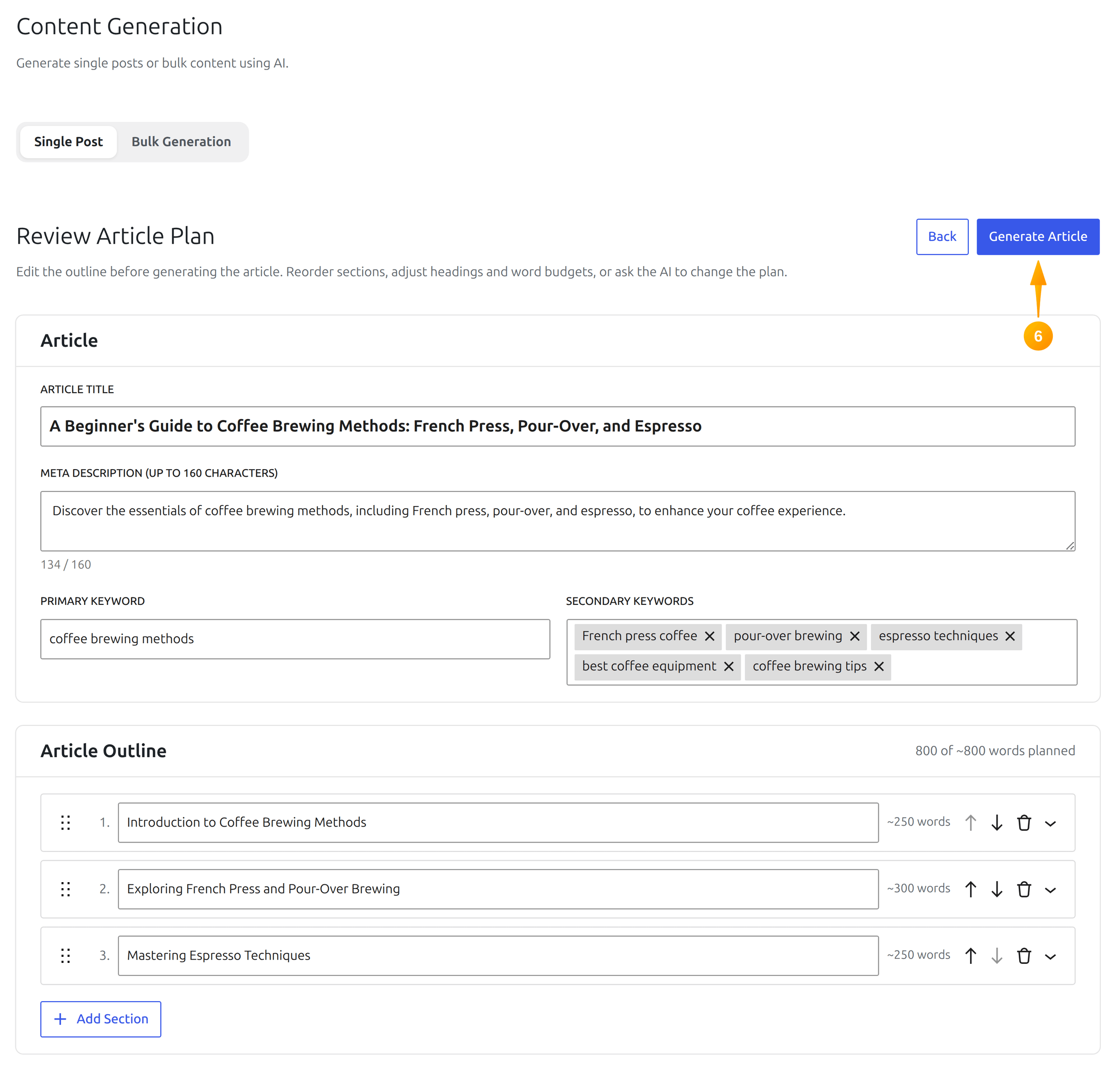
The plan is fully editable: title, meta description, keywords, the section outline and the word budget per section. Reordering a heading or cutting a section costs a second here, and rather more once it has become three paragraphs the model had to research and connect to its neighbours. Advanced Settings on the same step choose the provider and model for both the plan and the draft, and let you edit the plan prompt itself.
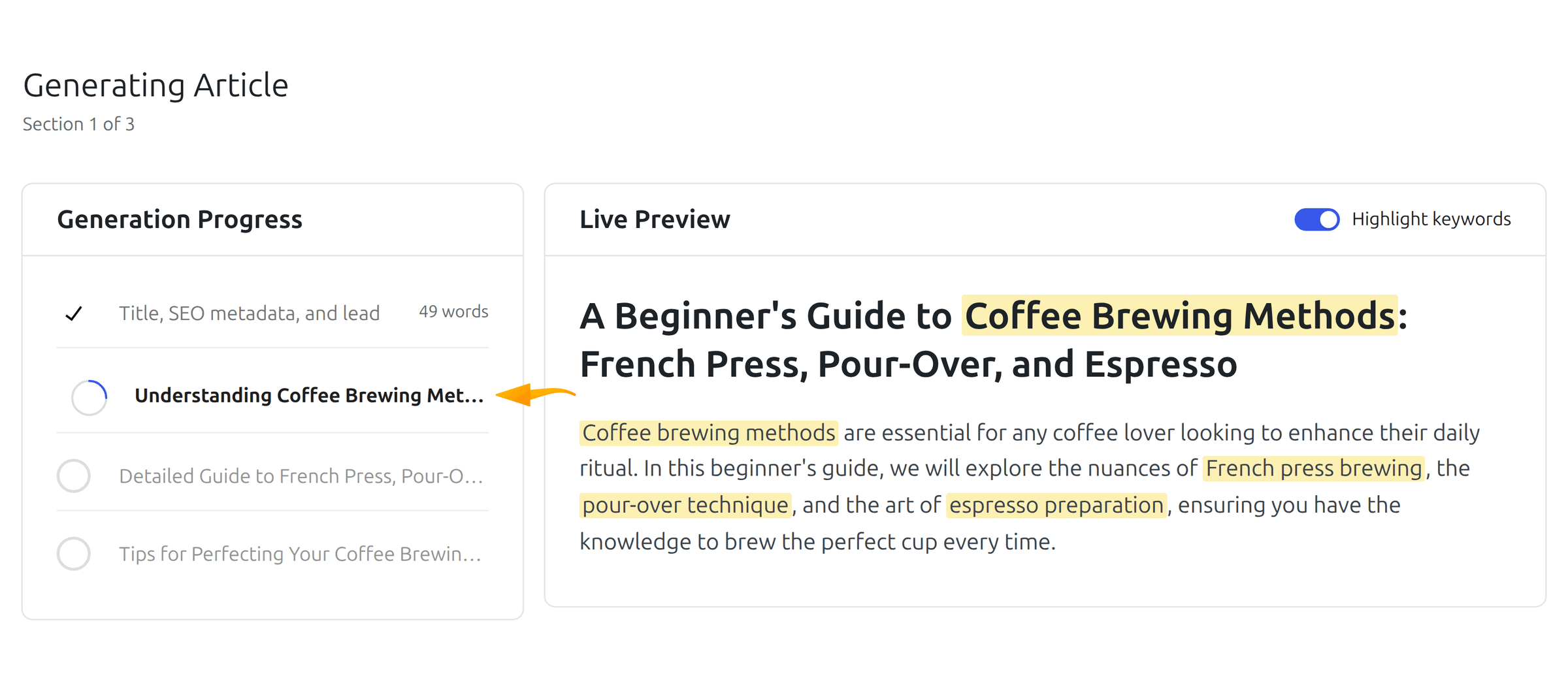
Approve the plan and the draft is written section by section, with a live preview filling in as it goes — so a wrong turn is visible while it happens rather than after a five-minute wait.
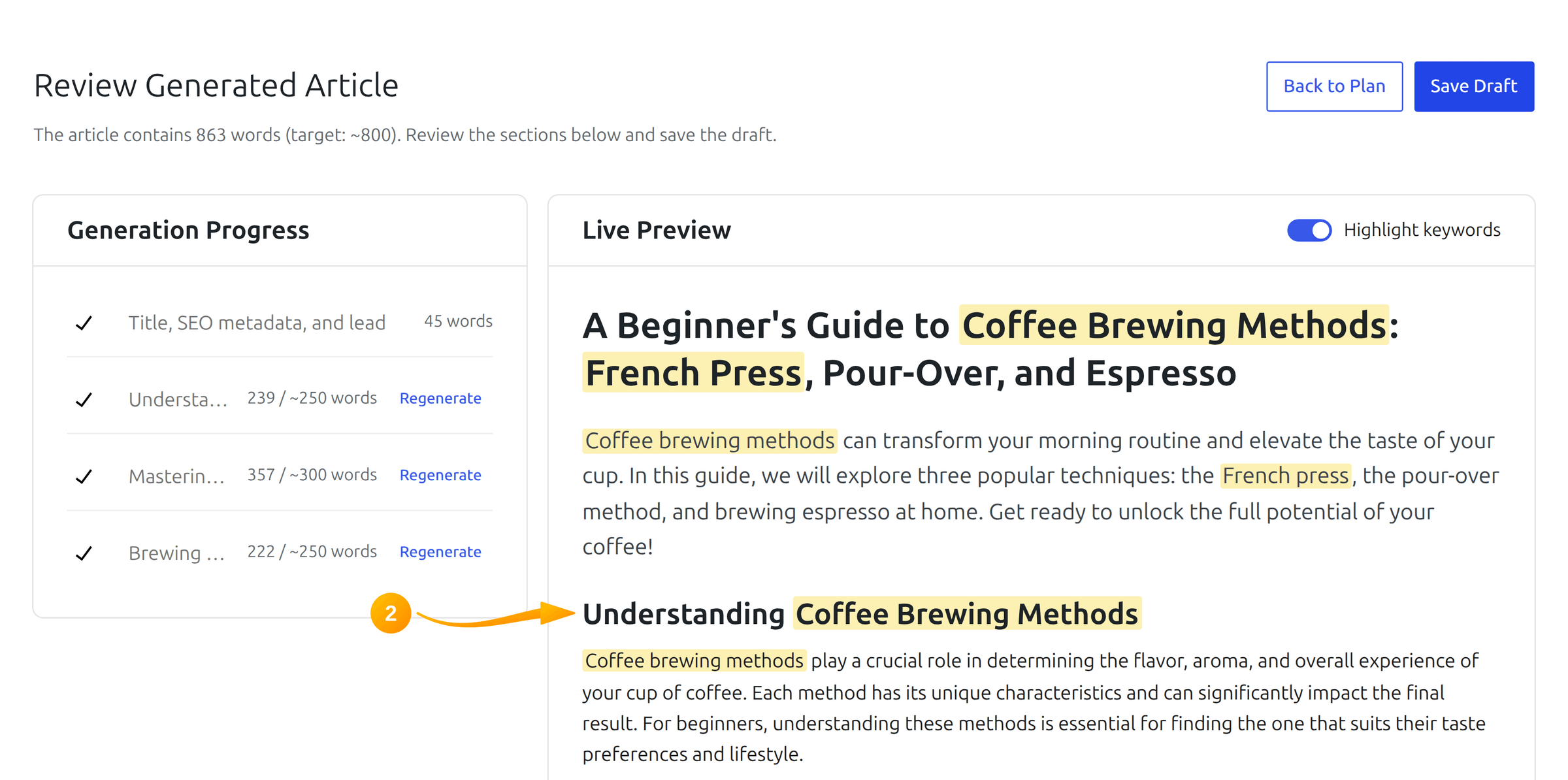
The last step is a review screen. Any single section can be regenerated on its own, and only Save Draft creates the actual post. Nothing lands in your posts list unless you put it there.
Plan-Based Generation, Expert Mode and Competitor Research
The plan step is a feature in its own right, not a formality on the way to a draft. Expert Mode exposes the knobs behind it, and the plan review screen is where an editor’s judgement is actually applied — word budgets per section, keyword placement, a title that fits the SERP rather than the model’s habits.
Plan generation can also pull in research. With SEO Analysis configured, the plugin looks at what already ranks for your topic and enriches the plan with keyword gaps, title patterns and headings competitors cover but you do not. That happens before a word is written, which is the only point where the information is still cheap to act on. Details in SEO Analysis for Content Plans.
Bulk Post Generation: Up to 50 Drafts in One Run
When the unit of work is a content calendar rather than an article, the Bulk Generation tab takes a topic list — one topic per line, up to 50 — and shows a preflight preview before anything is sent to a provider.
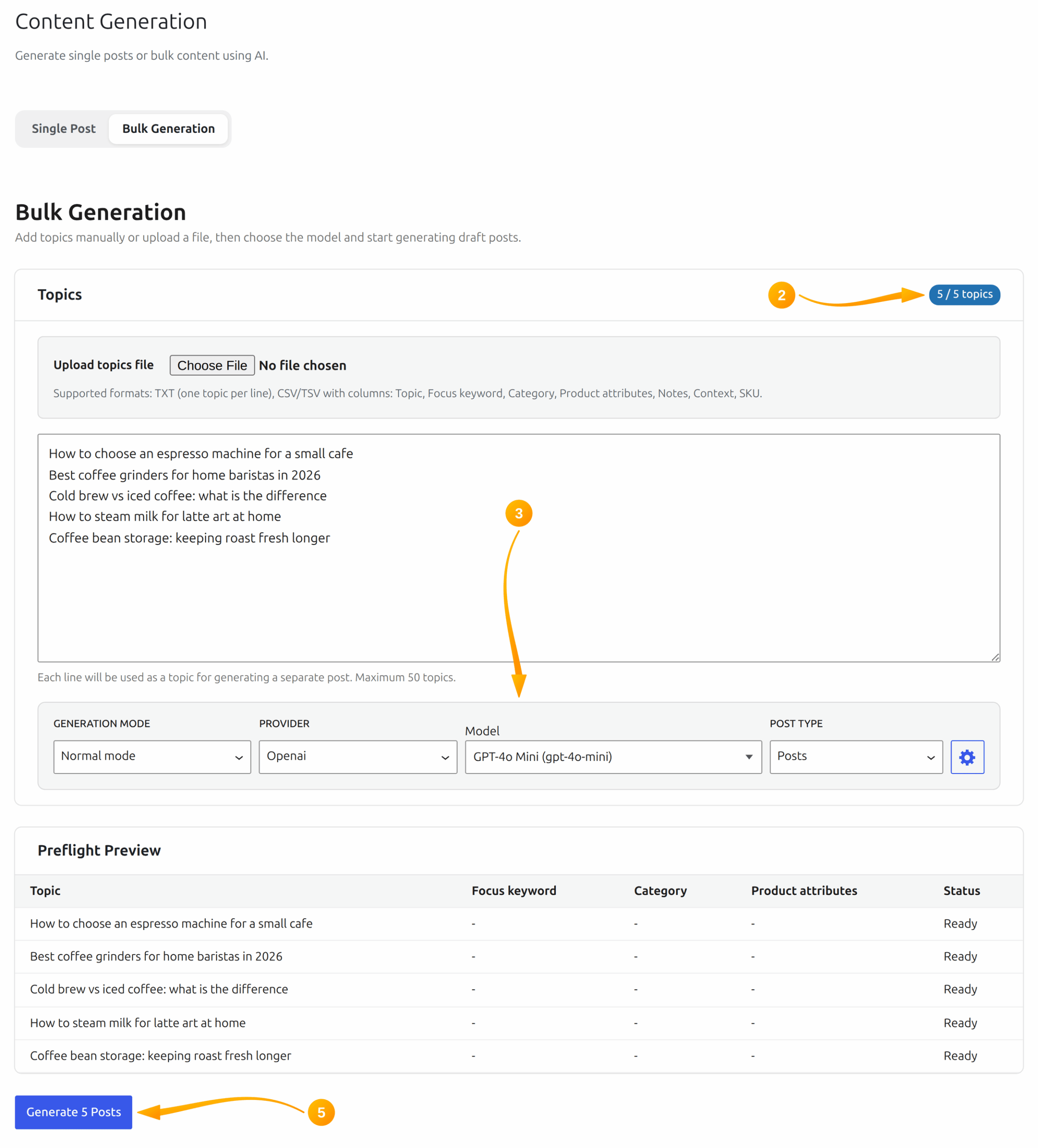
Topics are then processed in turn with real-time progress. The run can be paused or cancelled mid-flight, and failed items can be retried from the job controls; some providers, OpenRouter among them, also retry rate-limited requests on their own. Everything arrives as drafts, which is the only sane default for fifty posts nobody has read yet.
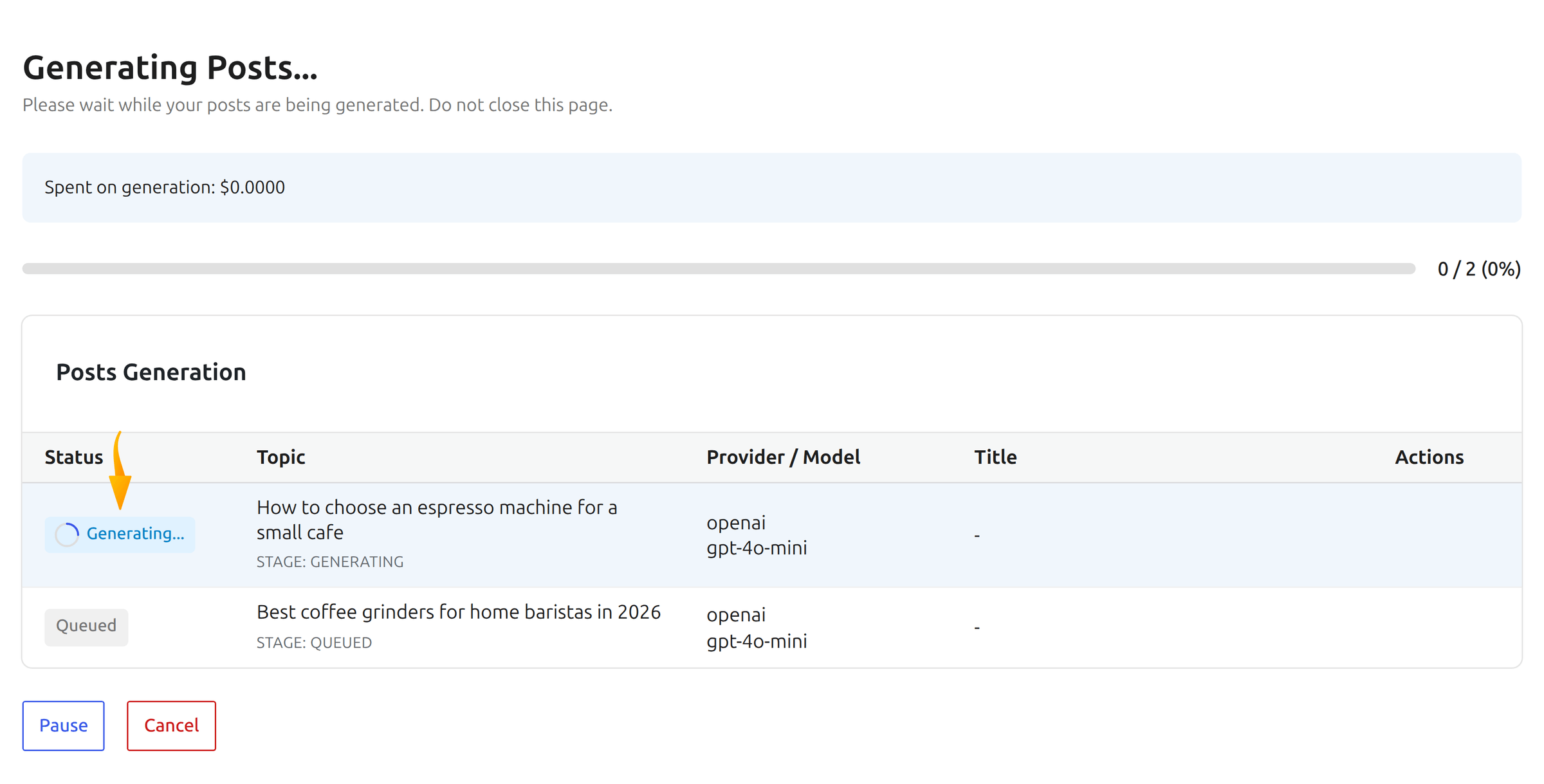
Image Generation: Prompt In, Media Library Out
Text is only half of a published post. SmartyPress AI → Image Generation takes a description, plus a provider, model and aspect ratio from the sidebar, and returns an image.
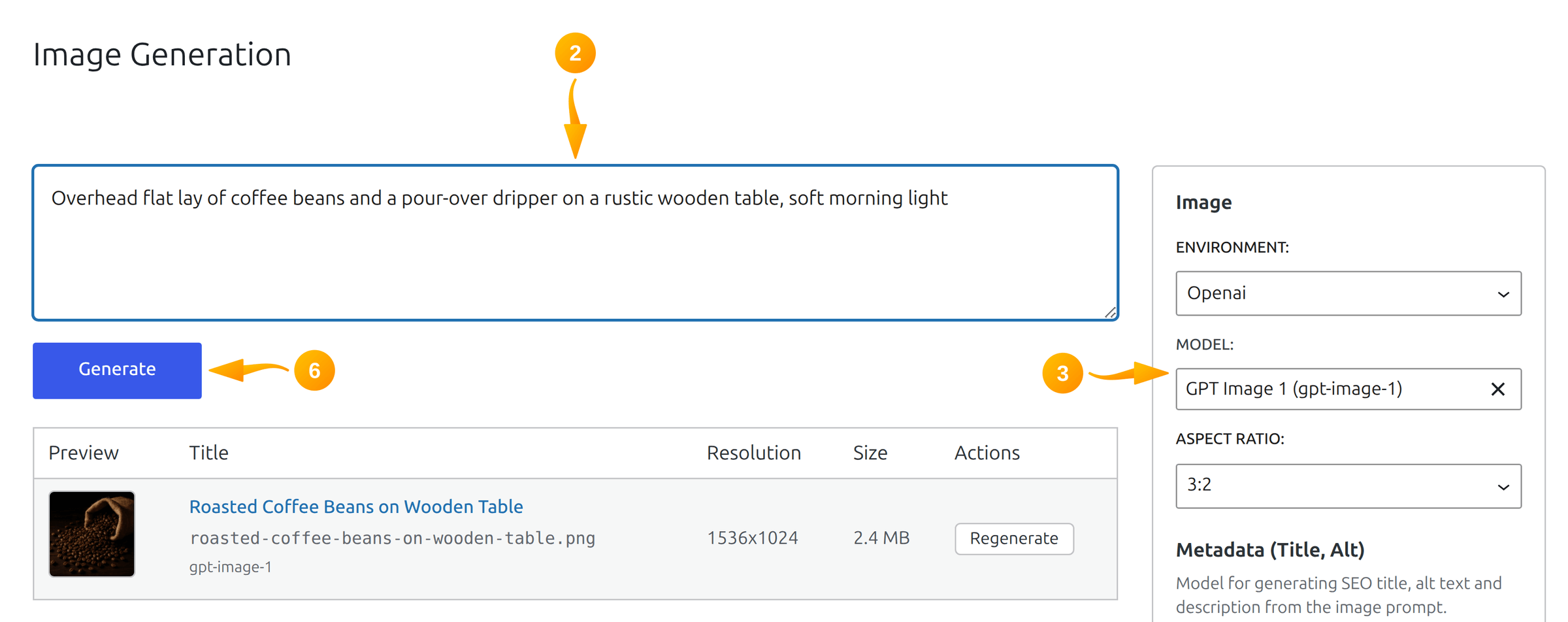
What separates this from a standalone image tool is what happens after the pixels arrive. Title, ALT text and description are generated with the image and written to the attachment, so a file that would normally land in the library nameless and undocumented arrives ready for both search engines and screen readers. Each result also shows the model, resolution and file size next to a Regenerate action.

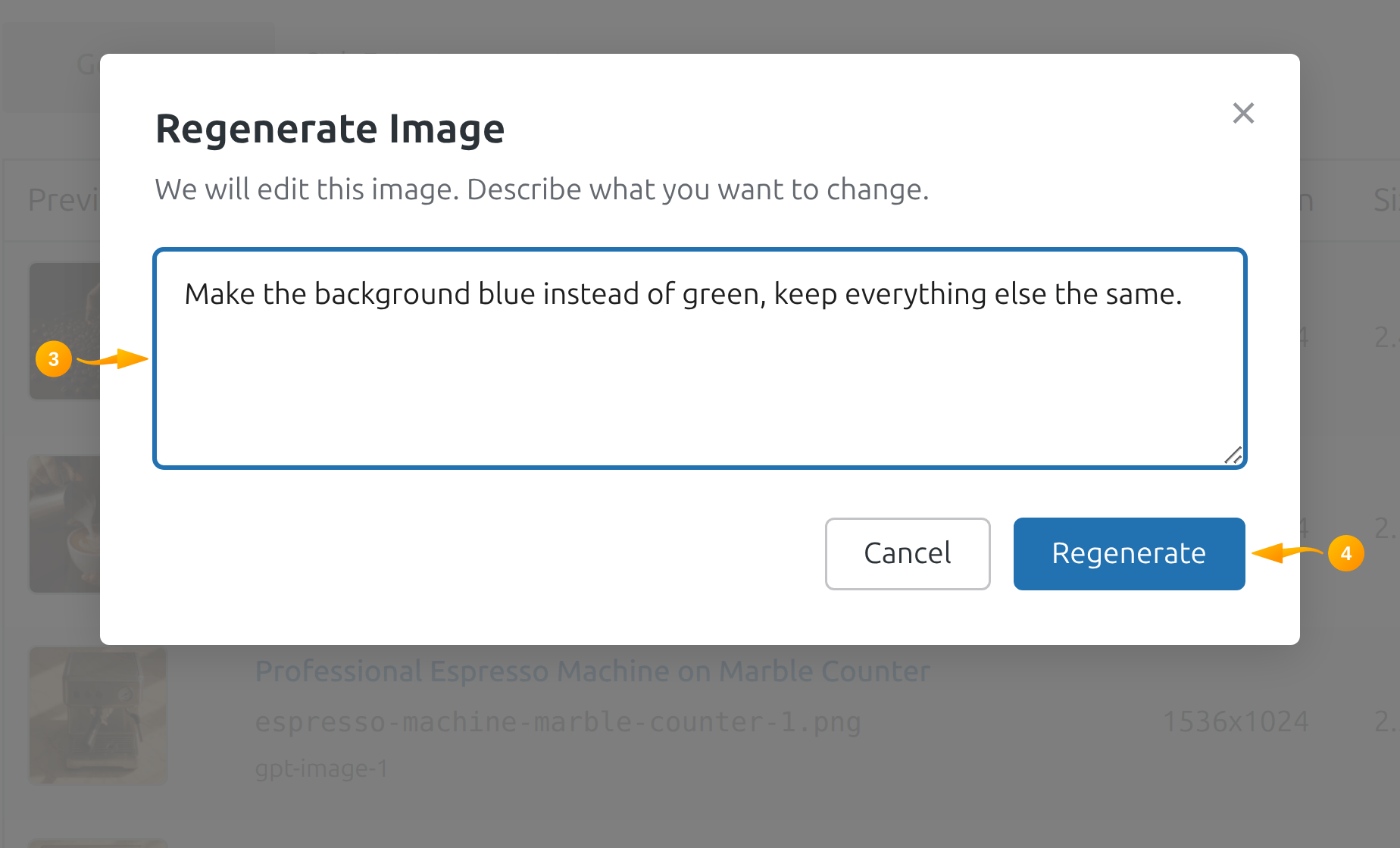
Regeneration is a correction, not a retry. You describe only the change you want — a different background, no text in the corner — and the original composition and style are preserved, where the provider supports it. There is also a Create Attachment with AI button inside the Media Library itself, for the moment you notice a missing image while doing something else entirely.
ALT Text for a Library You Neglected for Years
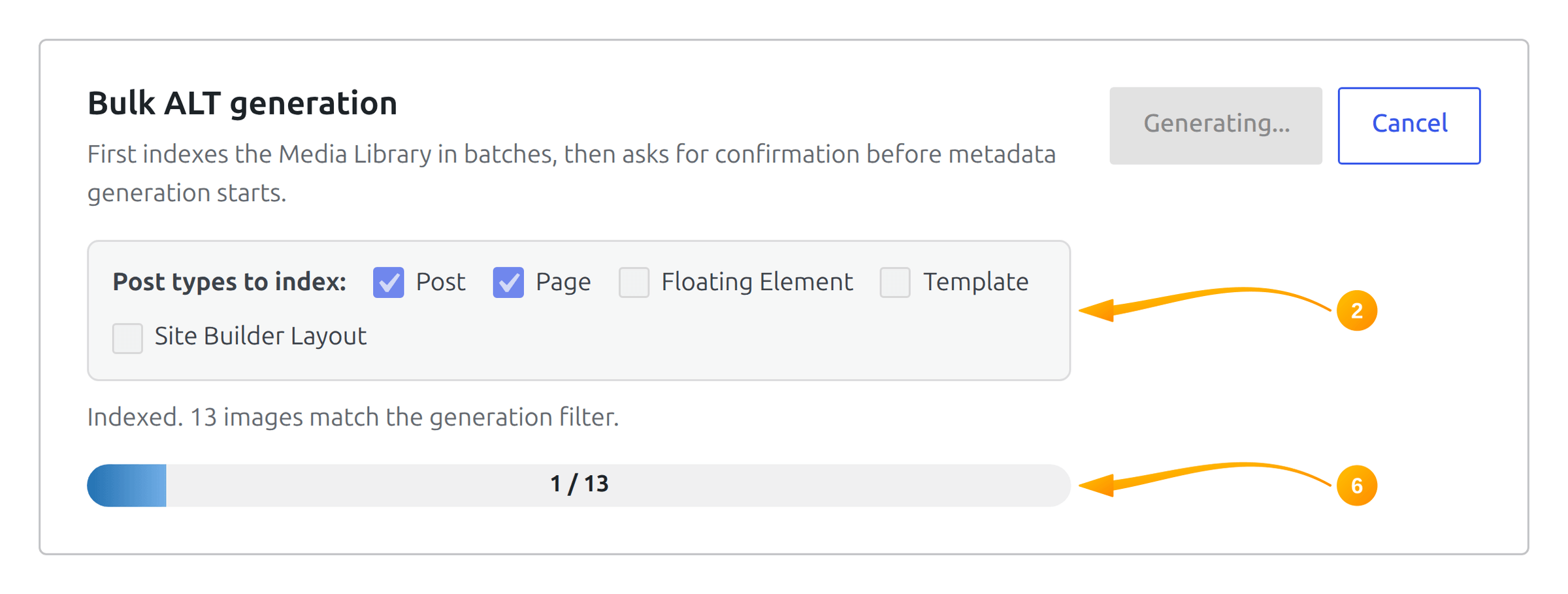
Every established site has the same debt: hundreds of images with no ALT text, an accessibility failure and an SEO one at the same time. Writing them by hand is a week nobody schedules. The Image ALT Generation module does it in batches.
Two modes decide how much the AI knows about each file. With image analysis enabled a vision model looks at the actual picture — the right choice for product photos and screenshots, and it needs a provider that accepts image input: OpenAI, Claude or a vision-capable OpenRouter model. With analysis disabled the module works from the surrounding post content, the filename and SEO keywords instead, which is cheaper and perfectly adequate for decorative images the text already describes.
Four fields can be filled — ALT, caption, title, description — with ALT and caption on by default and a 125-character cap you can raise to 300. Filters narrow the queue to Missing ALT so you are not paying to rewrite work already done. And the Upload Settings tab closes the tap: new uploads get their metadata automatically, queued through WP-Cron so a slow provider never blocks the Media Library screen.
Fixing SEO Errors With AI Instead of Guesswork
Rank Math and Yoast are good at telling you what is wrong: keyword missing from the introduction, paragraphs too long, not enough transition words, thin content. They are silent on the part that takes time — actually rewriting the text so the check passes. The SEO Optimization module fills that gap with a button in the panel you are already looking at.
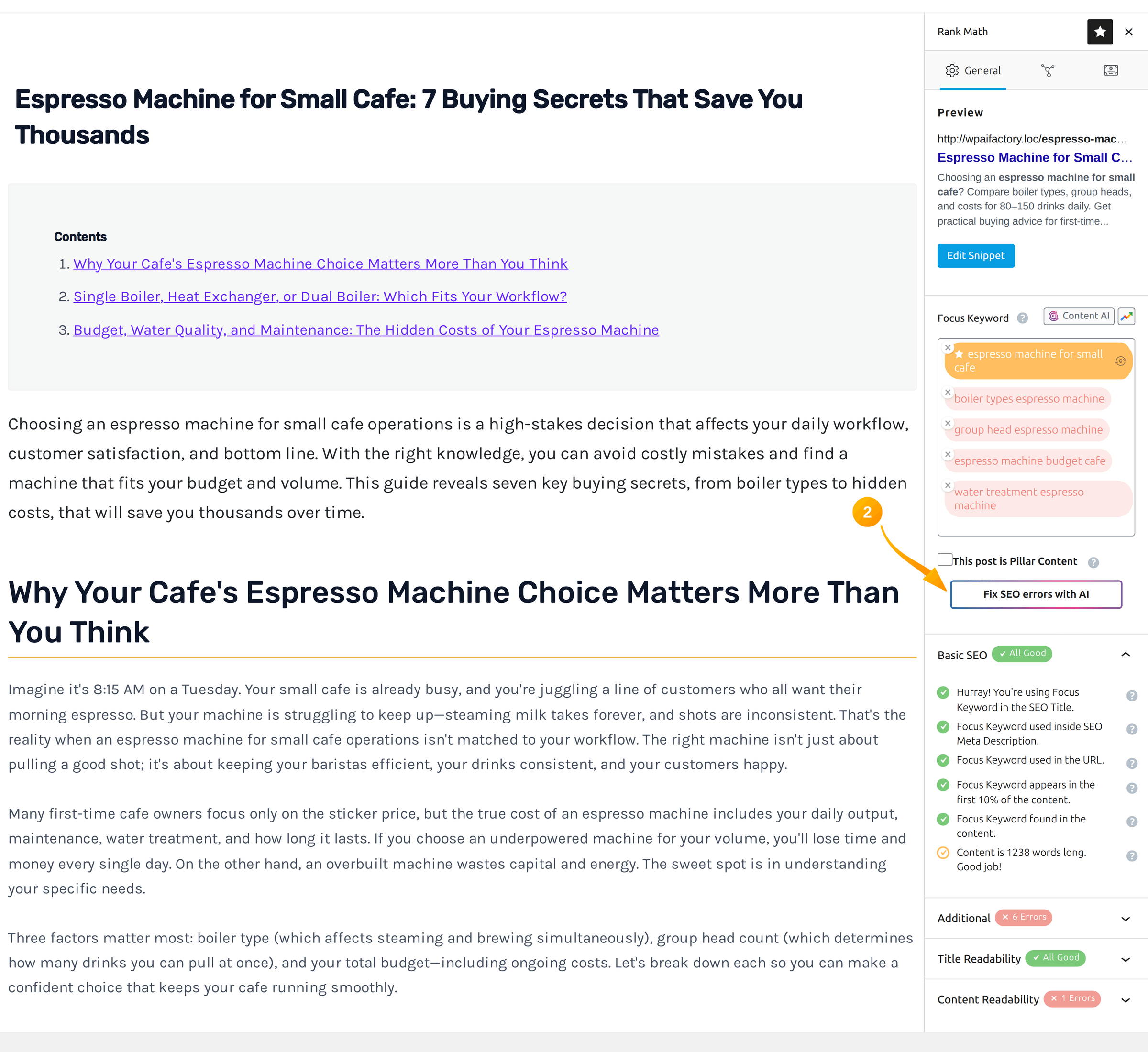
Nine content strategies sit behind it: keyword in the introduction, in the body, in subheadings, keyword density brought into the 1–2% range, content length, a table of contents when the article has enough headings, shorter paragraphs, shorter sentences, and transition words. Meta fields are covered too — SEO title, meta description, slug and focus keyword.
Rank Math is the deepest integration: the module reads its tests directly and mounts buttons in the Focus Keyword panel and the snippet preview. Yoast gets the button and the meta write-back, with analysis running on the plugin’s own universal analyzer. Without any SEO plugin at all, that same built-in analyzer takes over, so the feature is not hostage to one vendor.
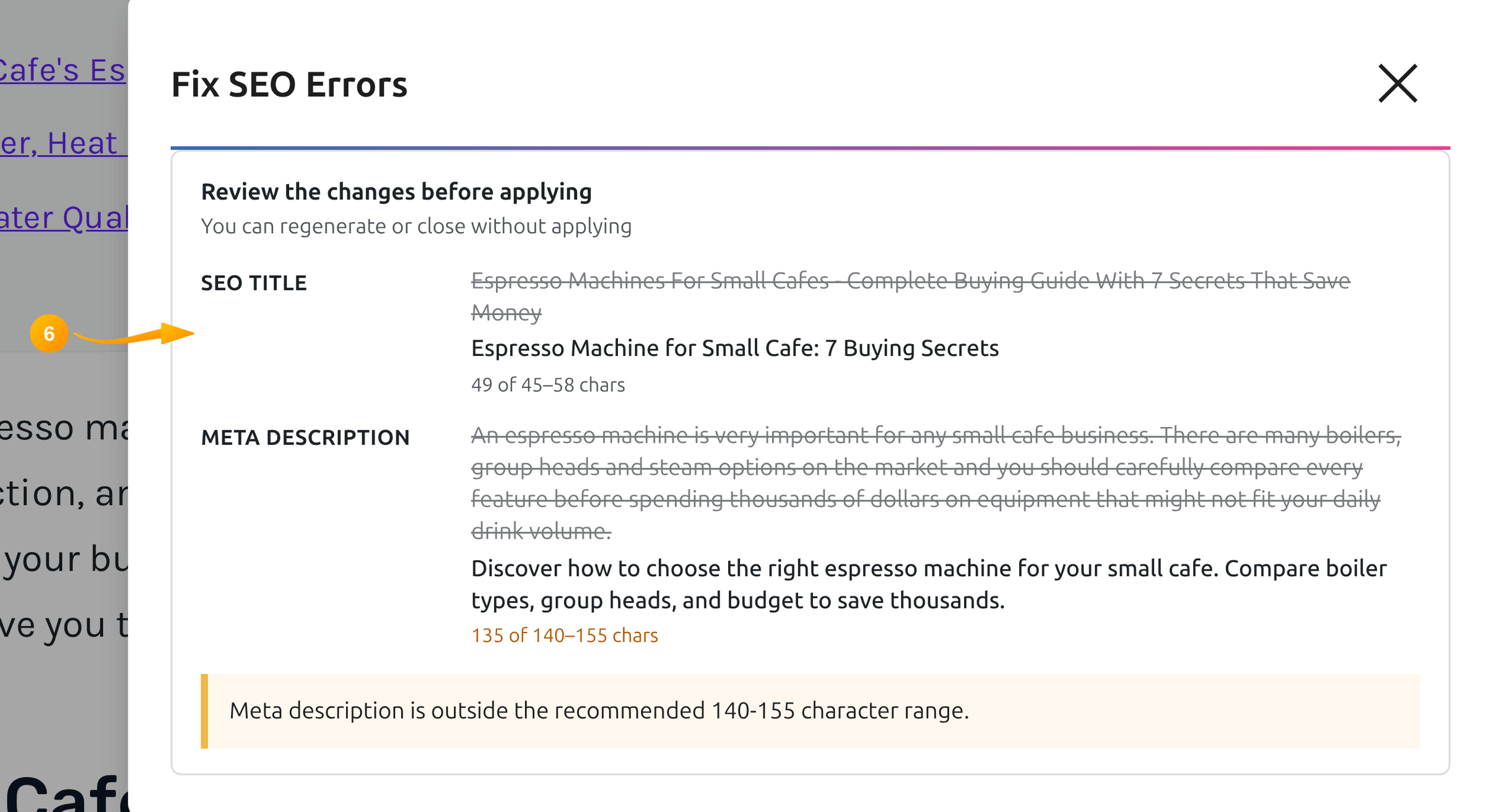
Crucially, nothing is applied silently. The diff view shows replaced values struck through beside the suggestion, and Apply is a decision you make per run.
Prompt Variables: Teaching the Plugin Your Voice
Generic AI text reads generically because every request starts from zero. Prompt variables are how you stop retyping the same instructions. Tone, style, language and section count are built in and cannot be deleted; your own variables are added in the row at the bottom of the Available Variables tab and then referenced in any prompt.
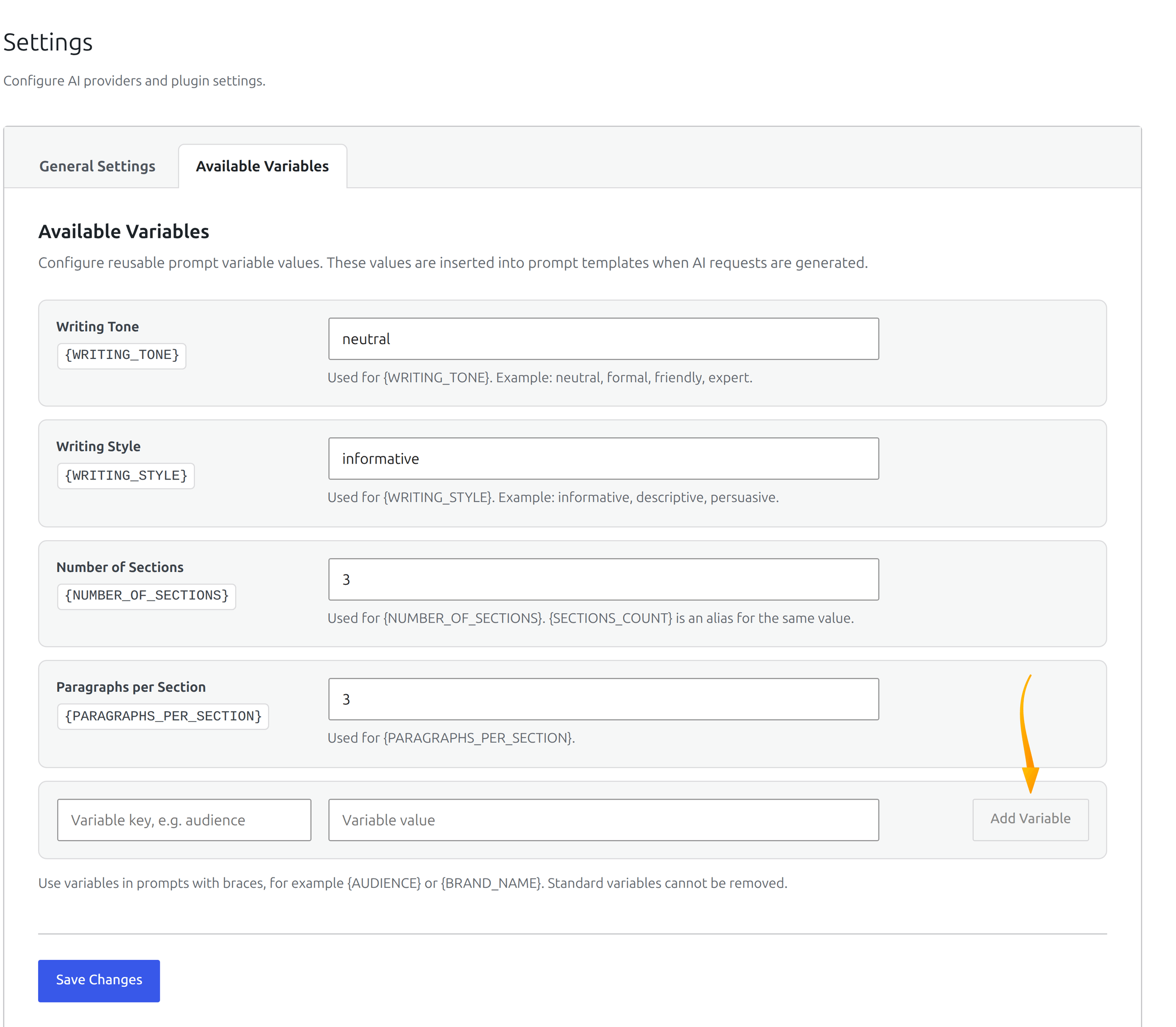
A variable for your audience, your product names, the things you never say — written once, applied to every generation afterwards. Developers can go further and rewrite prompts in PHP through the smartypress_ai_prompt_{action} filter, or add whole Magic Wand actions through smartypress_ai_wand_features; the hooks, filters and REST API reference lists the full set.
Logs, Debugging and Knowing What You Spent
When a request fails, the useful answer is never “something went wrong”. The Logs page keeps timestamp, provider, model, request, response and error for every call, so a 429 from a rate limit and a 401 from a mistyped key stop looking alike. Entries are deleted automatically after seven days.
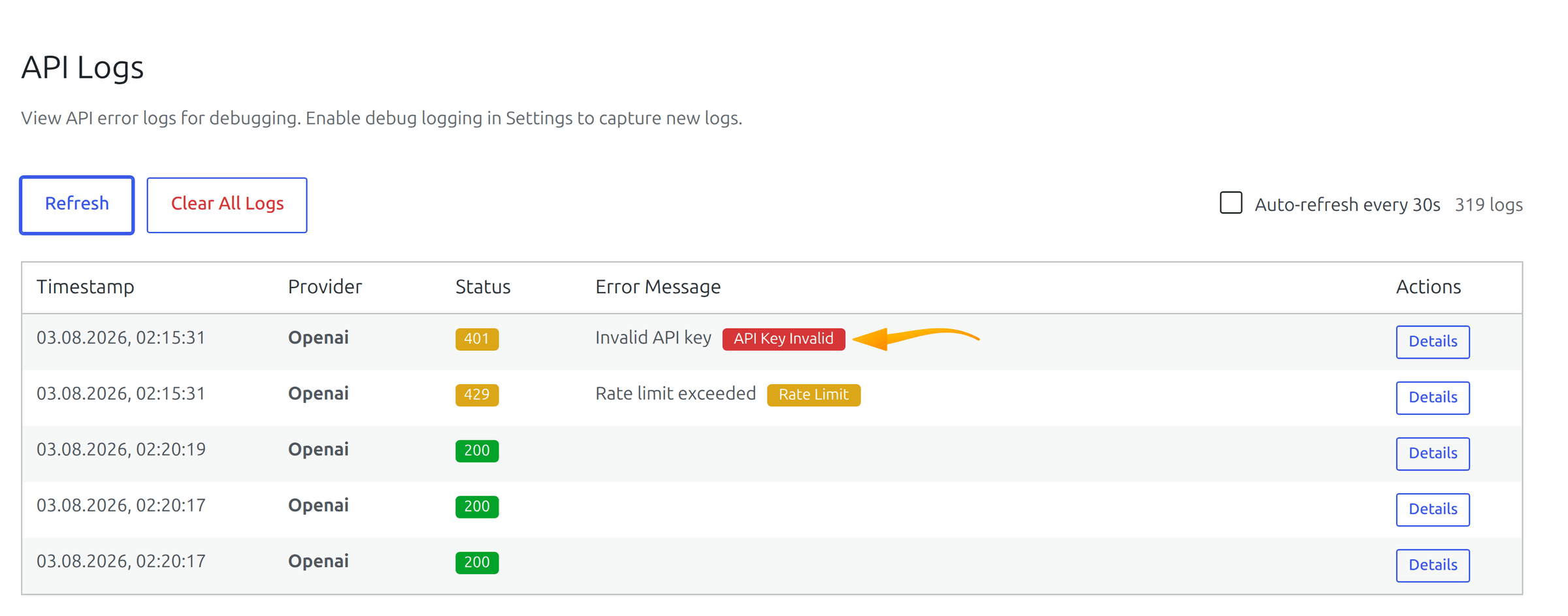
Debug Settings decide how much gets recorded — errors only, or successful requests as well, which is worth turning on for exactly as long as it takes to diagnose something. Token usage on the dashboard answers the other question: what this month has actually cost, per provider, without opening a billing console.
Three Workflows That Justify the Setup
Solo blogger: two posts a week without the blank page
Challenge: the writing is fine once it starts; the hour lost staring at an empty editor is the problem.
Approach: Single Post Generation on a cheap model produces a plan, the plan gets edited into something with an angle, and the draft is written against it. Magic Wand then tightens the paragraphs that matter.
Result: the blank page disappears as a category of problem, and the editing time goes where it earns something.
Agency: a 400-image library inherited from a client
Challenge: an accessibility audit flagged missing ALT text on almost every image, and manual work was quoted in days.
Approach: Image ALT Generation filtered to Missing ALT, vision analysis on, batches of five, plus auto-generation on upload so the debt stops growing.
Result: the backlog clears in one afternoon of unattended batches, and new uploads never join it.
Shop owner: 200 product descriptions from supplier text
Challenge: supplier copy is duplicated across every competitor’s site, which is the worst possible starting point for search.
Approach: Products enabled as a post type, DeepSeek as the provider, bulk generation for the descriptions, then SEO Optimization on the pages that matter commercially.
Result: original copy on every product page for a couple of dollars in API spend.
Frequently Asked Questions
Is it really free, or free for now?
Free and open source, GPL, on WordPress.org. There is no paid tier to graduate to, and no feature behind a licence key. Provider API usage is billed by the provider.
What happens to my data?
Content goes to your provider only when you click Generate. No background requests, no analytics, no tracking. Keys live in your own database and every call is over HTTPS. Uninstalling removes settings and keys; the posts and images you generated stay, because they are yours.
Can I stop the whole editorial team from spending my API budget?
Yes, through ordinary WordPress capabilities: edit_posts for Magic Wand and Content Generation, publish_posts for bulk runs, upload_files for the ALT module and manage_options for settings. A contributor cannot launch fifty generations.
Why don’t YandexGPT and GigaChat appear in my settings?
Both cards are shown only when the site locale is ru_RU. They exist for the Russian market, so on an English site they stay hidden rather than cluttering the screen.
Which model should I start with?
A balanced, inexpensive one — GPT-4o Mini or DeepSeek Chat — with temperature around 0.5–0.8. Reach for a premium model when the text ships as written, not while you are still learning what the plugin does.
The Verdict
SmartyPress AI Engine is not one feature with a subscription attached. It is five modules that each remove a specific, recognisable chore — the blank page, the fifty-post calendar, the nameless image, the library with no ALT text, the SEO panel full of red — and it does that on your own provider key, at provider prices, with a preview before anything is written.
A sensible first hour: install it, add one key, turn off the modules you do not need, generate a title with AI Writer, and rewrite one paragraph with Magic Wand. If those two clicks feel useful, the rest of the plugin is more of the same at larger scale. Every module is summarised on the plugin page. If tidying up the WordPress admin is your other current annoyance, our guide to hiding admin notices in WordPress covers that side of the house.