A clean Rank Math SEO setup is the difference between a WordPress site that ships useful signals to Google and one that leaves titles, schema, and sitemaps half-finished. This walkthrough takes you through the Rank Math SEO plugin from install to advanced modules, then shows where SmartyPress AI Engine picks up the day-to-day work Rank Math only diagnoses — missing alt text, empty meta, and failed on-page checks around your focus keyword.
You do not need to recreate every toggle by hand. The Rank Math setup wizard asks a short series of questions, writes the matching options, and leaves you with a site that already knows its type, sitemap rules, and default schema. Use this guide as a practical checklist for Rank Math WordPress installs in 2026 — Free or PRO — whether you are migrating from Yoast or starting fresh. For the vendor’s own reference, see the official Rank Math setup knowledge base article.
What Rank Math SEO Setup Actually Covers
Rank Math is an all-in-one SEO layer for WordPress. After activation it can manage titles and meta descriptions, XML sitemaps, schema markup, redirections, 404 monitoring, role permissions, and connections to Google services. The value of a careful Rank Math SEO setup is not a longer feature list — it is that those pieces talk to each other from day one instead of living as disconnected settings screens.
Think of the plugin as a configuration engine plus a per-post scorecard. Globally, it decides how your site presents itself in Knowledge Graph data, which content types enter the sitemap, and whether thin archives should be noindexed. Locally, each post and page gets a focus keyword analysis, a snippet preview, and a checklist of on-page tests. Green scores feel satisfying, but they only matter when the underlying site identity and crawl rules are already correct.
Compared with installing several single-purpose plugins, one coherent Rank Math SEO plugin stack reduces conflicts. You get one import path for Yoast data, one place to regenerate scores, and one dashboard for modules you may enable later — Instant Indexing, local SEO, or WooCommerce fields if you grow into them. The wizard is the shortest route to that baseline; everything after it is refinement.
Installing the Rank Math SEO Plugin
Install Rank Math the same way you install any trusted plugin from wordpress.org. You need an administrator account and a backup habit before you change SEO plugins on a live site — especially if Yoast or another SEO tool is already active.
Check the environment first: current releases require WordPress 6.7 or newer and PHP 7.4+. This is not a formality. On an older core the plugin activates without complaint, but it never registers the wizard menu, and opening admin.php?page=rank-math-wizard directly returns a permissions error — so update WordPress before you install, not after you get stuck.
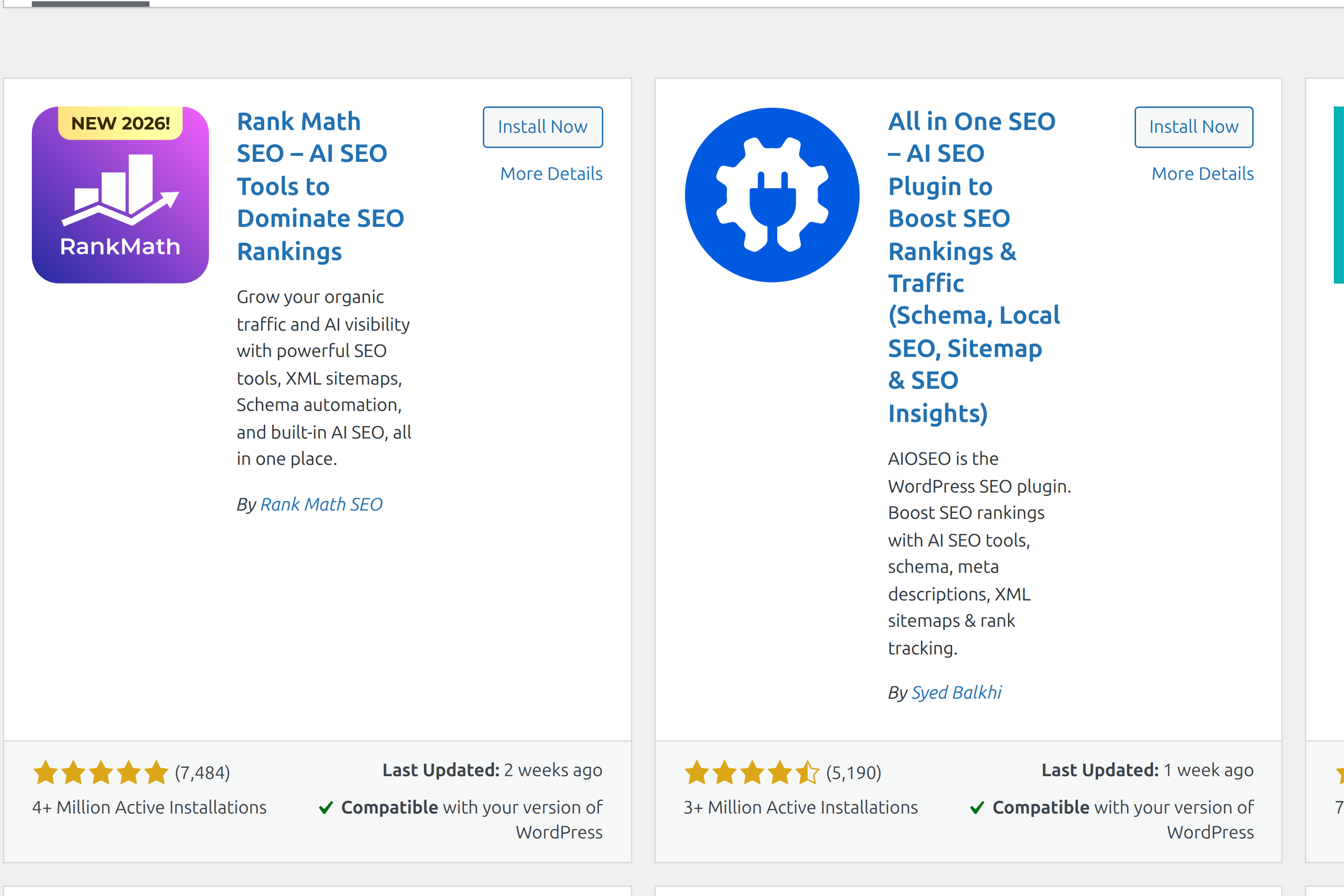
- Open the plugin installer — go to Plugins → Add New Plugin in the WordPress admin.
- Search for Rank Math — type
Rank Math SEOand confirm the author is Rank Math SEO. - Install and activate — WordPress downloads the free plugin and turns it on. On first activation you are redirected into the connection screen.
- Add PRO only if you need it — upload the PRO zip after the free plugin is active if you rely on News/Video sitemaps, custom mode backups, or other PRO modules.
If another SEO plugin is still active, leave it on for now when you plan to import. Rank Math can read Yoast (and several other plugins) during the wizard and then you deactivate the old tool. Running two SEO plugins permanently is a common source of duplicate meta tags — finish the migration, then keep only Rank Math.
Do not skip a backup before swapping SEO plugins on production. Title formats, social images, and redirects may change during import. A restore point is cheaper than reconstructing meta by hand.
Connecting a Free Rank Math Account
Right after activation, Rank Math asks you to connect a free Rank Math account. Connecting unlocks cloud features such as Google Analytics and Search Console integration inside the plugin, site-count tracking for your license, and easier access to updates and PRO entitlements when you have them.
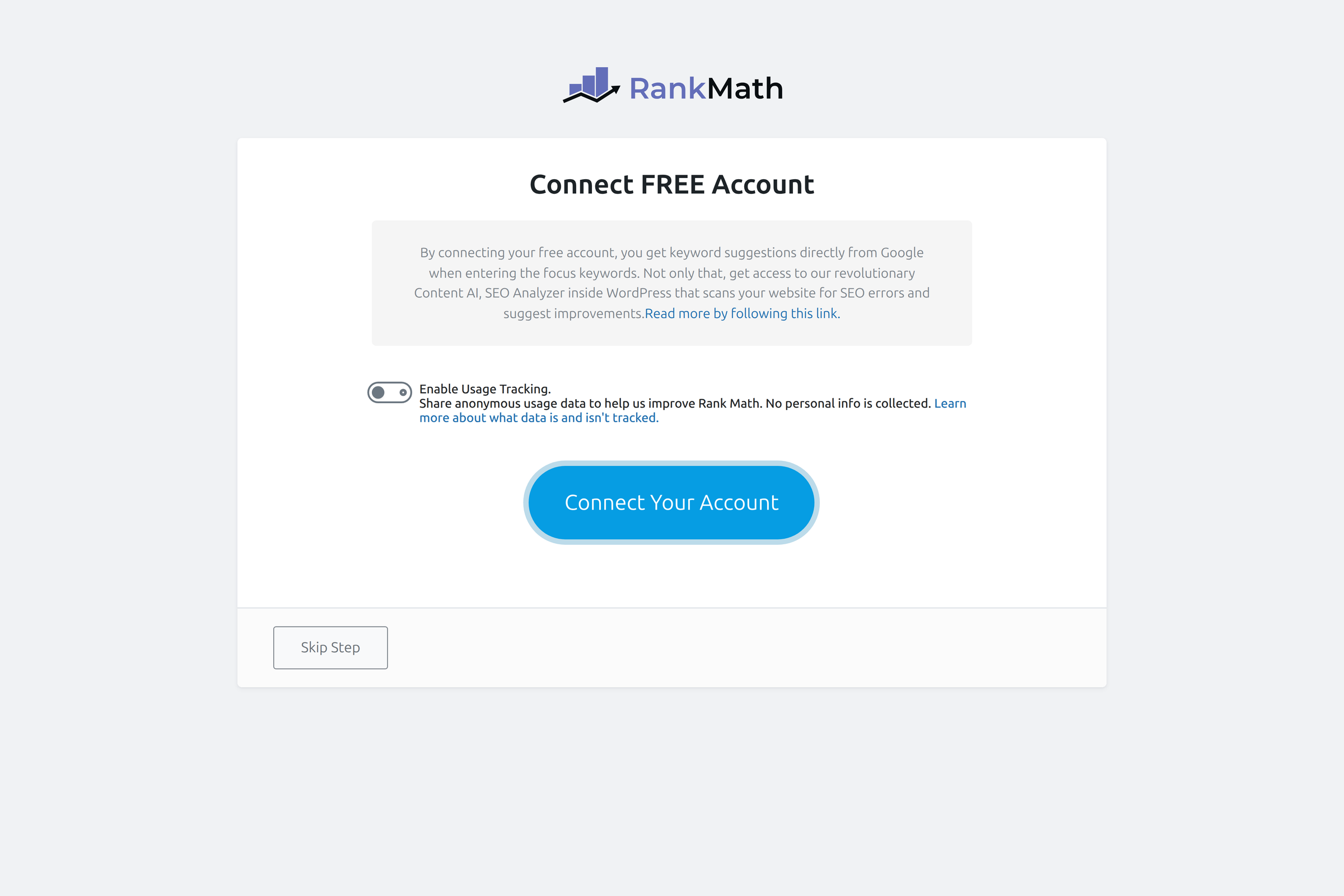
Click Connect Your Account and complete the browser flow. If you already have an account, activation is usually a single confirmation. You can enable anonymous usage tracking from the same screen, or skip connection temporarily with Skip Step — but skipped accounts mean some analytics and cloud options stay unavailable until you return later via Rank Math SEO → Dashboard.
When the connection succeeds, WordPress sends you into the setup wizard automatically. That handoff is intentional: Rank Math wants identity and crawl settings decided before you start publishing under the new stack.
Wizard Modes and the Compatibility Check
The first wizard screen is mode selection. This is where the Rank Math setup wizard decides how many questions you will answer. Three modes are available:
- Easy — fewer steps, sensible defaults, ideal if you want a working baseline quickly.
- Advanced — adds role manager, redirection/404, and default schema screens after the shared core steps.
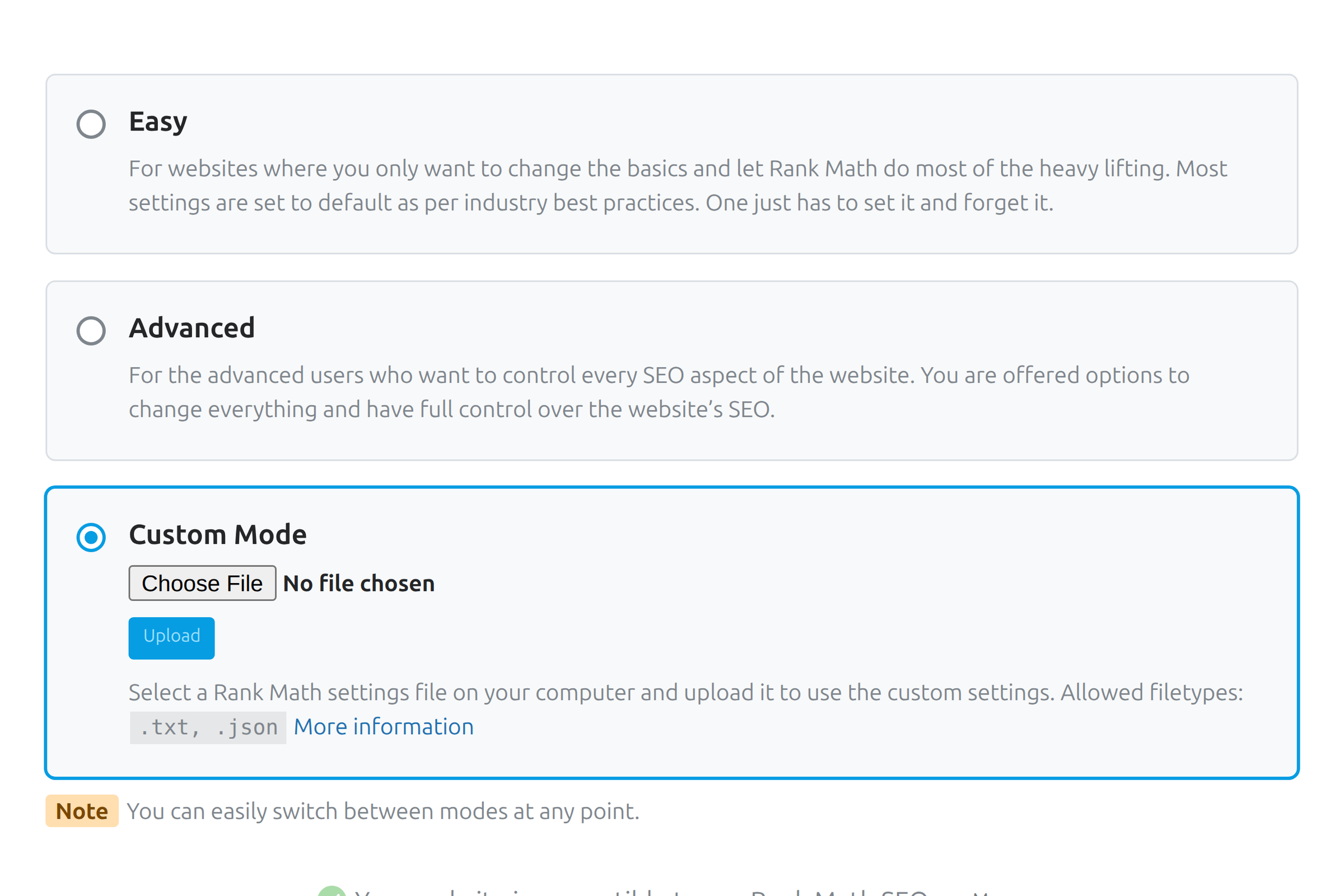
- Custom Mode (PRO) — uploads a previously exported Rank Math settings file instead of answering the questionnaire.
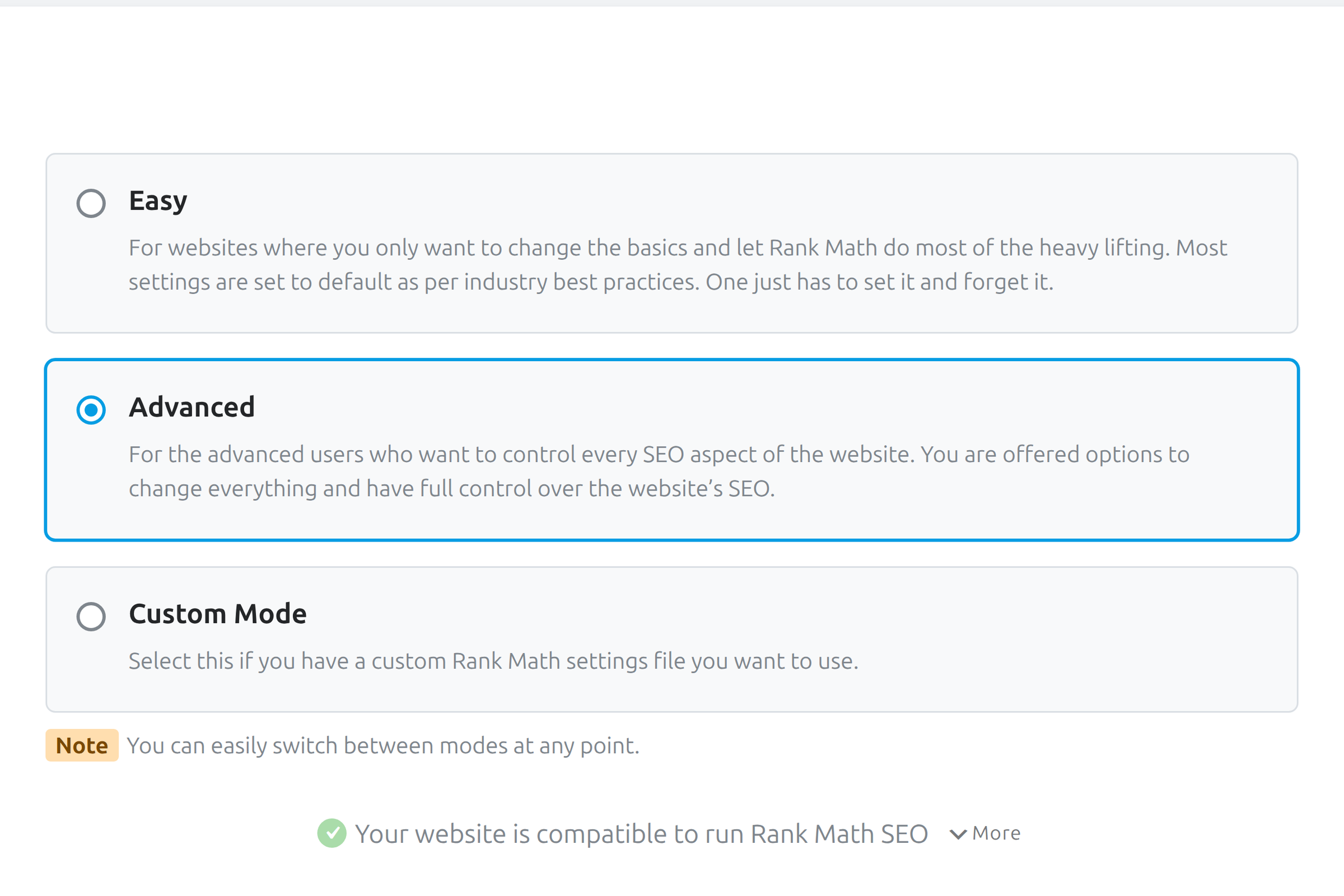
Easy and Advanced share the same early path (import, site identity, analytics, sitemaps, optimization). Advanced simply continues into power-user modules. You can switch modes later from the Dashboard → Setup Wizard tab if Easy feels too shallow or Advanced feels like too much on day one.
Custom Mode for cloned settings
Custom Mode is built for agencies and multi-site operators who already perfected Rank Math on one property. Upload a settings file exported from that site and the wizard applies those options. Important limitation: this restores Rank Math settings only — it does not copy post meta, focus keywords, or per-URL SEO scores from another site.
Compatibility check before you continue
Before the questionnaire starts, Rank Math runs a compatibility check. PHP version, required extensions, and known conflicting plugins appear here. Expand More if you want the full test list. When another SEO plugin is detected, the screen usually suggests deactivating it after import so Rank Math can own titles and schema without duplicates.
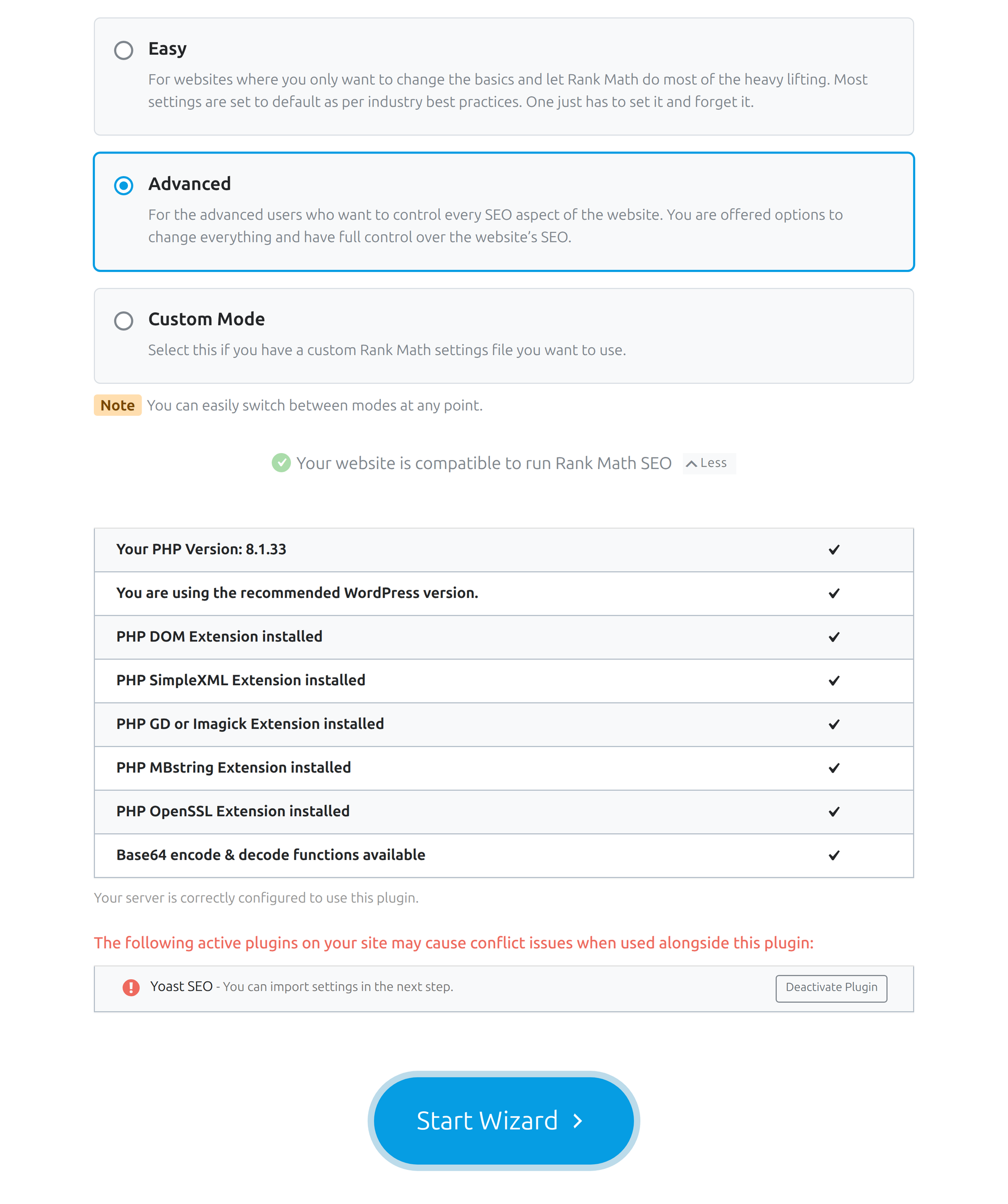
When the check is clean, click Start Wizard. From this point the flow is linear: answer, save, continue. If you bail out with Return to Dashboard, you can reopen the wizard later from Rank Math SEO → Dashboard → Setup Wizard.
Importing Yoast SEO Data into Rank Math
If Yoast SEO (or another supported SEO plugin) already stored titles, descriptions, and related meta, the Import step is where you keep that work. Rank Math scans the site, lists what it can migrate, and offers a one-click import so you are not rebuilding snippets from scratch.
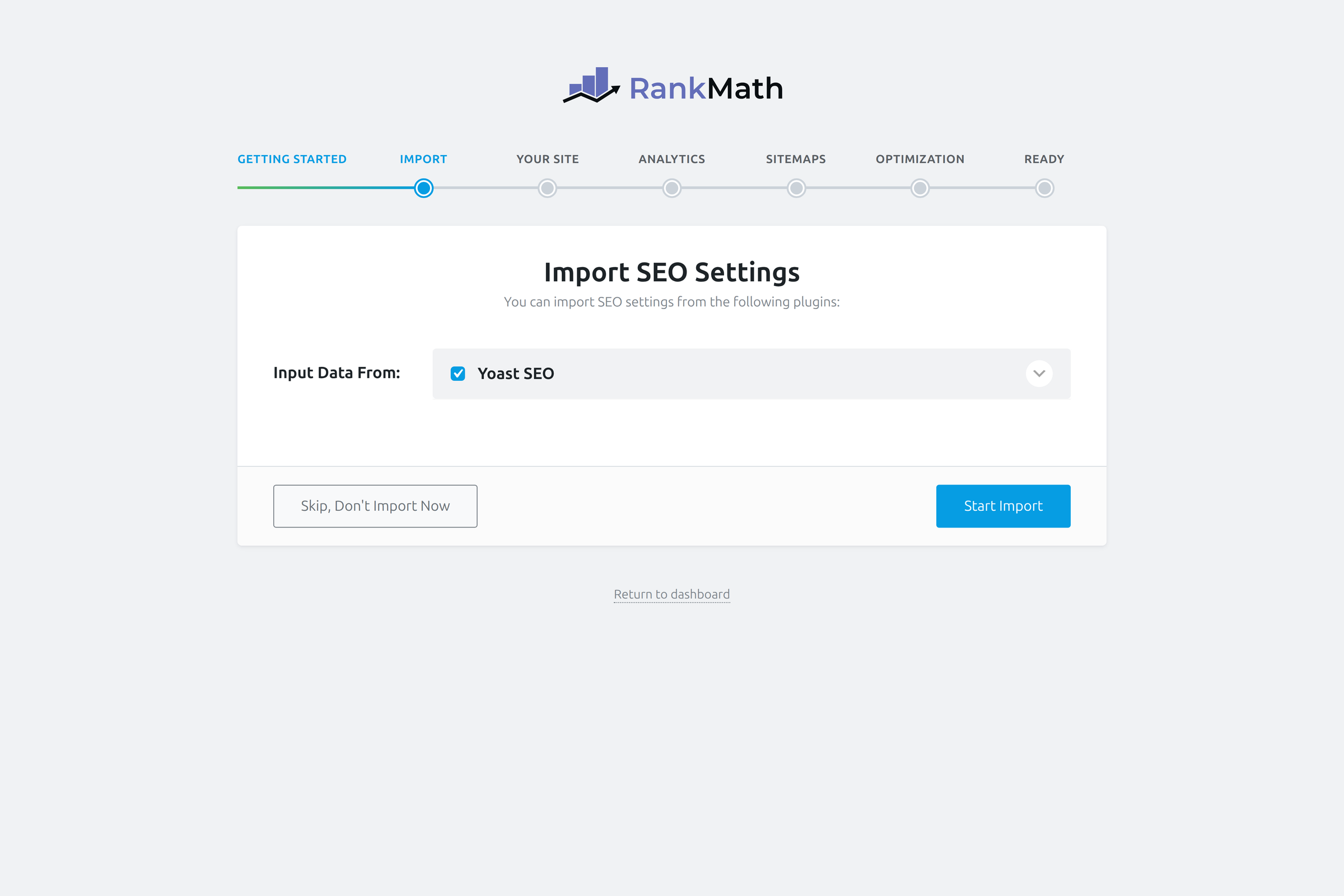
- Review the detected plugins — confirm Yoast or other sources appear with data to move.
- Start Import — wait until the progress indicator reaches 100%.
- Continue — only move on when the import finished; interrupting mid-run can leave partial meta.
- Recalculate scores later if needed — imported posts may show N/A until Rank Math rebuilds its own scores from Rank Math SEO → Status & Tools.
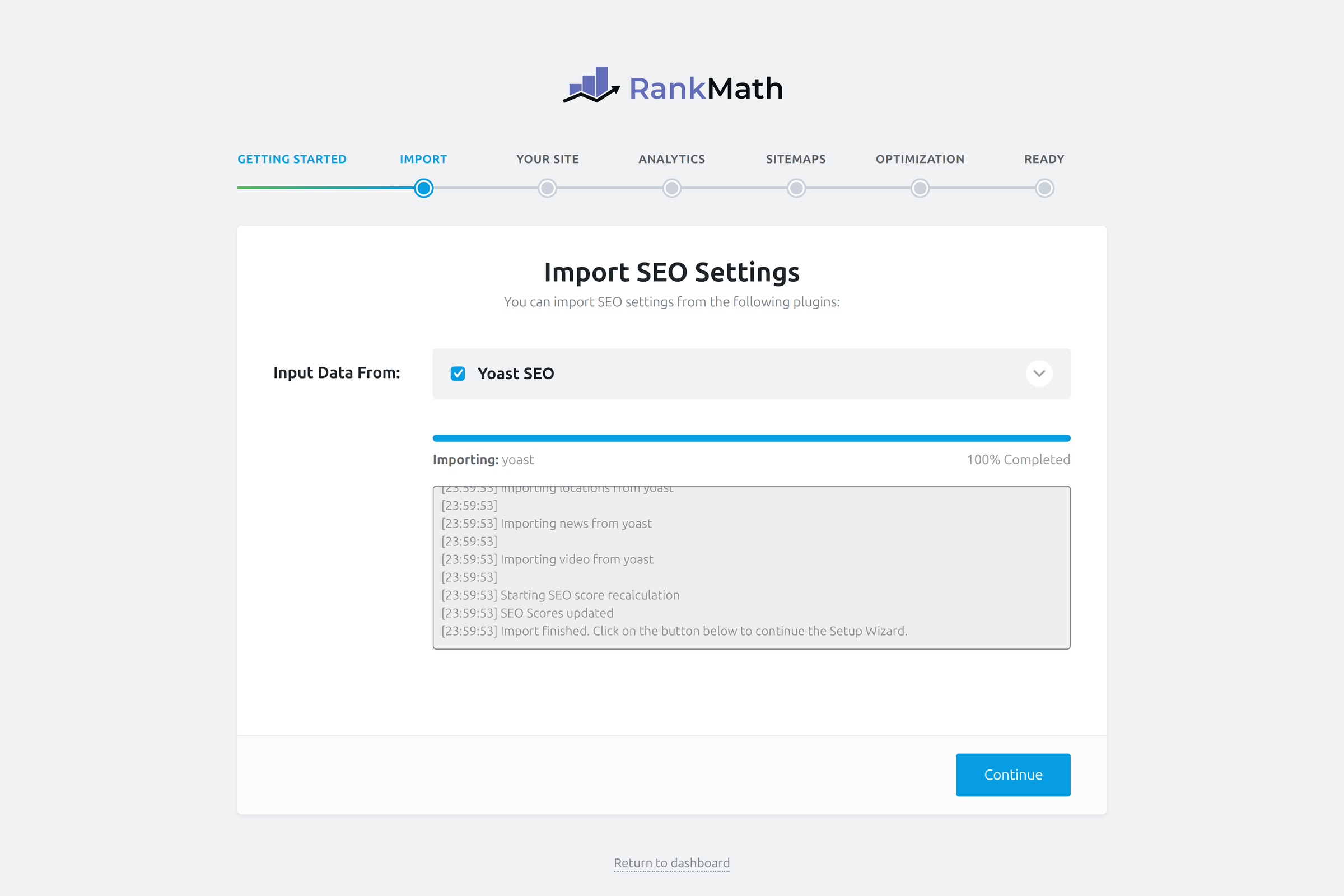
Missed the import during the wizard? You are not stuck. Open Rank Math SEO → Status & Tools → Import & Export → Other Plugins and run the same migration afterward. After a successful import, deactivate Yoast and clear any page cache so frontend meta reflects Rank Math only.
Site owner: migrating a five-year Yoast blog
Challenge: Hundreds of posts already have custom titles and meta descriptions. A fresh Rank Math install would wipe that investment if import were skipped.
Approach: Keep Yoast active through the wizard Import step, finish at 100%, then deactivate Yoast and spot-check ten high-traffic URLs.
Result: Snippets stay intact, Rank Math scores recalculate overnight, and the team only rewrites thin meta instead of everything.
Your Site: Type, Names, and Logo
The Your Site step tells search engines what kind of property you run. Rank Math uses your answers to emit the right Organization or Person schema and to set the site name Google may show in results. Accuracy here matters more than clever branding copy.
Website type
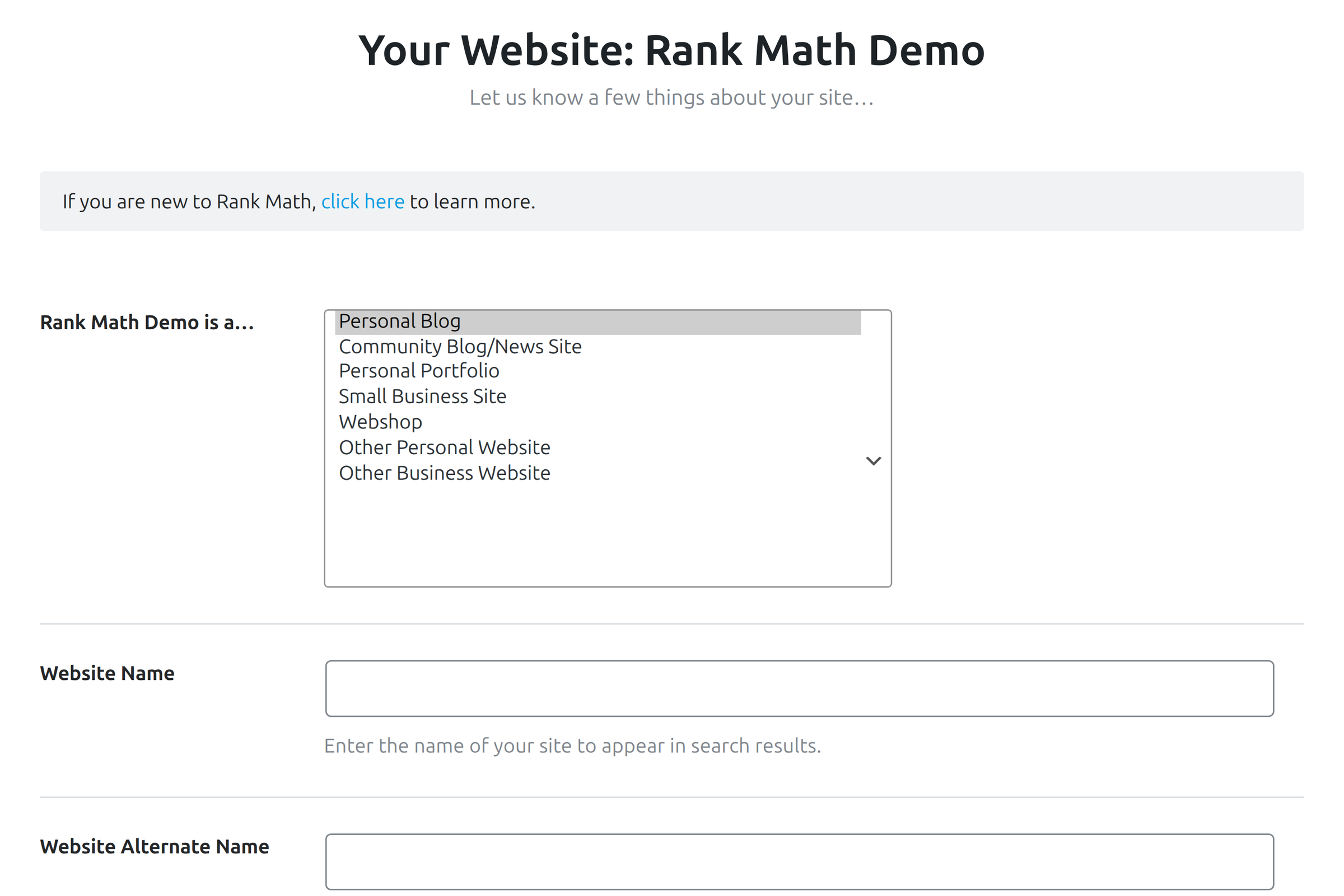
Open the Your Website is dropdown and pick the closest match: personal blog, community/news site, portfolio, small business, webshop, or a generic personal/business fallback. Personal-oriented choices lean toward Person schema; business-oriented choices lean toward Organization schema and unlock a business type field.
Business details when they apply
If you select a business-style site, Rank Math asks for a more specific business type (Restaurant, Software Company, and many others). Search the list; if nothing fits, Organization is the safe default. Also fill the website name and an alternate name if you use a shorter brand in the wild — Google uses these fields when it can verify them.
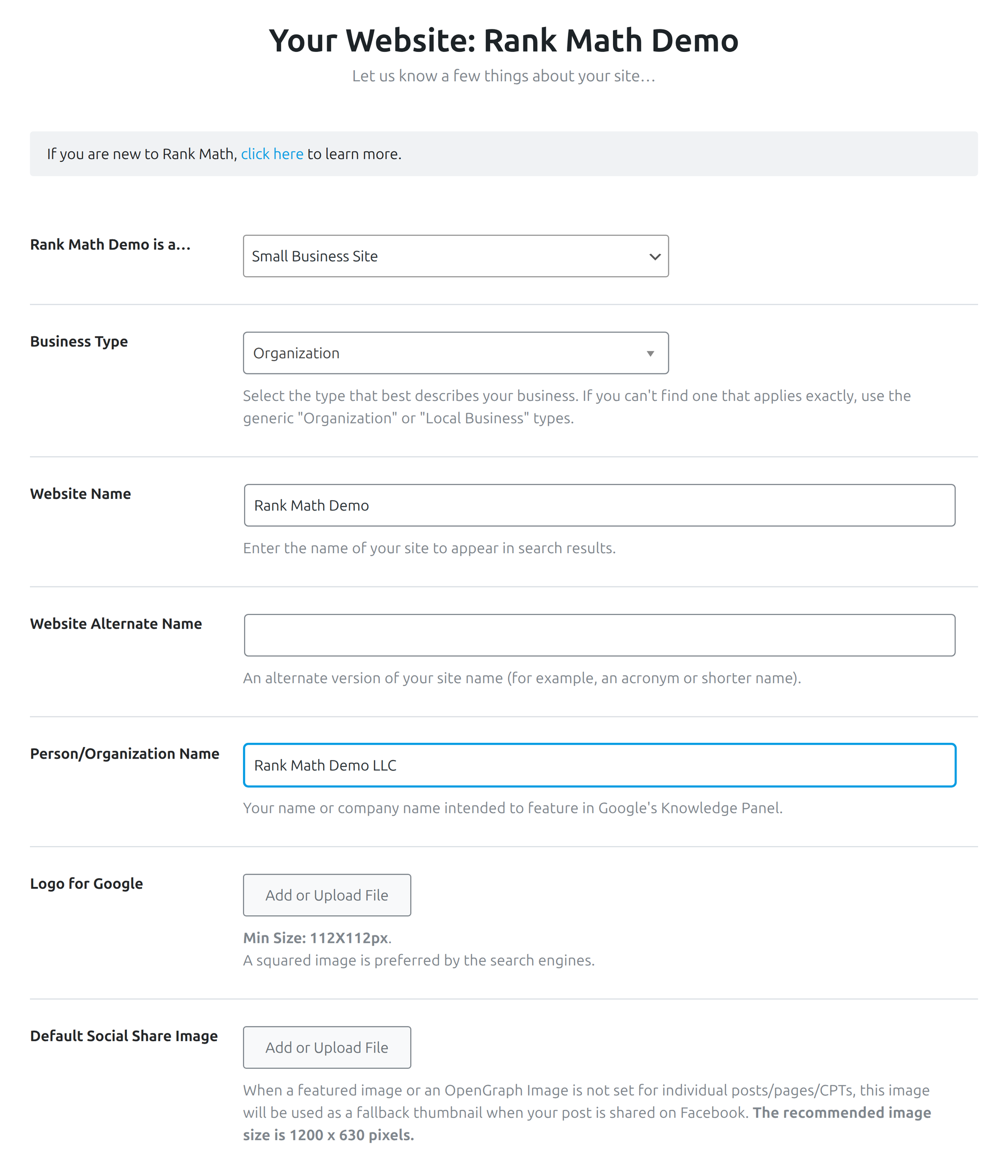
Logo and default social image
Upload a square logo for Knowledge Graph and a wider default image for social sharing. Google expects the logo to be at least 112×112 px, and the sharing fallback works best at 1200×630 px, the size Facebook and most preview scrapers crop to. The social image is what appears when a post has no dedicated Open Graph image of its own. Put both in the media library before you leave this step so Rank Math can store attachment IDs cleanly. If your posts routinely go out without a featured image and every share falls back to this one picture, generating per-post images with AI Thumbnails Maker is a better fix than a prettier fallback.
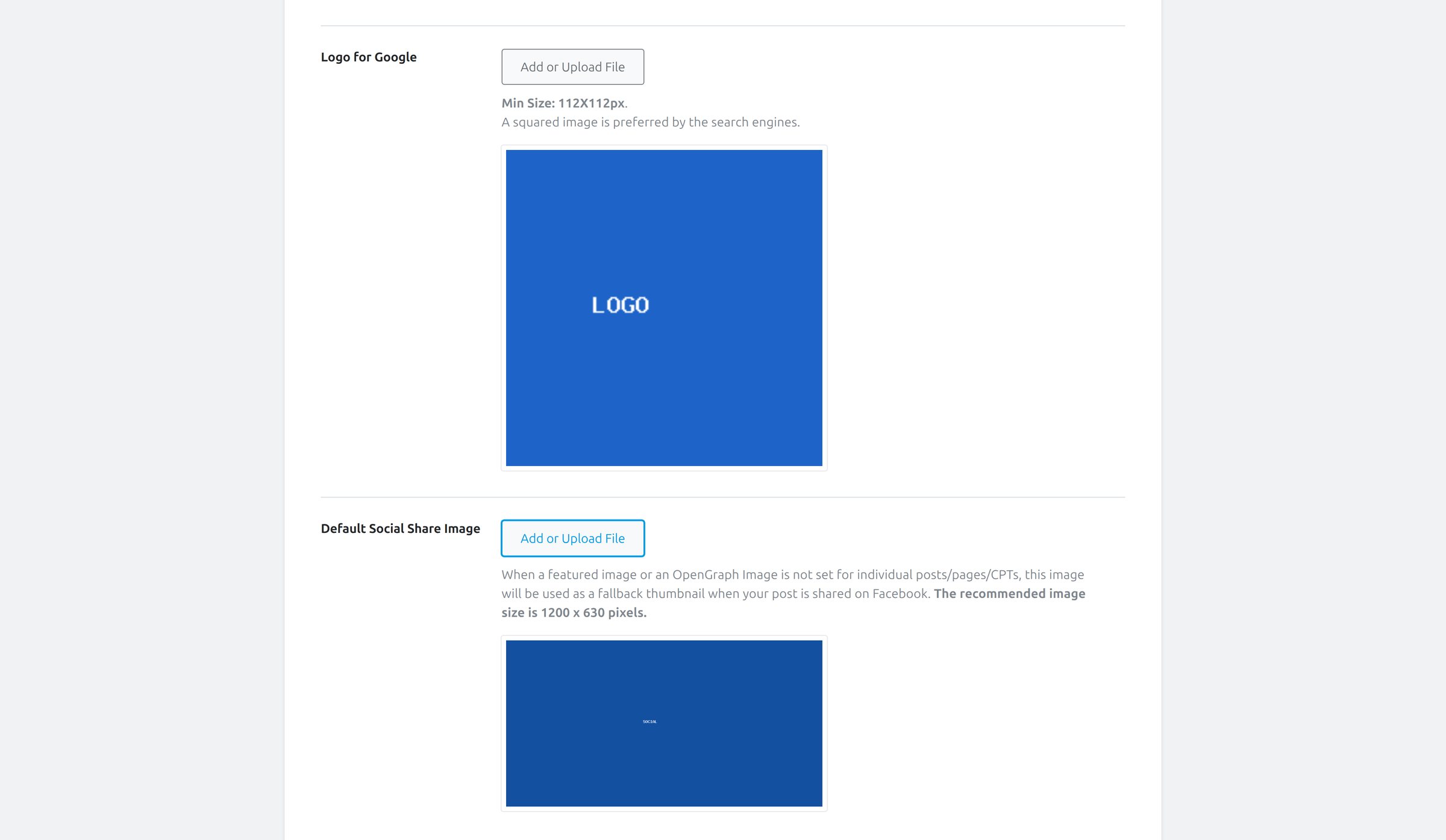
Save and continue only after the type, names, and images look right. Changing site identity later is possible in Titles & Meta and Schema settings, but getting it right in the wizard avoids a second pass across every module.
Analytics: Search Console and Google Data
The Analytics step connects Rank Math to Google services so Search Console and Analytics data can surface inside WordPress. On a real domain this is worth doing during setup; on local or staging hosts OAuth often cannot verify ownership, so you may skip and reconnect after launch.
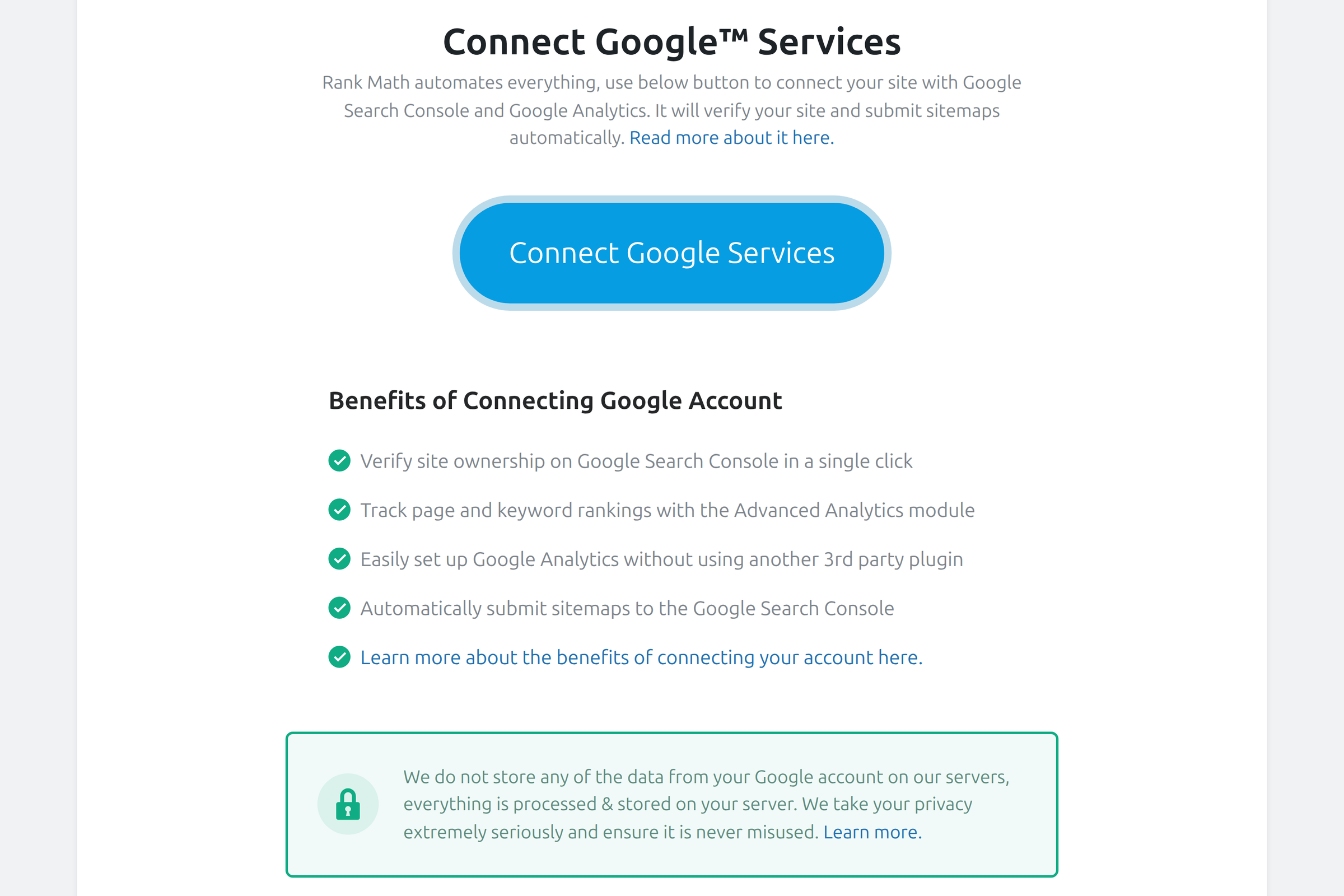
Click Connect Google Services (wording may vary slightly by version) and authorize the Google account that owns the Search Console property. Grant only the properties you intend Rank Math to read. After a successful link, Rank Math can pull impressions, clicks, and index issues into its Analytics module instead of forcing a constant tab switch to Google’s UI.
If you skip for now, the rest of the wizard still completes. Revisit Rank Math SEO → Analytics later, confirm the site URL matches the Search Console property exactly (including www vs. non-www and https), and wait for the first data sync. Caching plugins do not block the OAuth connection, but mismatched domains do.
Rank Math Sitemap Settings
A healthy Rank Math sitemap is how crawlers discover posts, pages, products, and media without scraping every internal link. The Sitemaps step lets you enable the XML sitemap, include images, and choose which post types and taxonomies belong in the index file.
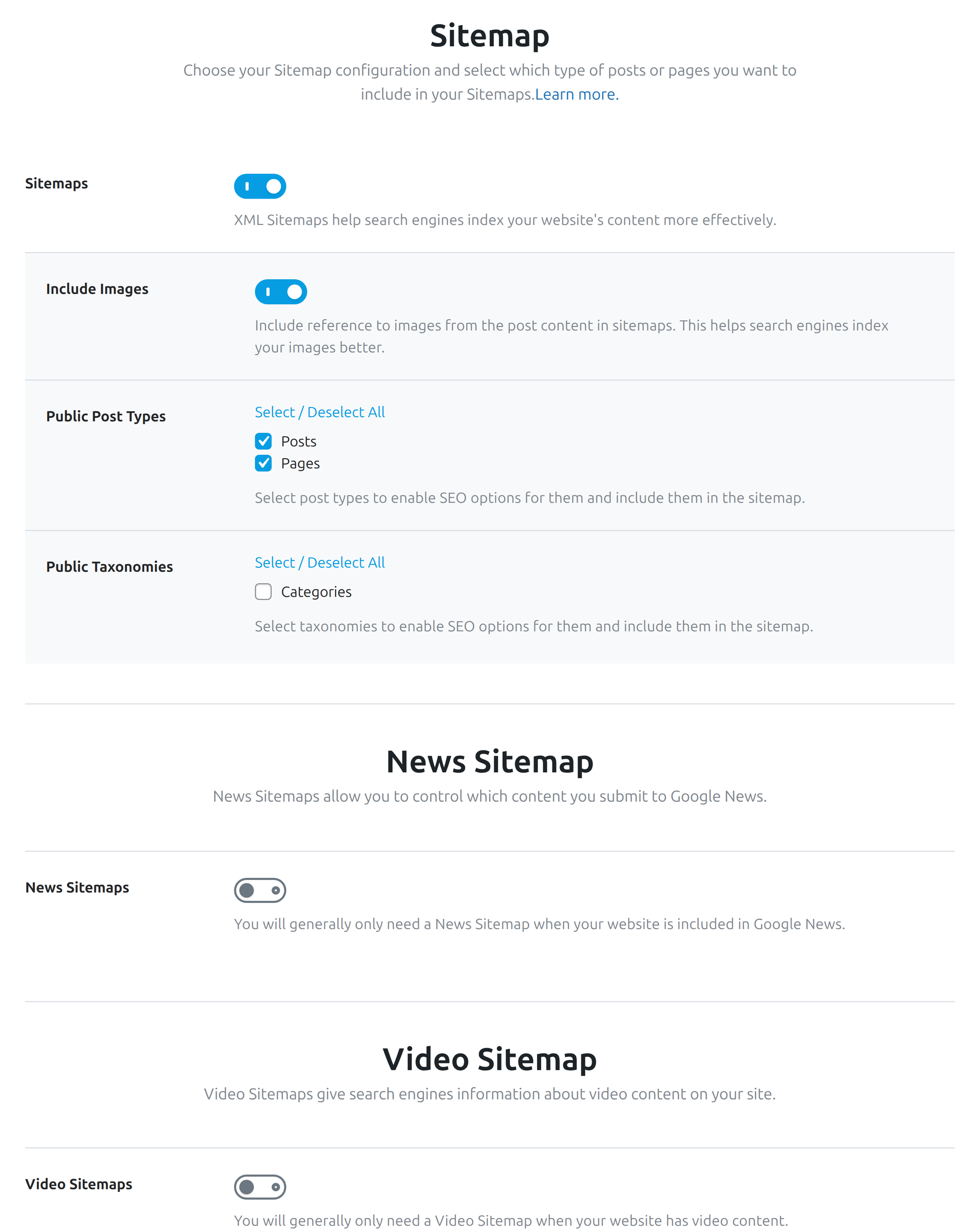
For most content sites, keep Posts and Pages on, include Categories if category archives are meant to rank, and exclude tag archives when they are thin or duplicate. Image inclusion helps Google Images discover featured and in-content media. Authors and empty custom taxonomies are common candidates to turn off.
PRO sitemap additions
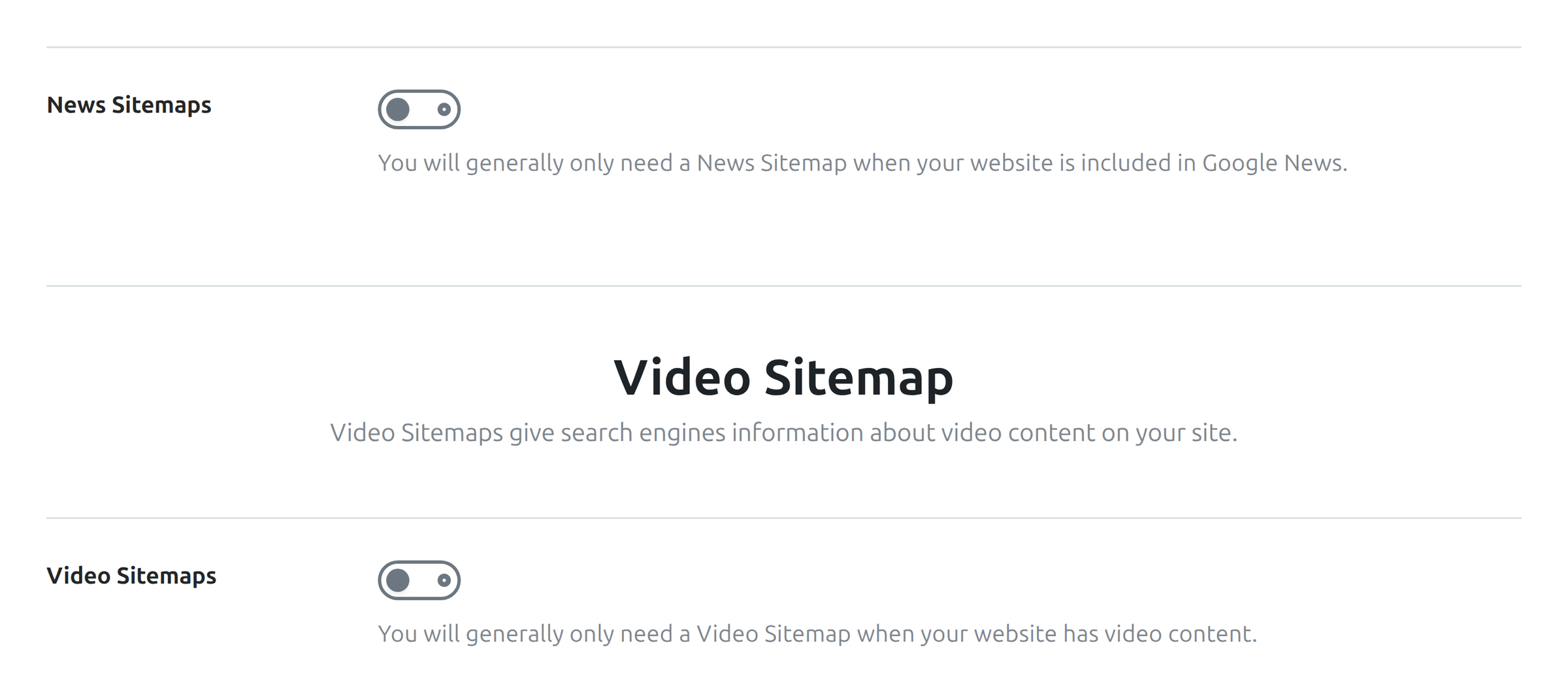
Rank Math PRO adds News Sitemap and Video Sitemap options on this screen. The news sitemap only carries articles published in roughly the last two days, which is what Google News reads, so it earns its place on a publication with a real newsroom cadence and does nothing on an evergreen blog. Enable Video when you embed substantial video content you want discovered as video entities. Leaving both off is correct for ordinary blogs and brochure sites.
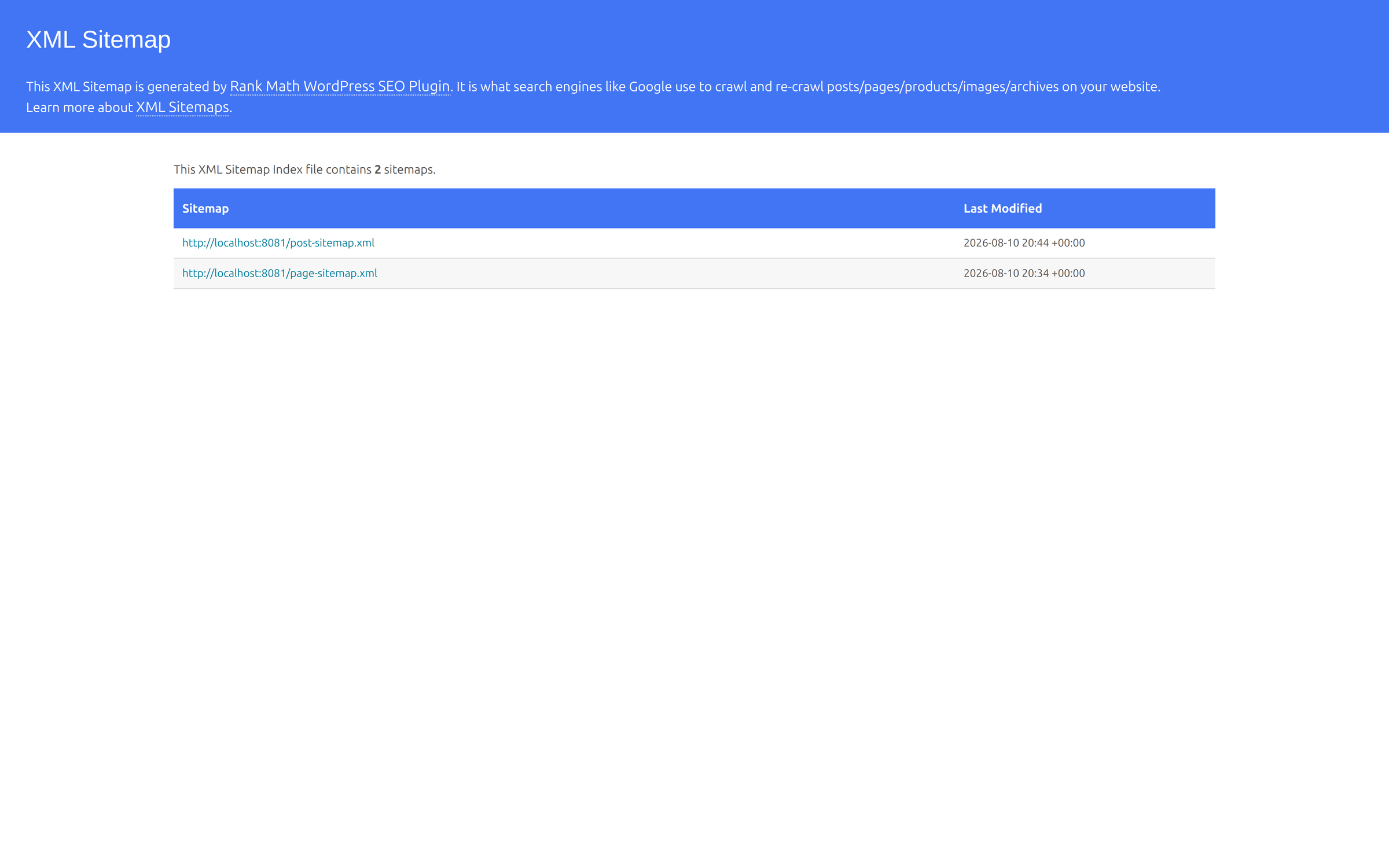
After you finish the wizard, open /sitemap_index.xml on the frontend. You should see child sitemaps for the types you enabled. Submit that index URL in Search Console (and keep your robots.txt from blocking it). A 404 on that URL almost always means stale rewrite rules rather than a broken module: open Settings → Permalinks and press Save Changes to flush them. If a caching or security plugin serves a stale empty file, purge caches and recheck.
If you previously used Yoast’s sitemap, disable it with Yoast itself before you rely on Rank Math’s URL. Two sitemap plugins create conflicting signals; one authoritative index is enough.
Optimization: Three Toggles With Real Impact
The Optimization step packs three high-impact toggles that clean how WordPress exposes itself to crawlers. They look small, but they remove noise that otherwise dilutes a careful Rank Math SEO setup.
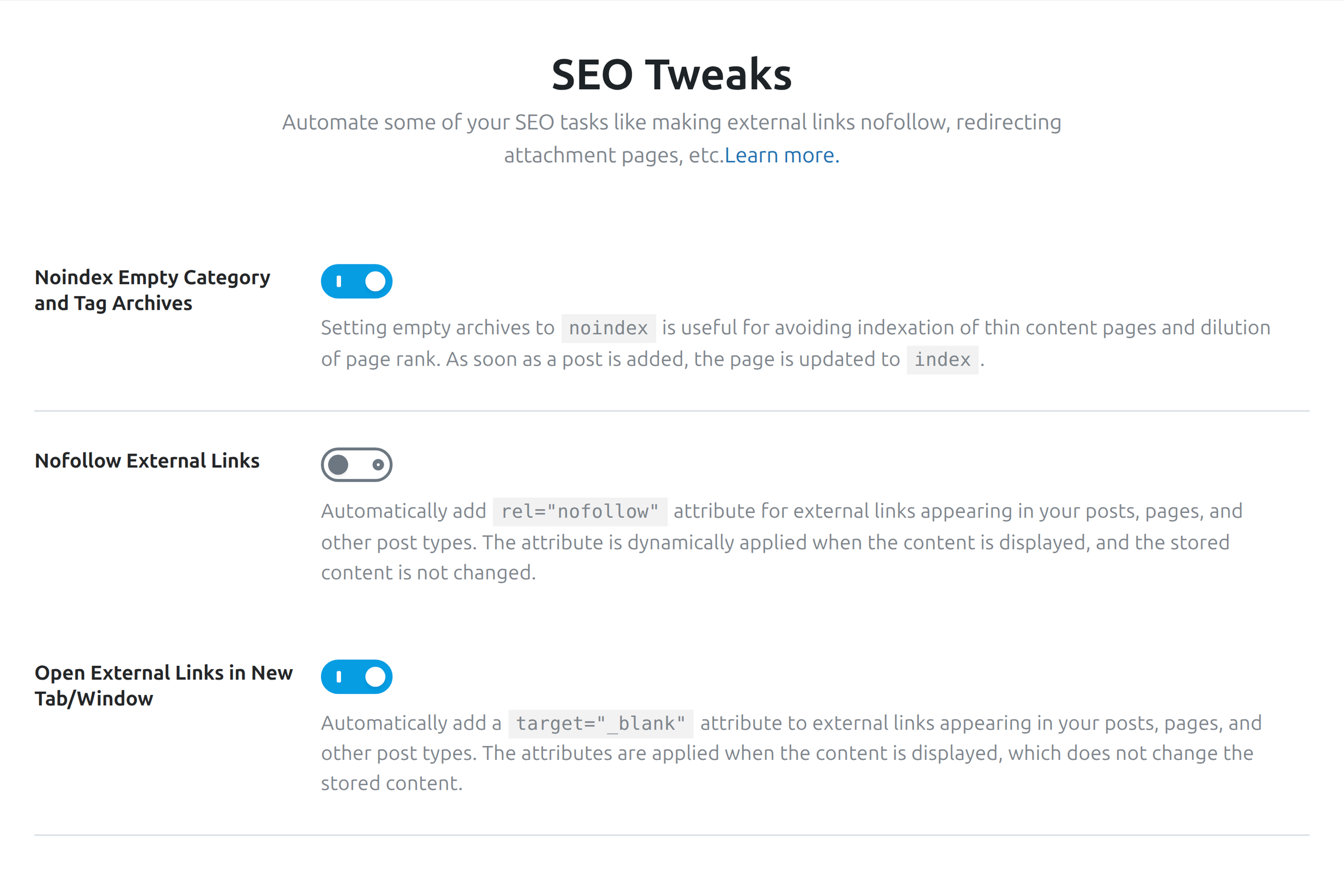
- Noindex empty category and tag archives — stops thin taxonomy pages from competing with real articles when those archives have no useful content.
- Nofollow external links — optional; many sites leave this off and manage sponsored/ugc rel values manually where needed.
- Open external links in new tab / related attributes — UX-oriented; decide based on editorial policy rather than SEO mythology.
Read each label in your installed version — Rank Math iterates copy — and prefer the conservative choice when unsure. You can revisit the same options under Rank Math SEO → General Settings later. The goal is fewer accidental indexable archives, not a maze of aggressive nofollow rules.
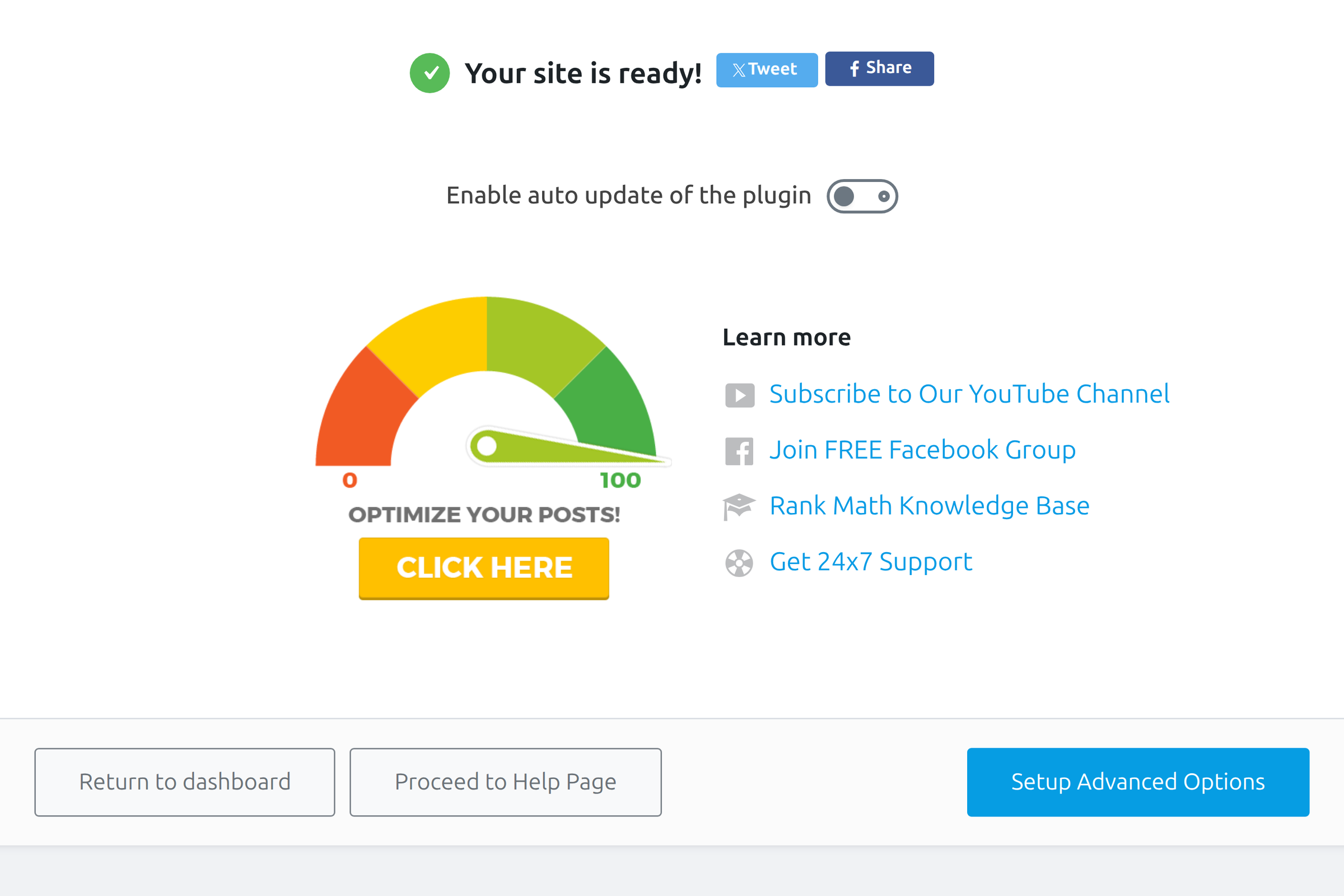
Click through to the Ready screen when the toggles match your site. That screen confirms the core wizard is complete and offers paths into advanced configuration and the dashboard.
Advanced Settings: Roles, 404s, and Schema
If you chose Advanced mode (or continue from Ready into advanced setup), Rank Math walks through Role Manager, Redirections, and Schema defaults. Skip none of them on a team site; on a solo blog you can accept defaults and return later.
Role Manager
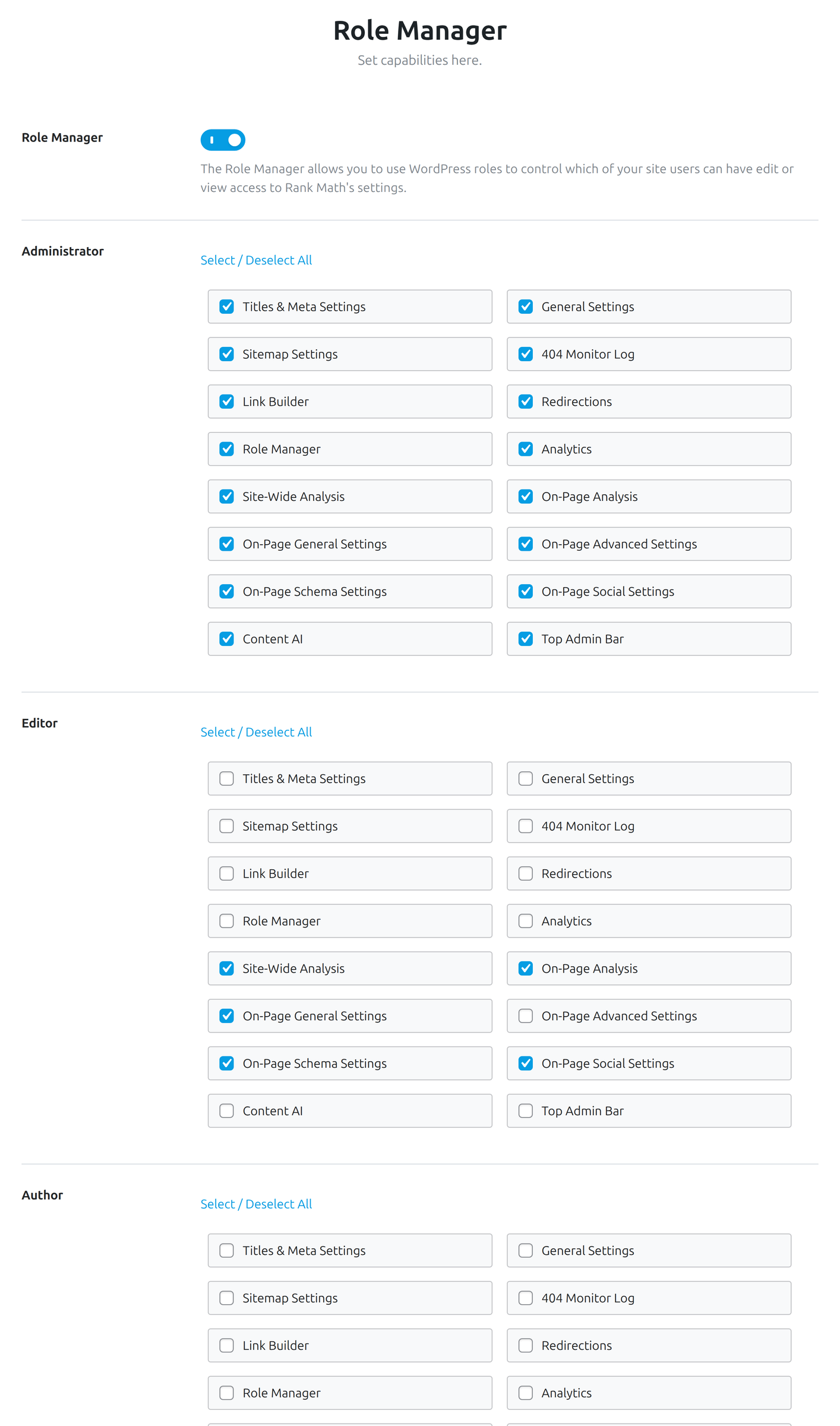
Role Manager decides which WordPress roles may edit SEO meta, access analytics, or change Rank Math settings. Editors often need snippet fields; Authors may only need a subset; customers and subscribers need none. Tight permissions prevent accidental global changes from non-technical users.
Redirections and 404 monitor
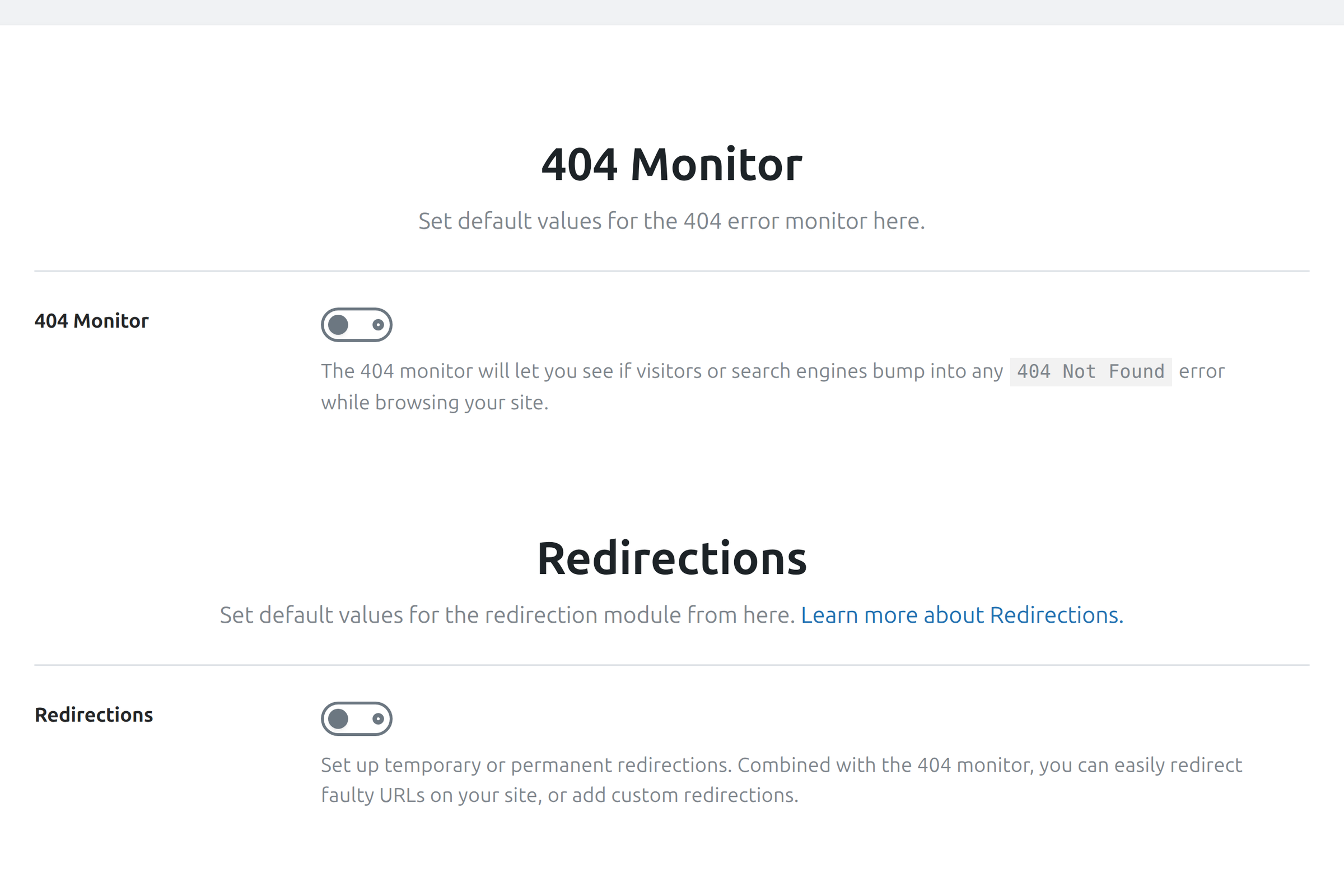
Enable the Redirections module and 404 monitor if you migrate URLs or prune old content. Rank Math can log hits to missing paths and help you create 301s to living replacements. Turn the monitor on, review weekly at first, then dial alerts down once the loudest broken links are fixed.
Default schema markup
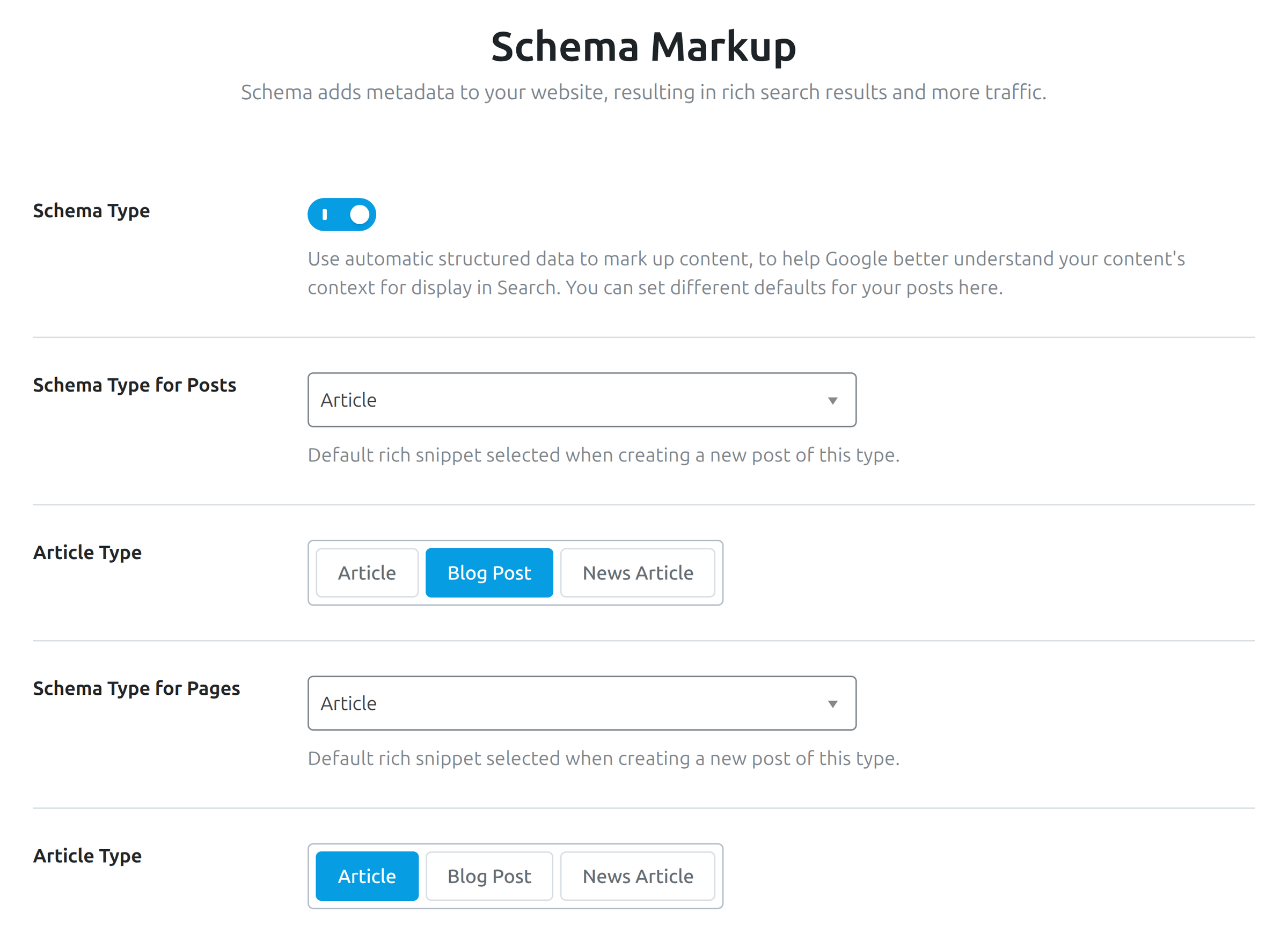
Default schema sets the structured data type Rank Math applies when a post has no override — Article for blogs, Product for commerce templates, and so on. Pick the type that matches the majority of your content; specialize per post when a page is genuinely a FAQ, HowTo, or Product.
After these screens, the advanced pass is done. Modules you did not enable remain available under Rank Math SEO → Dashboard whenever a new need appears — WooCommerce SEO, local SEO, or Instant Indexing for Bing/Google APIs.
Automating On-Page Fixes with SmartyPress AI Engine
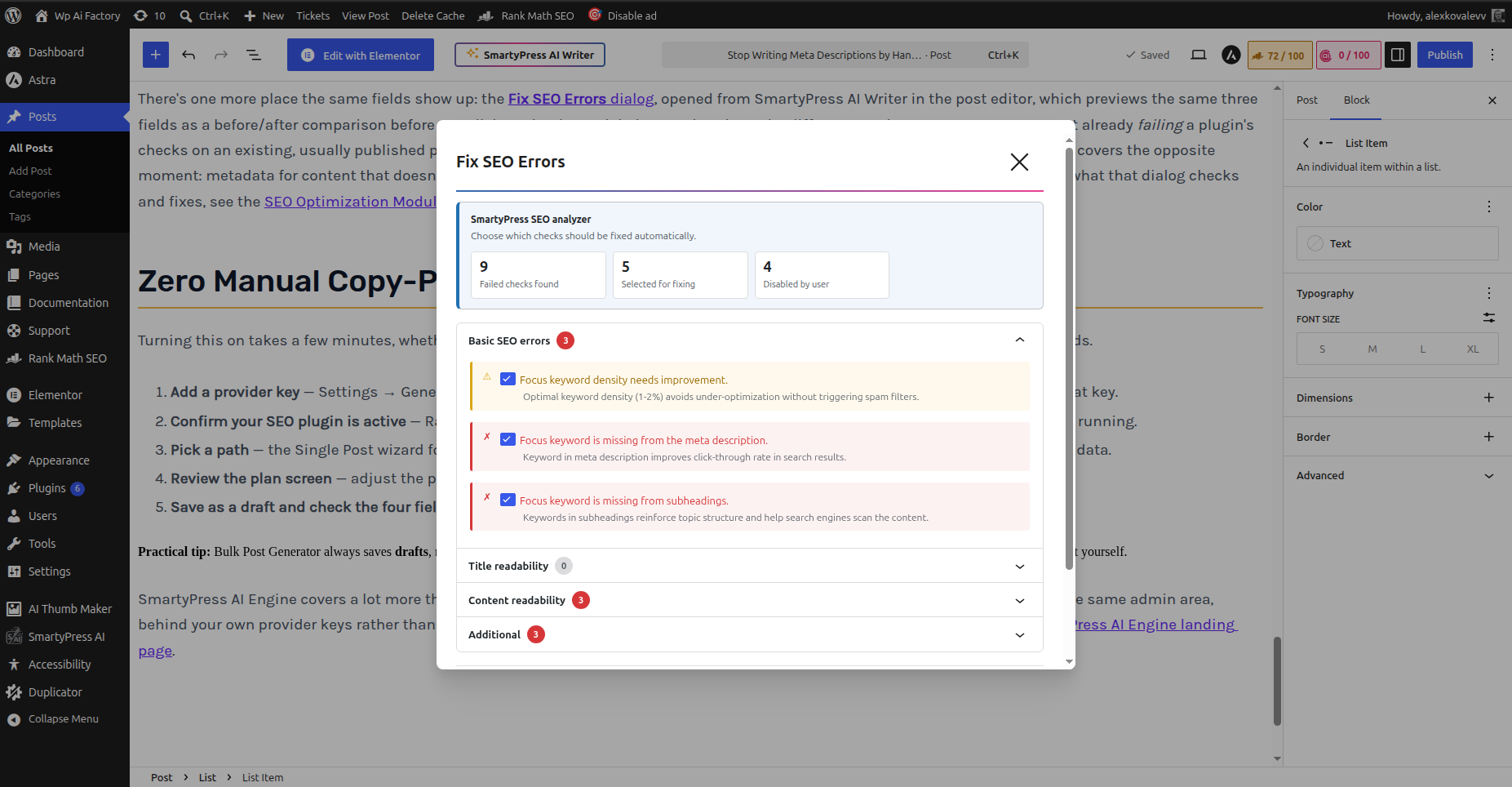
Rank Math is excellent at scoring. It will tell you when the focus keyword is missing from the SEO title, when the meta description is empty, or when images lack alt text. What it will not do in the free workflow is write those fixes for you at scale. That is the handoff this section covers: Rank Math diagnoses; SmartyPress fills alt and meta and repairs failed checks around the keyword you care about.
In practice, you finish the wizard, open a post, set or confirm the focus keyword in Rank Math, then run Fix SEO Errors from the editor. The tool proposes titles, descriptions, and alt text you can accept or edit before saving. Nothing about your Rank Math configuration is replaced — the generated strings land in the same fields Rank Math already reads for the frontend and the scorecard.
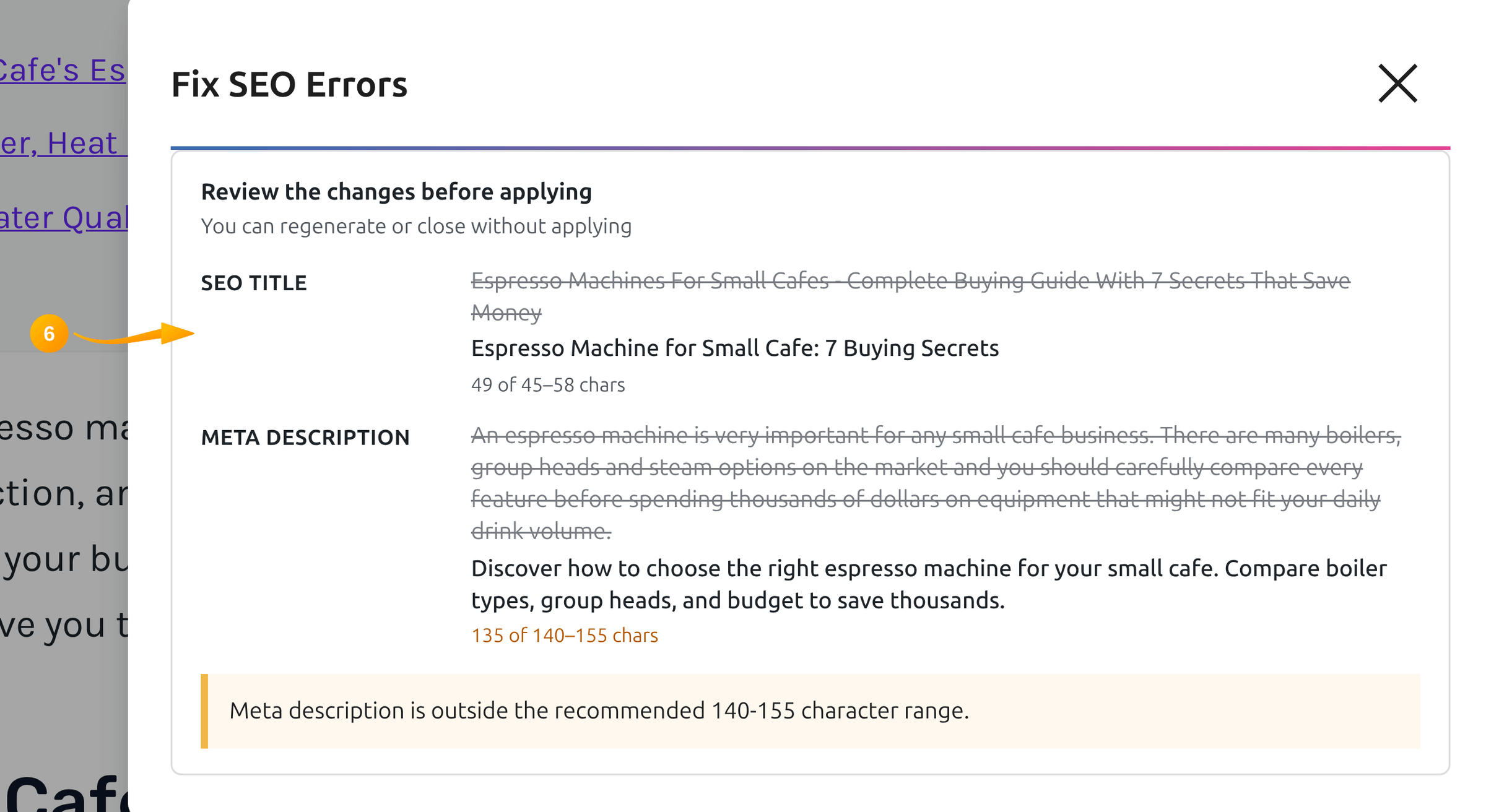
If you are new to the stack, start with the complete free AI Engine guide for provider keys and editor buttons, then return here when Rank Math’s red and orange tests are the bottleneck. The combination is especially useful after a Yoast import: imported posts may have uneven meta quality, and bulk cleanup is faster than editing every Rank Math panel manually.
Editor: clearing a backlog after migration
Challenge: Two hundred imported posts score poorly in Rank Math because descriptions were never written and images have filename-based alt text.
Approach: Keep Rank Math as the source of truth for schema and sitemaps. Process posts in batches with SmartyPress, reviewing titles before publish and letting alt generation run on the media that Rank Math already flagged.
Result: Scores move into the green range without hiring a copywriter for every legacy URL, while the global Rank Math SEO setup from the wizard stays untouched.
What to Check Right After Setup
The wizard ends; SEO work does not. Use this short checklist the same day you finish configuration so the install does not quietly drift.
- Verify the live sitemap — open
/sitemap_index.xml, confirm post types, and submit the URL in Search Console. - Spot-check meta on key URLs — view source or use a rich-results tester on the homepage, a top post, and a money page.
- Deactivate leftover SEO plugins — one title/description engine only.
- Confirm robots and caches — staging noindex off on production; purge caches after import.
- Set editorial habits — every new post gets a focus keyword in Rank Math before publish; fix failed tests before you call the draft done.
- Schedule a 30-day review — revisit Analytics, 404 logs, and thin archives once real crawl data arrives.
Also decide your template titles under Rank Math SEO → Titles & Meta. The wizard sets identity; templates control how post titles, archives, and separators render by default. A consistent %title% %sep% %sitename% pattern beats one-off edits on every URL.
If you run a reverse proxy, CDN, or security firewall, make sure sitemap_index.xml and robots.txt are not cached as empty error pages. A perfect wizard cannot help if crawlers never see the files.
Conclusion
A durable Rank Math SEO setup follows a simple order: install the Rank Math SEO plugin, connect your account, choose Easy or Advanced in the Rank Math setup wizard, import Yoast data when it exists, define Your Site identity, connect analytics on a real domain, shape the Rank Math sitemap, set optimization toggles, and finish Advanced modules if you need roles, redirects, and schema defaults. That sequence gives Rank Math WordPress sites a coherent baseline instead of a pile of unchecked boxes.
Keep Rank Math responsible for sitewide signals and scoring. Let SmartyPress AI Engine handle the repetitive on-page work the scorecard surfaces — writing alt text and meta, and clearing failed checks around your focus keyword — so the wizard’s good defaults are not wasted on empty snippets. When those two layers stay in their lanes, setup day becomes a short project instead of an open-ended rewrite of your entire archive.
Continue the setup. The wizard covers the foundation, but most of the plugin lives under General Settings: link and attachment behaviour, breadcrumbs, automatic alt text, robots.txt and llms.txt, the 404 log and redirections. Part two of this series walks through every tab — Rank Math general settings after the setup wizard.