Rank Math general settings are the screen you open after the wizard: one page of 15 tabs that control how links, breadcrumbs, images, robots.txt, 404 logs, and redirections behave on a live WordPress site. This is not another pass through installation. It is the reference for every toggle on that screen — what it does, what Rank Math ships as the default, and whether changing it is worth the risk.
The official Rank Math General Settings knowledge base lists the same tabs. This is not a rewrite of that page. It is a pass over Rank Math SEO 1.0.275 (PRO 3.0.115 where a control is paid), checked against Rank Math’s own code. Where the vendor docs and the code disagree, the code wins. Screenshots may show a populated demo: trust the labels, not the on/off states. Defaults are named in the text.
This is part two of the series. If you have not run the setup wizard yet — site type, sitemap, and the first module choices — start with Rank Math SEO setup for WordPress. The wizard writes the baseline. Rank Math general settings are where you refine it.
How to Open Rank Math General Settings and Search for an Option
The menu item is General Settings. The page title in the admin bar is SEO Settings — those are Rank Math SEO settings, not a second pass through the wizard. You click one label and land on the other; both are correct.
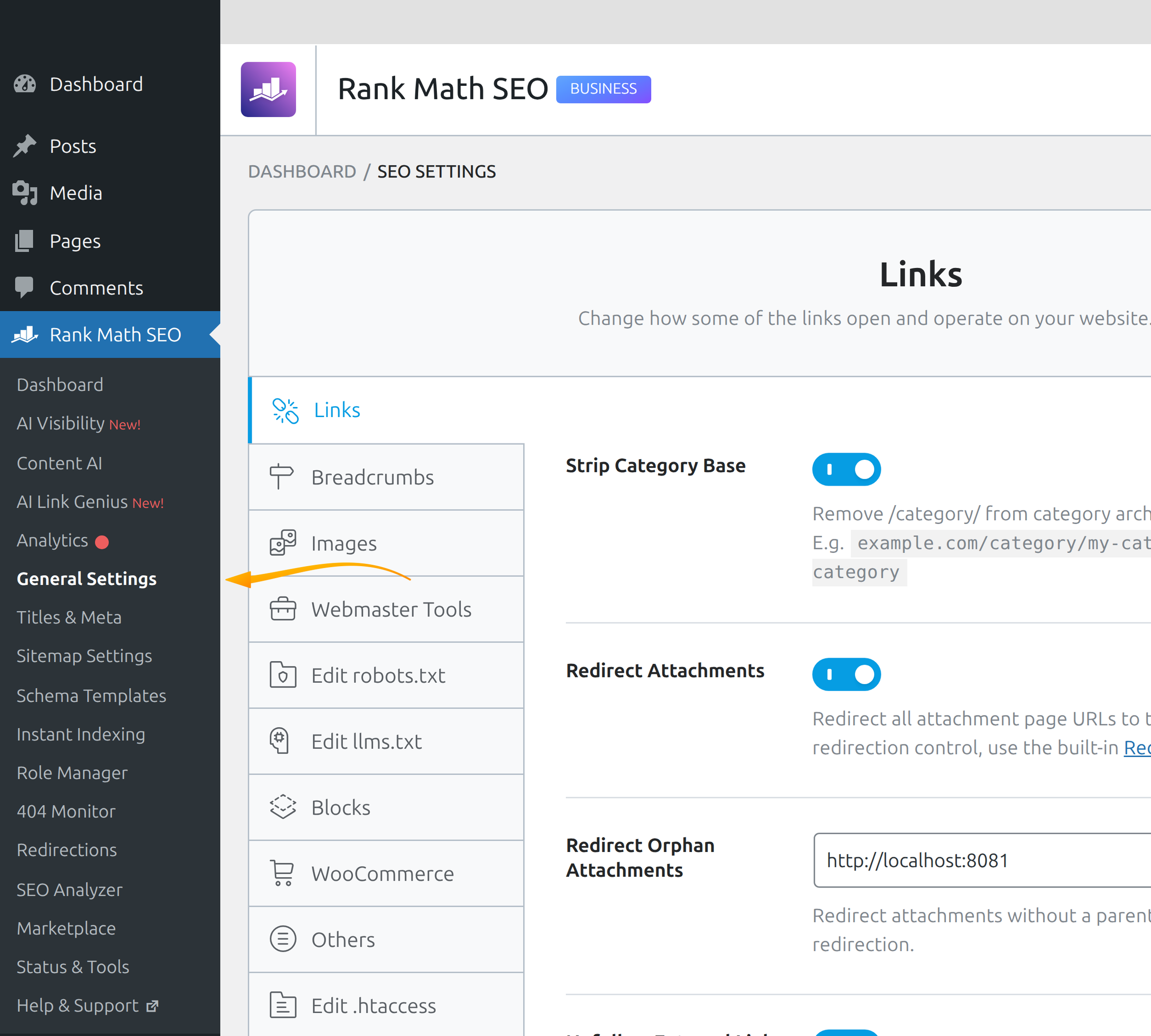
- Open the menu — go to Rank Math SEO → General Settings. That is Rank Math general settings, not Titles & Meta.
- Confirm Advanced Mode — several tabs and fields carry the class that Easy Mode hides. If Breadcrumbs, Others, Edit robots.txt, Edit llms.txt, or Edit .htaccess are missing, switch to Advanced from Rank Math SEO → Dashboard.
- Use the search field — the box in the top-right indexes option names. Type a fragment such as
nofollowand jump straight to the matching rows instead of hunting through tabs.
The left column of Rank Math general settings is the tab list. Image SEO unlocks Images. LLMS Txt unlocks Edit llms.txt. Schema unlocks Blocks. WooCommerce plus its module unlocks the store tab.
404 Monitor, Redirections, Analytics, Content AI, and Podcast (PRO, Schema required) each add a tab. Edit .htaccess is super-admin only; on Nginx Rank Math shows .htaccess file not found. Multisite removes the robots.txt tab. Current builds may also list Link Genius — a separate module, not covered here.
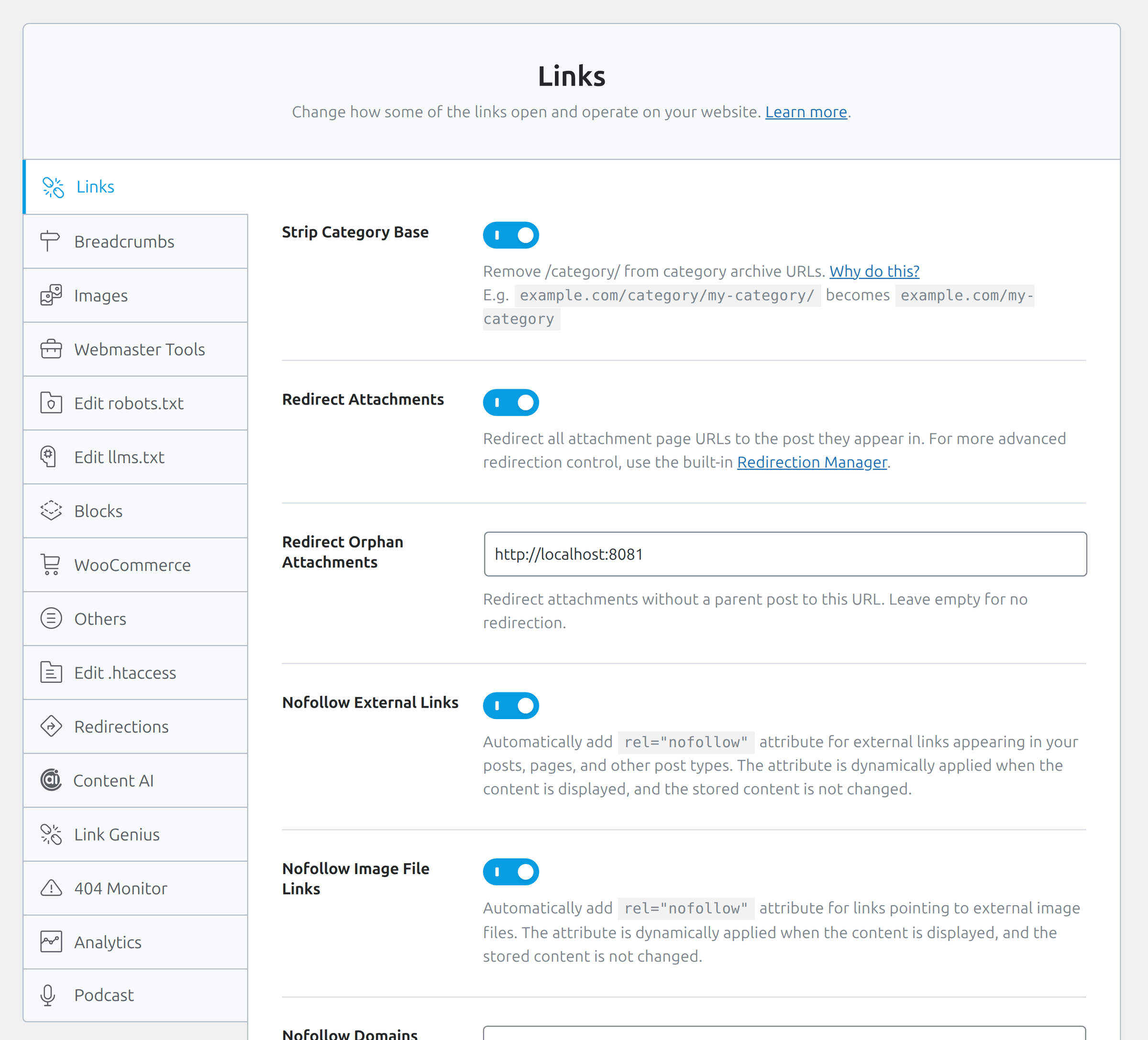
Easy Mode is not a different settings file. It hides fields marked advanced. On Links, Easy Mode essentially leaves Open External Links in New Tab/Window in view; strip category, attachment redirects, and nofollow wait until Advanced. If an option from this guide is missing from Rank Math general settings, check the mode before you assume the module is off.
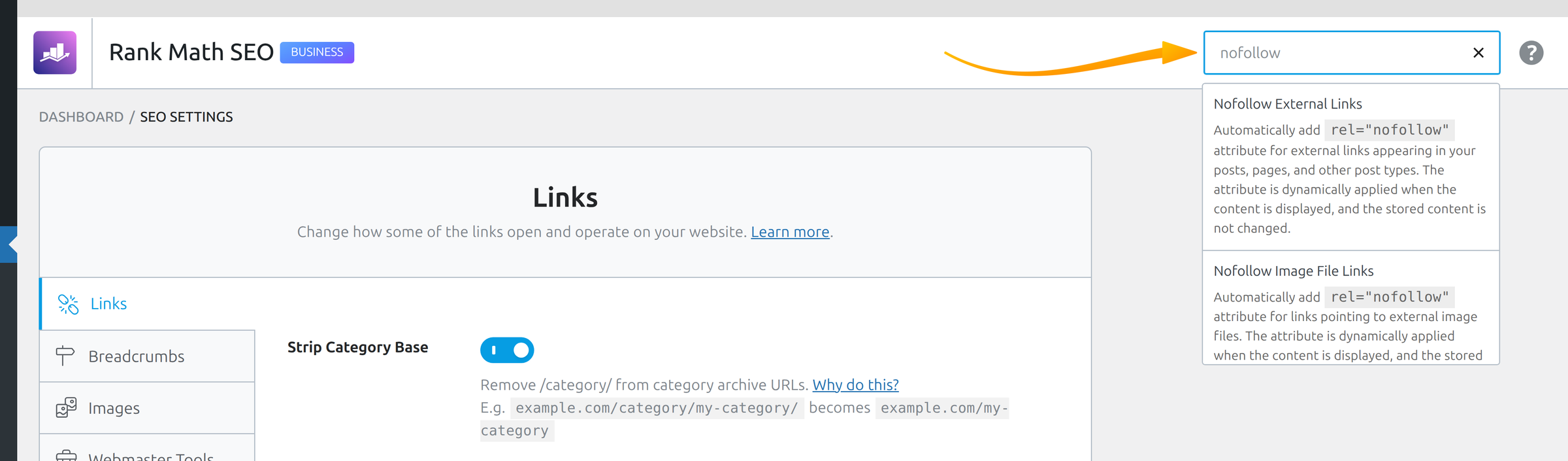
Search indexes Rank Math general settings only, not Titles & Meta. An empty query prints No results found. Click a hit to scroll to the control.
The Links Tab: How Rank Math Handles URLs and Attachments
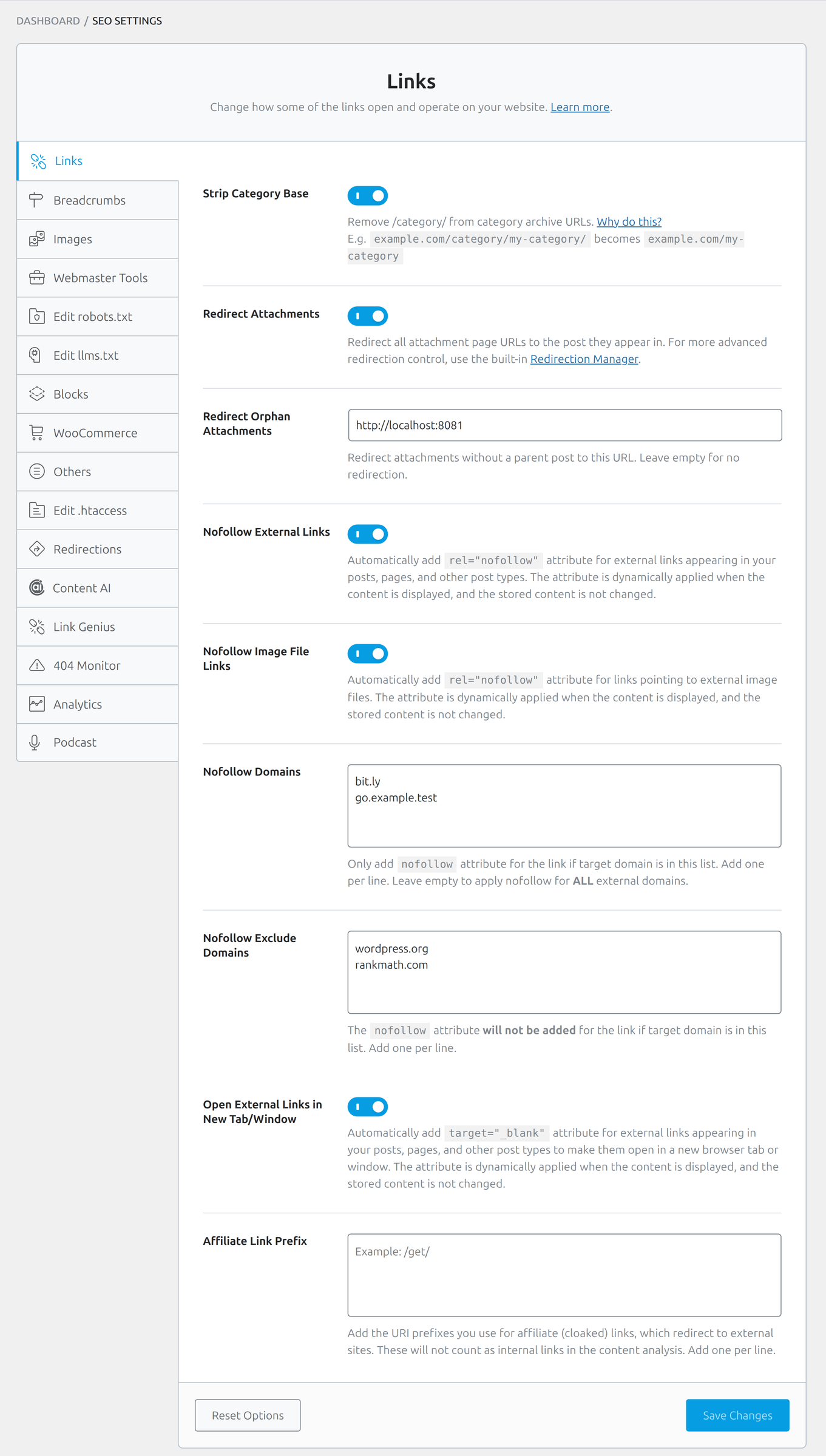
The Links tab in Rank Math general settings changes how category archives, attachment URLs, and outbound anchors behave when WordPress renders a page. Rank Math injects attributes on the_content. It does not rewrite the HTML stored in the database. That matters when you later disable a toggle: the post content is unchanged, and the extra rel or target simply stops being added.
Strip Category Base
Strip Category Base is off by default and sits in Advanced Mode. It drops /category/ from archives, so example.com/category/my-category/ becomes example.com/my-category/. That looks tidier. It does not make the archive rank better, and it can collide with a Page that already uses the same slug. Leave it off unless you have 301s ready for the old URLs — this toggle does not create them.
Redirect Attachments and orphan files
Redirect Attachments is on by default. WordPress still builds a thin URL for every image; Rank Math sends it to the parent post. Keep this on. When the toggle is on, Redirect Orphan Attachments appears — empty by default. Paste a URL for media with no parent, or leave it empty. For anything more elaborate, use the Redirection Manager the description links to.
Nofollow: two lists, one rule that surprises people
Nofollow External Links and Nofollow Image File Links are both off by default. Either one reveals two textareas: Nofollow Domains and Nofollow Exclude Domains. Put one domain per line, without www. Rank Math looks at the domain written in the content, not the destination after a cloaked redirect, so a shortener such as bit.ly is judged as bit.ly.
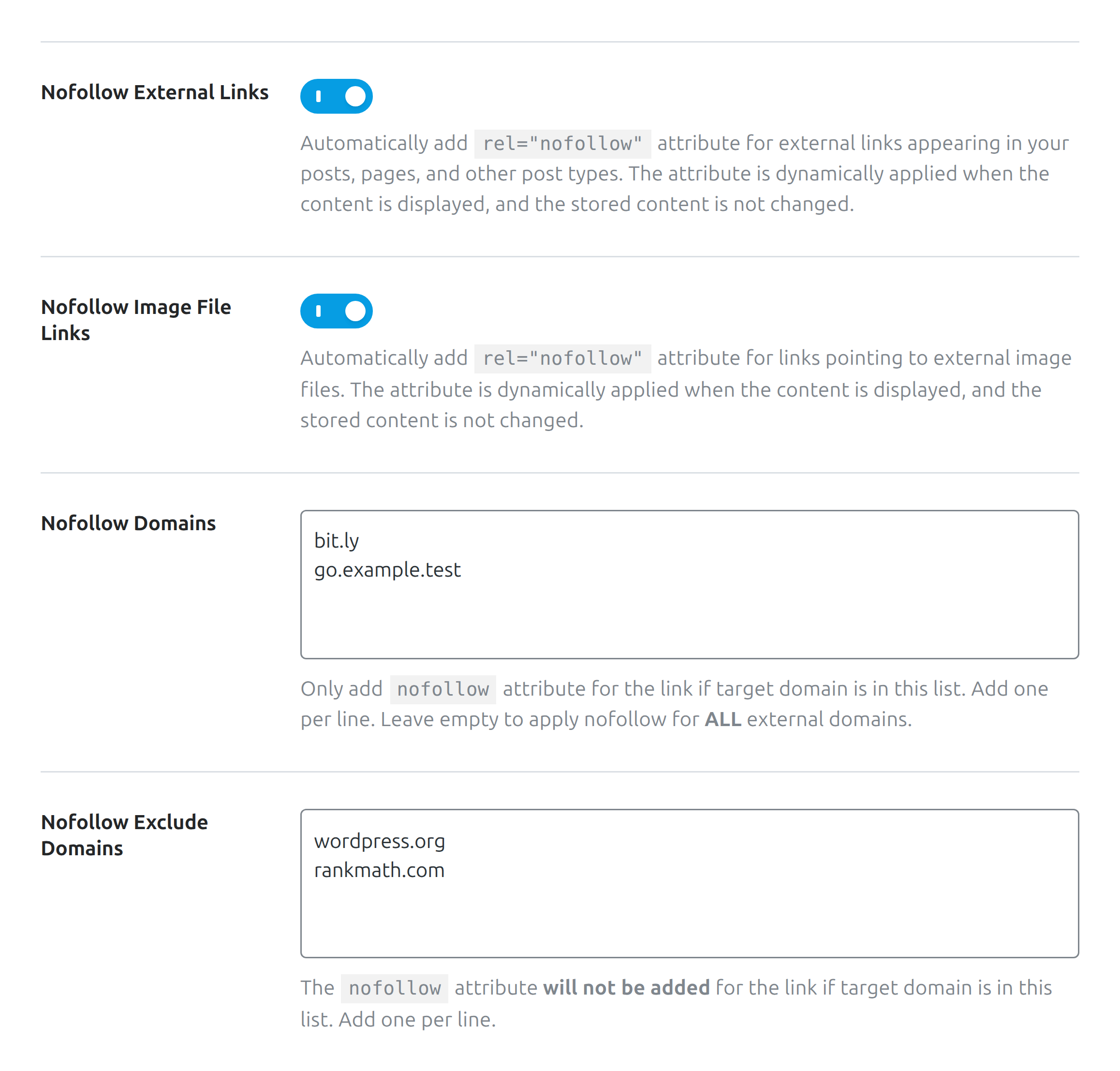
The include list wins. If Nofollow Domains is not empty, Rank Math adds rel="nofollow" only to those domains and ignores the exclude list. If the include list is empty, it nofollows every external link except the domains in Nofollow Exclude Domains. That is the opposite of “fill both lists and they work together.” Fill one strategy, not both, or you will think the whitelist is doing something it is not.
rel="sponsored" and rel="ugc" on the links that need them. Leave the global toggle off.
External links also receive rel="noopener" by default (the noopener filter ships true). That is a tab-napping safeguard, not an SEO lever. Rank Math general settings have no toggle for it on this tab.
New tabs, and Affiliate Link Prefix (PRO)
Open External Links in New Tab/Window is on by default and is the one Links control Easy Mode still shows. It adds target="_blank" at render time. That is UX, not ranking. Match the rest of your theme; Rank Math general settings will not override a conflicting theme script.
PRO adds Affiliate Link Prefix, a textarea with the placeholder Example: /get/. List the URI prefixes you use for cloaked affiliate URLs, one per line. Rank Math then treats those paths as outbound in content analysis and gives them rel="sponsored". Without the prefix, a cloaked /go/tool/ link looks internal and the scorecard will not flag it as an affiliate hop.
Rank Math Breadcrumbs: Enable, Separate, and Display the Trail
The Rank Math breadcrumbs tab is Advanced Mode only. Turning the function on does not print a trail by itself. Rank Math shows a yellow notice with the PHP call rank_math_the_breadcrumbs() and the shortcode . You still have to put one of those in the theme, a hook, or a block. If the theme already prints its own trail, do not add a second one.
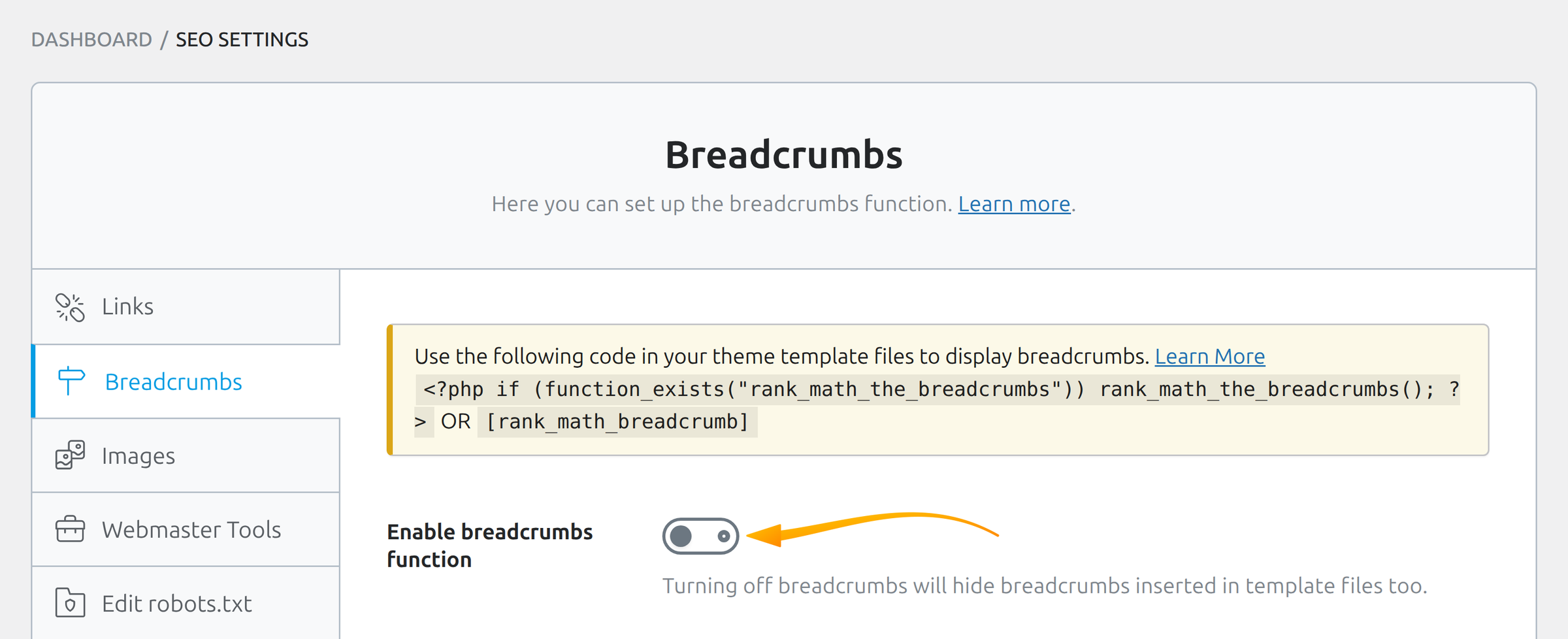
The vendor knowledge base says you will see a single toggle because breadcrumbs start off. In code the default for Enable breadcrumbs function is on. After the wizard, look at the actual switch: if it is off, the rest of the fields stay hidden. Turning it off also hides breadcrumbs already inserted in templates. If the theme called add_theme_support( 'rank-math-breadcrumbs' ), Rank Math locks the toggle.
Separator, homepage, and prefix
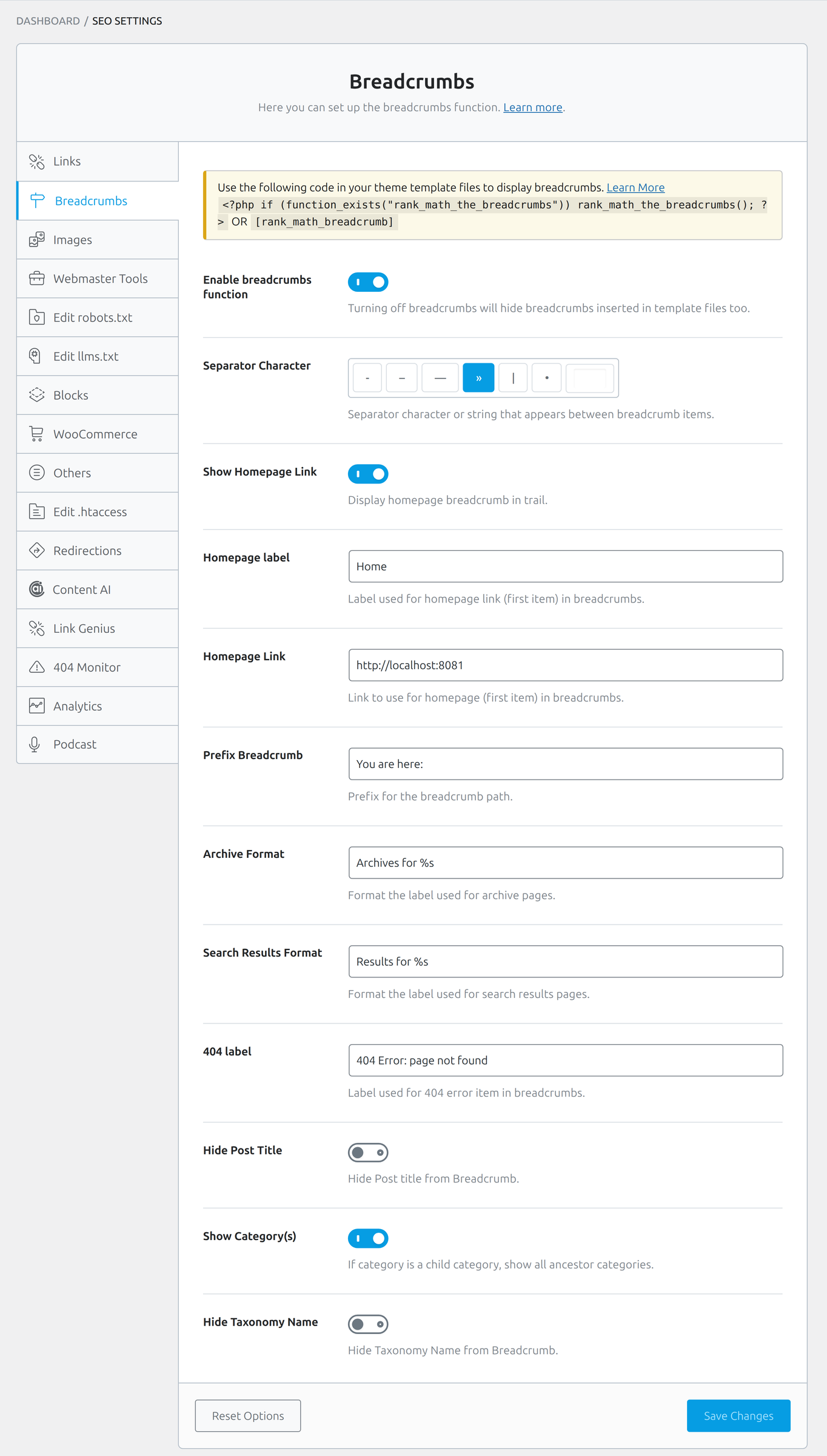
Separator Character defaults to a hyphen (-). The row offers -, --, an em dash, », a pipe, a bullet, and a custom box. Pick whatever matches the theme. This is visual, not a ranking factor.
Show Homepage Link is on by default. Homepage label defaults to Home. Homepage Link defaults to home_url(). Change the label if you prefer the site name; leave the URL alone unless the trail should point somewhere other than the real homepage. Prefix Breadcrumb is empty by default — skip “You are here:” unless the design already uses it.
Archive, search, and 404 labels
Archive Format defaults to Archives for %s. Search Results Format defaults to Results for %s. Do not delete the %s — that is where the archive name or the query string is injected. 404 label defaults to 404 Error: page not found. These strings are for visitors standing on those templates, not for Google.
What to hide in the trail
Hide Post Title is off by default; turn it on if the H1 already repeats the last crumb. Show Category(s) is off; when on, a child category shows its ancestors. Hide Taxonomy Name is off and strips labels such as “Category:”.
Show Blog Page appears only with a static homepage plus a posts page (default off). Rank Math breadcrumbs are independent of the theme trail — pick one implementation so schema and visible HTML do not disagree. Do not stack a second trail on top of Rank Math breadcrumbs.
The Images Tab: Auto-Filling Alt and Title on Output
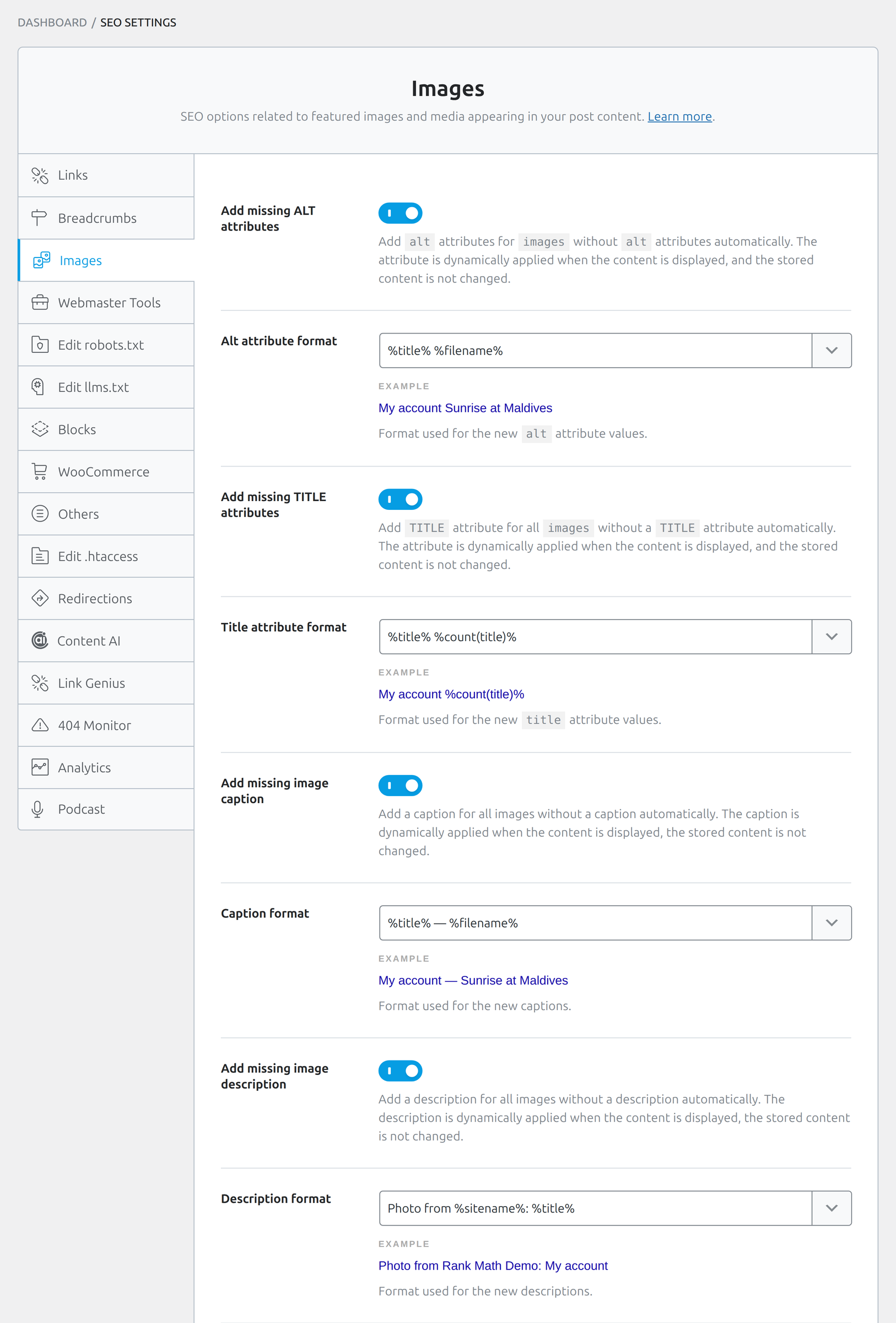
Rank Math general settings show the Images tab only when the Image SEO module is on. It acts on images in post content, the post thumbnail, and WooCommerce thumbnail HTML. It does not scan arbitrary theme markup. Every toggle on this tab says the same thing in the description: the attribute is applied when the content is displayed, and the stored content is not changed.
Alt attributes
Add missing ALT attributes is off by default. When you turn it on, Alt attribute format appears. The coded default is %filename% (the installer stores a leading space; Rank Math trims it on output). Filename-as-alt is a last resort, not an optimization. sunrise-at-maldives.jpg becomes a string a screen reader will speak and a crawler will treat as a caption. It is not a description of the image.
Title attributes
Add missing TITLE attributes is off by default. The format defaults to %title% %count(title)%, which appends a counter when several images would otherwise share the same title. The HTML title attribute is a tooltip. It is almost useless for search and often annoying for people who pause the pointer over a photo. Leave this off unless you have a specific accessibility or UX reason.
PRO: captions, descriptions, avatars, casing, replacements
PRO adds the same pattern for captions and descriptions: Add missing image caption with Caption format, and Add missing image description with Description format. Both apply on output only. Further PRO controls — avatar alt, per-field change-case, and find/replace — sit on the same tab. None of that writes back to the attachment. Treat PRO Image SEO as a frontend bandage, not a media-library cleanup.
Webmaster Tools: Google, Bing, Yandex, and Verification Tags
Webmaster Tools is where you paste verification IDs so Google, Bing, Baidu, Yandex, Pinterest, or Norton can confirm you own the site. You can paste the raw ID or the whole <meta> tag; Rank Math’s sanitizer pulls the content value. This tab is not a substitute for the Analytics module. Verification proves ownership. Analytics, later in this article, pulls Search Console and GA4 data into WordPress after OAuth. Rank Math SEO settings on this tab only write meta tags.
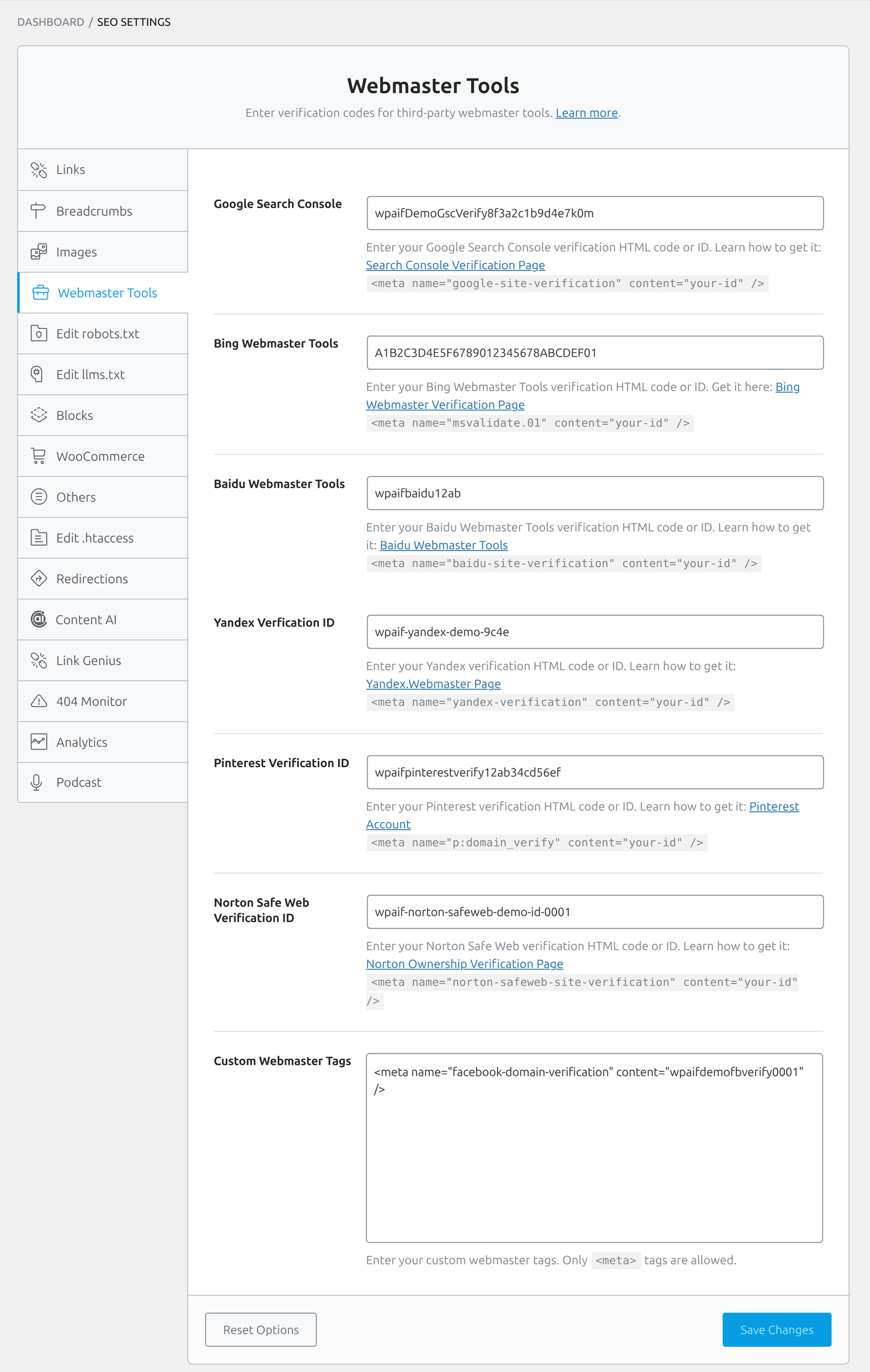
Google Search Console, Bing Webmaster Tools, Baidu Webmaster Tools, and Pinterest Verification ID are available in Easy Mode. Yandex Verification ID and Norton Safe Web Verification ID are Advanced. Custom Webmaster Tags is Advanced as well and accepts only <meta> tags — not script snippets, not JSON-LD.
You do not need to verify every service “just in case.” Confirm the crawlers you actually use. A Google Search Console HTML tag here does not submit the sitemap; you still add /sitemap_index.xml inside Search Console, as part 1 covered. The same is true for Yandex Webmaster: the meta tag proves the domain, then you add the sitemap in that cabinet yourself. Replace leftover demo tokens with IDs from the live property, or clear them.
Editing robots.txt and llms.txt for Crawlers and Language Models
Rank Math general settings keep two Advanced tabs next to each other. Edit robots.txt talks to search crawlers. Edit llms.txt publishes a URL list at /llms.txt for language-model crawlers that read that file. Neither is a ranking switch.
Rank Math robots.txt is virtual until a real file exists
Rank Math robots.txt stays virtual. If a physical robots.txt sits in the web root, the field becomes read-only and Rank Math tells you the content is blocked because the file is in the root folder. Delete or rename that file if you want Rank Math to own the response. If Settings → Reading is set to discourage search engines, WordPress will serve Disallow: / and edits on this tab do not apply.
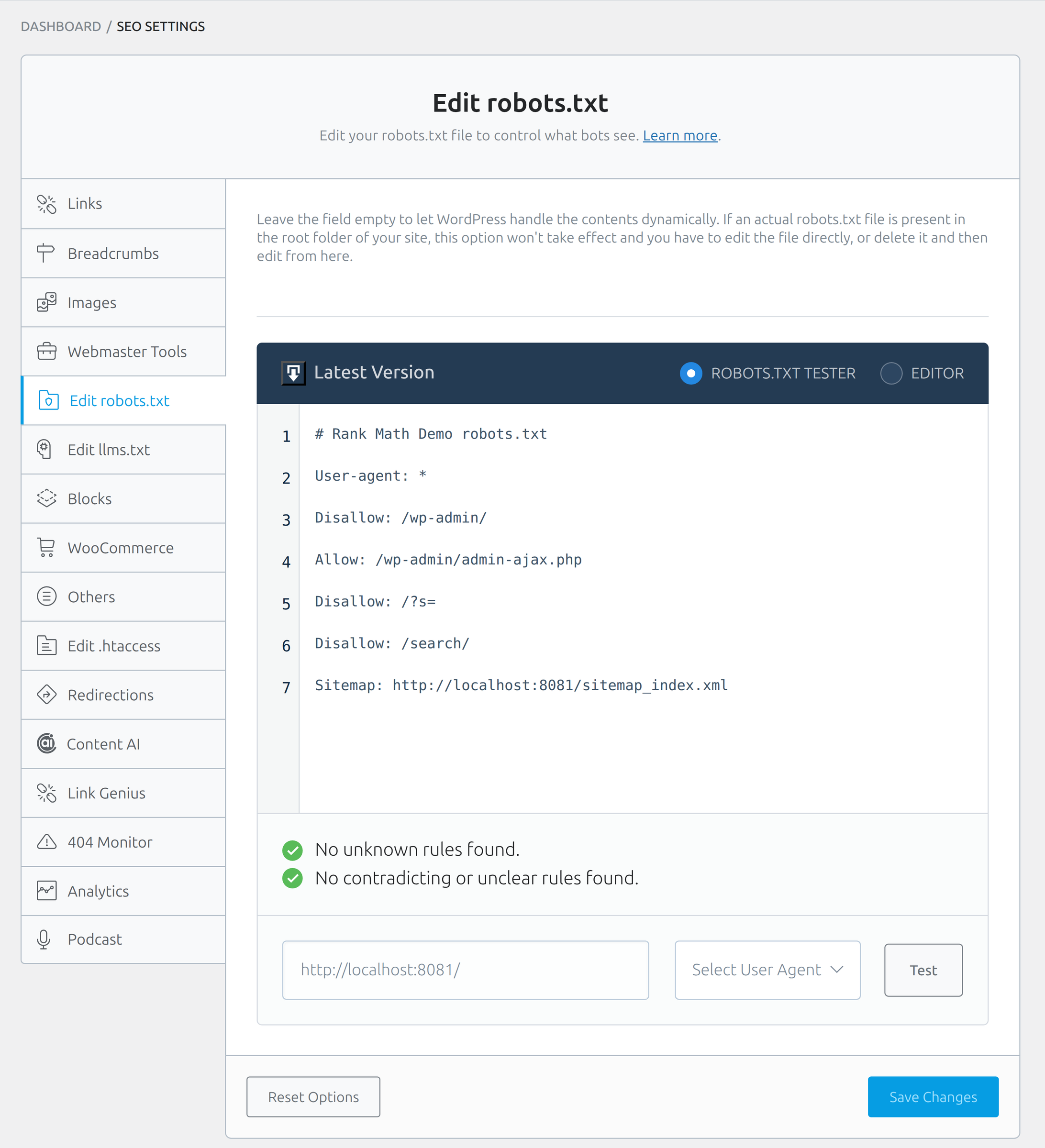
Leave the field empty and WordPress builds the file itself. When Rank Math fills a public site, the coded default looks like this:
# This file is automatically added by Rank Math SEO plugin to help a website index better
User-Agent: *
Disallow: /wp-admin/
Allow: /wp-admin/admin-ajax.php
A Sitemap line is not hard-coded in that default. The Sitemap module adds it through a filter. Do not copy a knowledge-base example that shows Sitemap: https://yoursite.com/sitemap_index.xml as “the” default on a site with sitemaps off. Extra Disallow rules for search URLs in a demo editor are editorial choices, not factory settings.
PRO puts a tester on the same tab (ROBOTS.TXT TESTER / EDITOR). Use it after every edit; a stray Disallow: / is a silent outage. Rank Math robots.txt mistakes do not show up as a friendly admin notice.
llms.txt: a URL list, not a ChatGPT contract
The Dashboard module is labelled LLMS Txt in English on every locale we checked. The settings tab is Edit llms.txt. The file is served at {home}/llms.txt. This is not robots.txt, and it does not guarantee that ChatGPT, Claude, or anyone else will cite you. It is a hint for crawlers that look for that path.
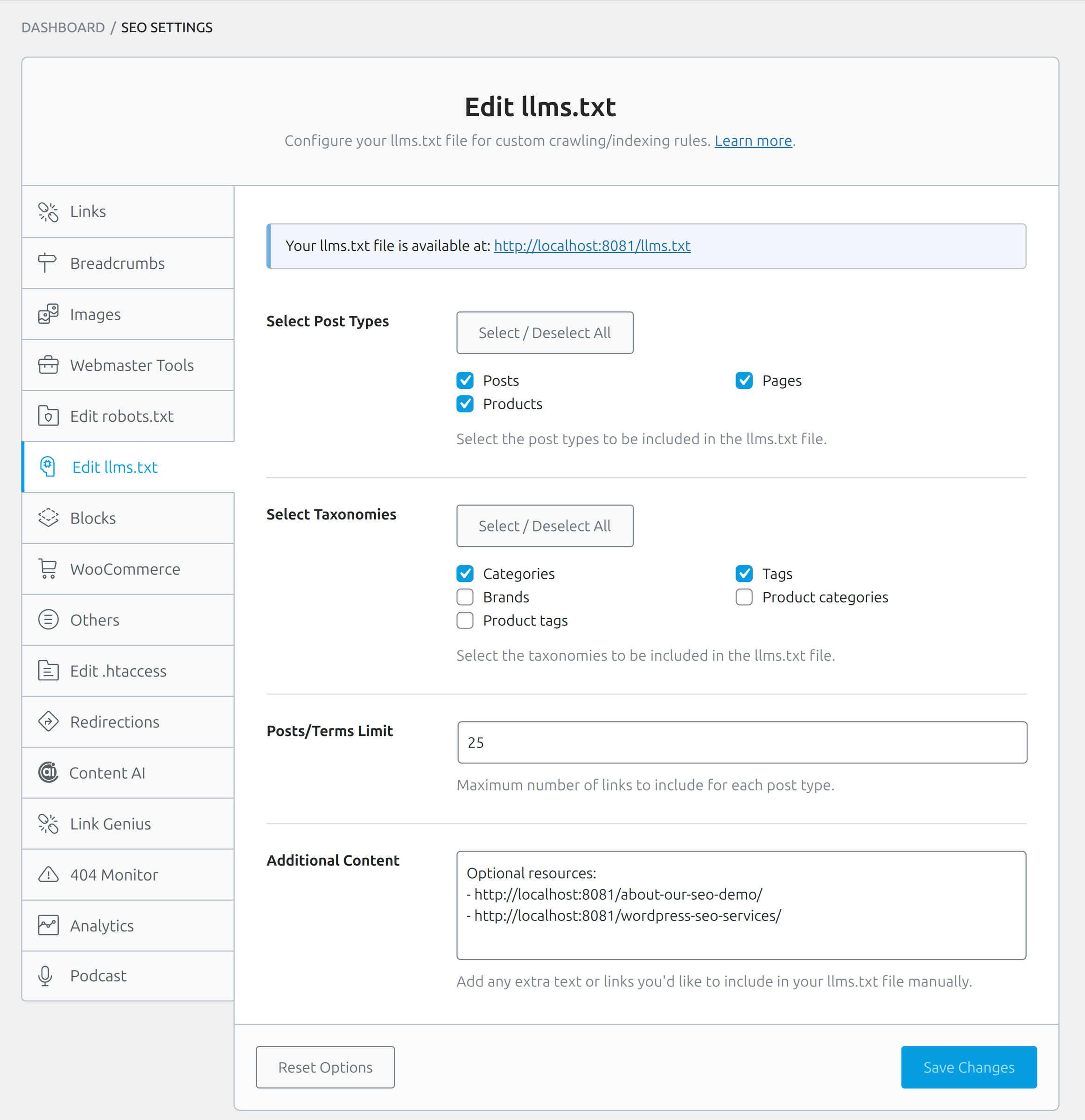
Select Post Types lists public types except attachments. Select Taxonomies lists the taxonomies Rank Math can see. Posts/Terms Limit defaults to 50 in the settings field. The official knowledge base still says 100; that figure is wrong for 1.0.275. A fallback of 100 exists only if the option is missing entirely. Additional Content is a free-text box for extra URLs or notes you want in the file.
Keep the limit modest on a large archive. Fifty links per type is a directory, not a dump of the sitemap. Rank Math SEO settings here do not replace the XML sitemap from part 1.
Blocks: Default Title and Style for the Table of Contents
Rank Math general settings add the Blocks tab when the Schema module is on. The settings here apply to one thing only: Rank Math’s own Table of Contents block, the one you insert into a post so it builds a list of headings for you. If your table of contents comes from the theme or from another plugin, this tab does nothing for it. Individual posts can still override the title.
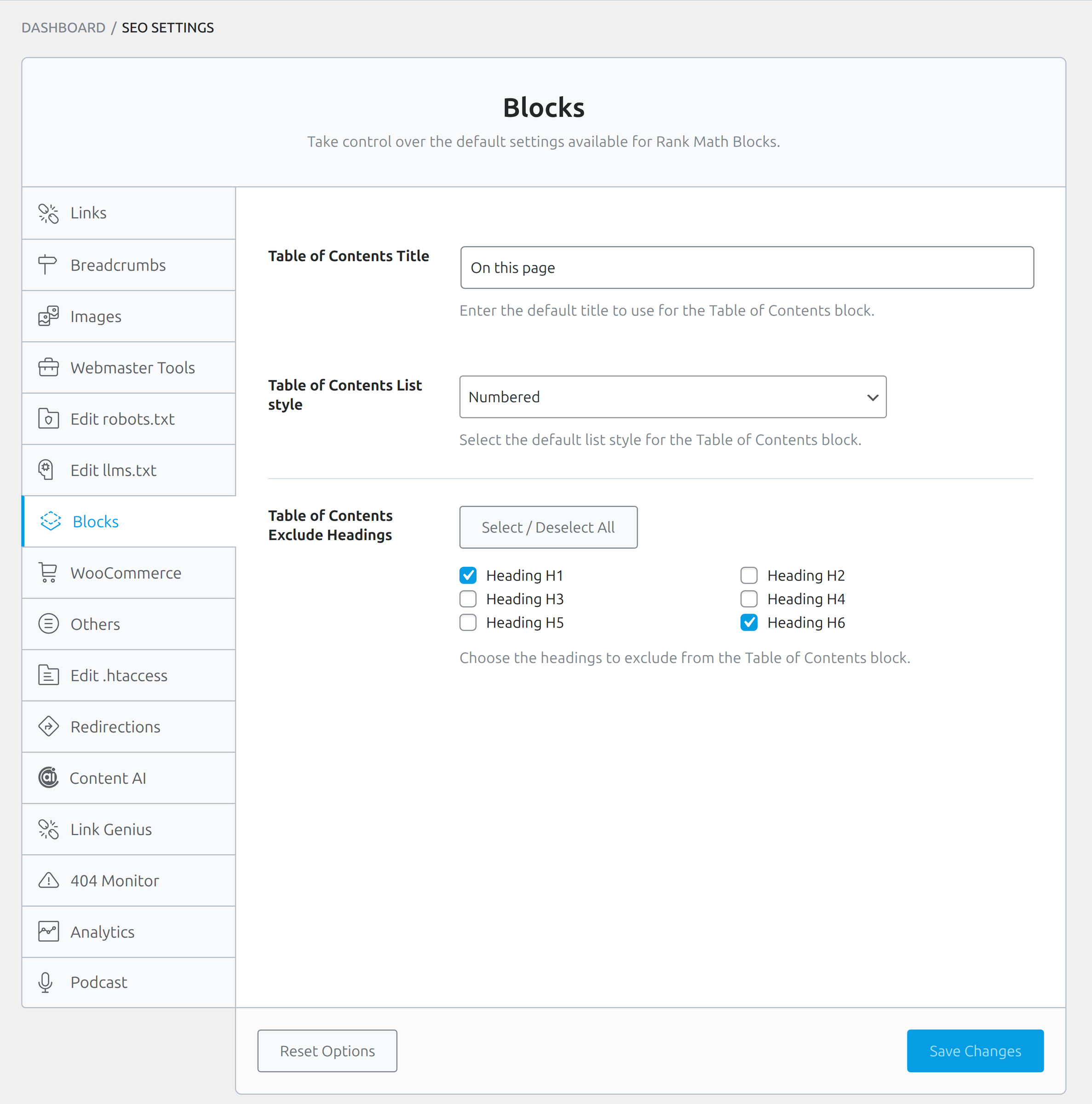
Table of Contents Title defaults to Table of Contents and is an Advanced field. You can override it on an individual block. Table of Contents List style defaults to Unordered (ul); the other choices are None (div) and Numbered (ol). Table of Contents Exclude Headings is empty by default. Excluding H1 is reasonable; leave H2–H3 in the list. Change the sitewide default only if every post should look the same.
The Others Tab: RSS Footers, Frontend SEO Score, and Headless
Others is Advanced Mode in Rank Math general settings. It is a drawer for controls that do not belong on Links or Images: a headless REST endpoint, a frontend SEO badge, usage tracking, and RSS wrappers.
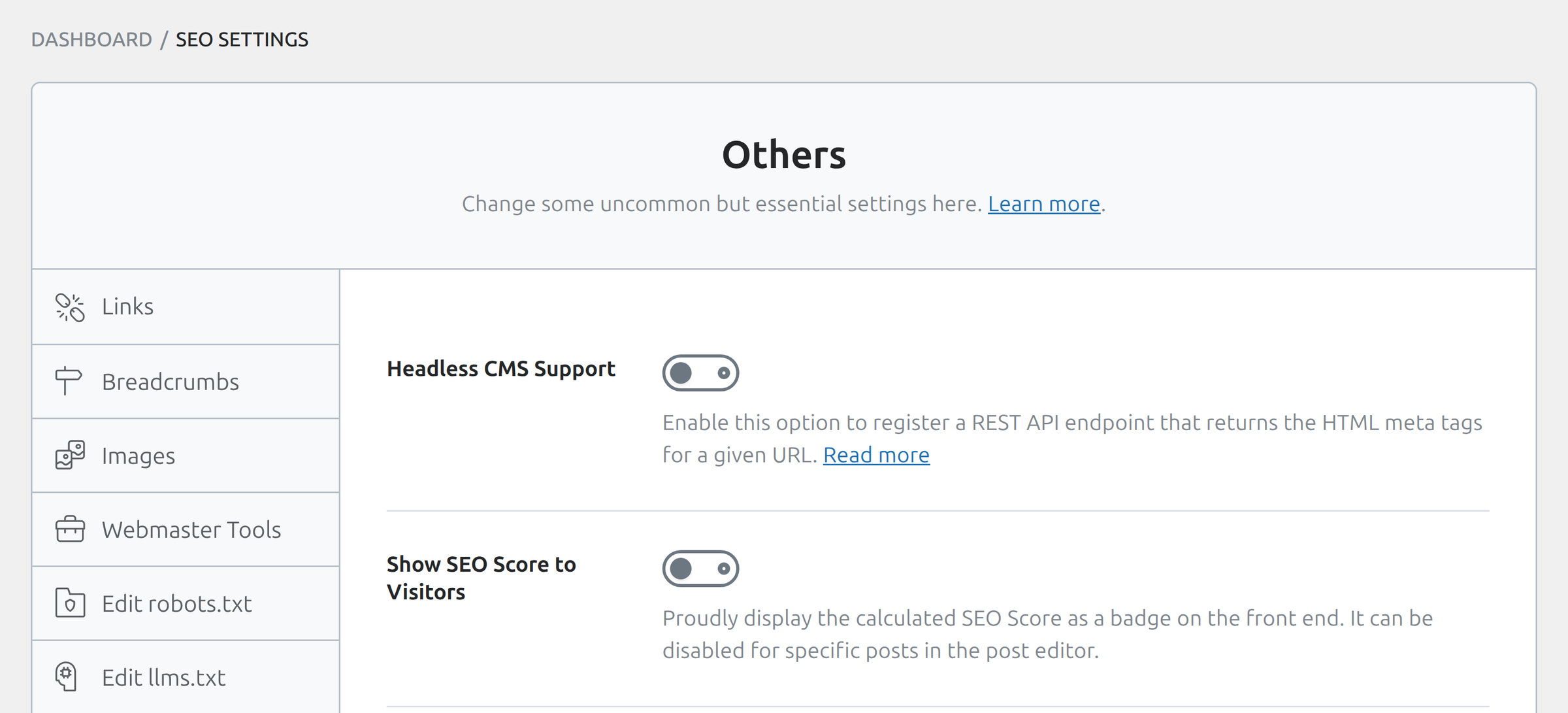
Headless CMS Support
Headless CMS Support is off by default. Turn it on and Rank Math registers GET /wp-json/rankmath/v1/getHead?url=..., which returns the HTML meta tags for that URL. You only need it when the front end of your site is a separate app and WordPress is just the content store. On a classic theme, leave it off.
Show SEO Score to Visitors
Show SEO Score to Visitors is off by default, and that is the right default for almost every public site. The badge shows Rank Math’s on-page score to anyone who loads the post. Visitors do not need that number. Competitors can read it. A storefront with a score floating above the product description looks unfinished.
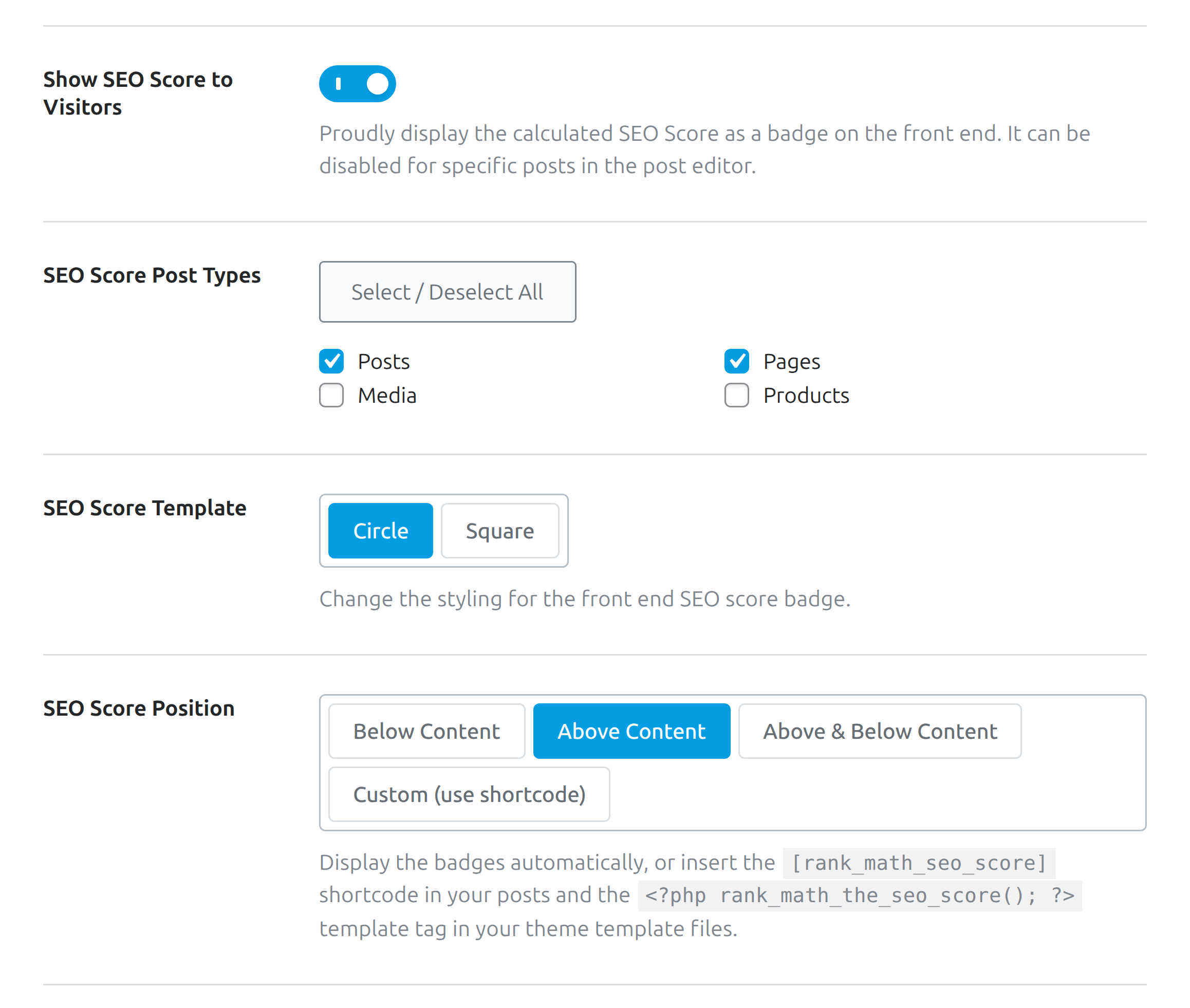
When the toggle is on, three more rows appear. SEO Score Post Types chooses which types get the badge. SEO Score Template is Circle by default, with Square as the alternative. SEO Score Position defaults to Above Content (top); the other choices are Below Content, Above & Below Content, and Custom (use shortcode). The shortcode is . The PHP tag is rank_math_the_seo_score();.
Support Us with a Link appears when the badge is on and defaults to on. The UI description says the backlink to RankMath.com is follow, not nofollow. The knowledge base still claims nofollow; do not repeat that. A follow link from every post to the vendor is a reason by itself to keep the badge off on production.
The badge reports a score. It does not write a title or a meta description. After Rank Math flags empty snippets, SmartyPress AI Engine can fill alt and meta around the focus keyword — the same handoff as in part 1.
Usage Tracking
Usage Tracking is off by default. It lets the plugin send anonymous data about which features you use back to the developer. It changes nothing on the site itself, and no other setting depends on it, so leave it off unless you want to help.
RSS Before Content and RSS After Content
Both RSS fields are empty by default. They prepend or append HTML to every item in the site feeds. A common pattern is a back-link so scrapers who republish the feed still point at the original post.
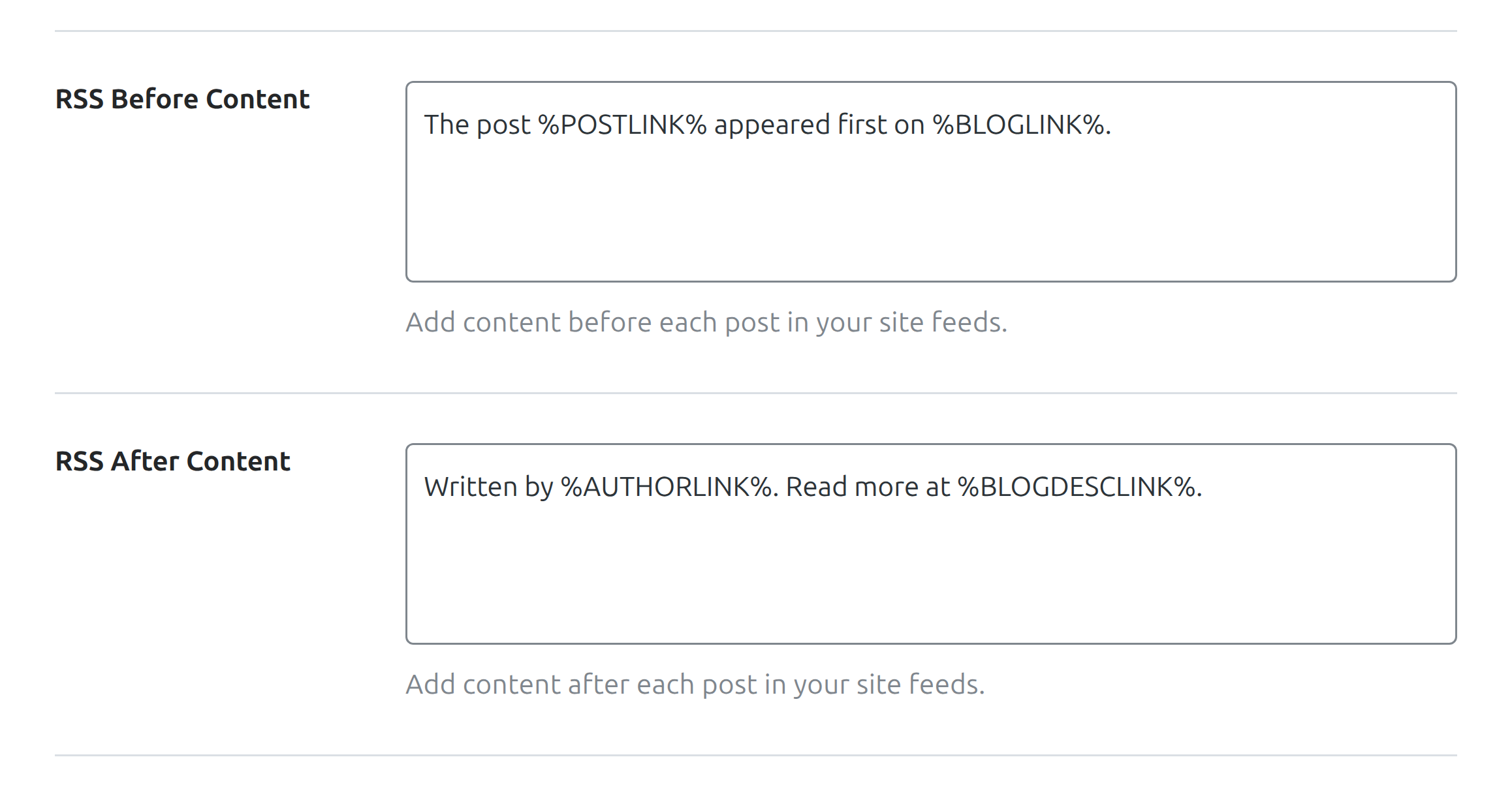
Under the fields Rank Math prints a table titled Available variables:
| Variable | What it prints |
|---|---|
%AUTHORLINK% | Link to the author archive, author name as the anchor |
%POSTLINK% | Link to the post, title as the anchor |
%BLOGLINK% | Link to the site, site name as the anchor |
%BLOGDESCLINK% | Link to the site, site name plus tagline as the anchor |
%FEATUREDIMAGE% | The post’s featured image |
To put the featured image into the feed, add %FEATUREDIMAGE% to RSS Before Content. PRO adds a control that strips media enclosures from the feed, which helps when attachments bloat it.
WooCommerce in Rank Math General Settings: Shop Base, Brand, and Hidden Products
This tab does not exist without WooCommerce and the Rank Math WooCommerce module. Changing URL bases here without 301s is how shops create hundreds of 404s overnight. Pair any base change with the Redirections tab later in this article, and treat it as a Rank Math SEO settings change that rewrites permalinks, not a ranking boost.
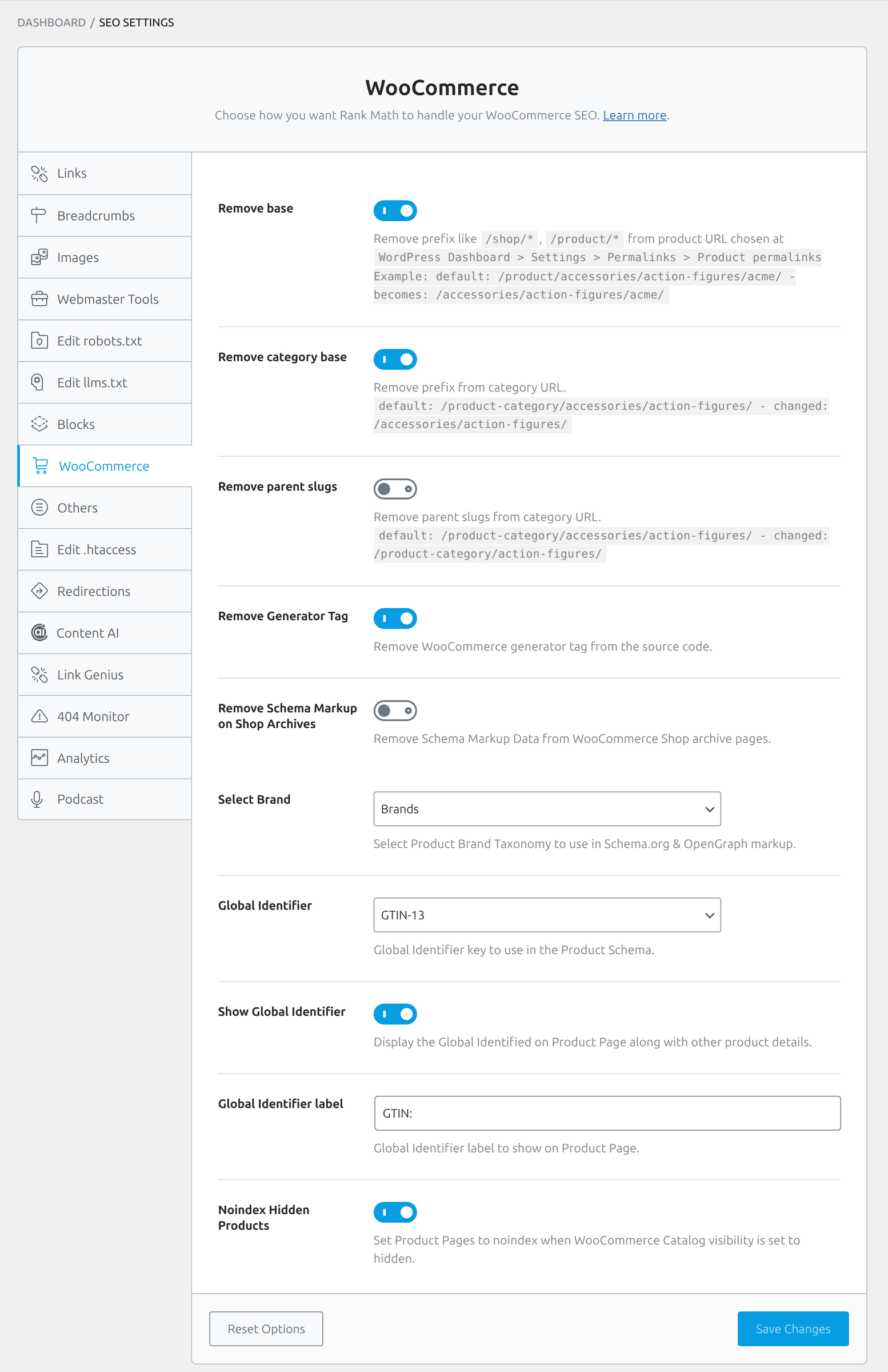
Remove base is off by default and Advanced. It strips prefixes such as /product/ from product URLs. Remove category base is off and strips /product-category/. Remove parent slugs is off and flattens nested category URLs. None of these “boost SEO.” They change permalinks. If you already rank for the old paths, plan redirects before you save.
Remove Generator Tag is on by default and drops the WooCommerce generator meta from the source. That is a small hygiene win; leave it on. Remove Schema Markup on Shop Archives is on by default and removes Product-style schema from shop archives, which are lists, not a single product. Leave that on unless you have a specific schema strategy for the catalog index.
Select Brand (field id product_brand) is a dropdown of product taxonomies. Pick the taxonomy you actually use for brands so Product schema can emit a brand. If you do not have one, leave the default.
PRO adds identifier and visibility controls. Global Identifier chooses the GTIN key for Product schema (GTIN-13 and siblings). Show Global Identifier prints that value on the product page. Global Identifier label is the visible label, often GTIN:. A custom brand field appears when Brand is set to custom. Noindex Hidden Products sets noindex on products whose WooCommerce catalog visibility is Hidden. That last toggle is the one worth turning on: hidden catalog items should not compete in search.
The .htaccess Editor: Risks, Backups, and When to Leave It Alone
The tab is labelled Edit .htaccess. It is Advanced Mode, super-admin only, and useful only on Apache. On Nginx, Rank Math reports that the file was not found. Even on Apache, Rank Math general settings are the wrong place to experiment with rewrite rules.
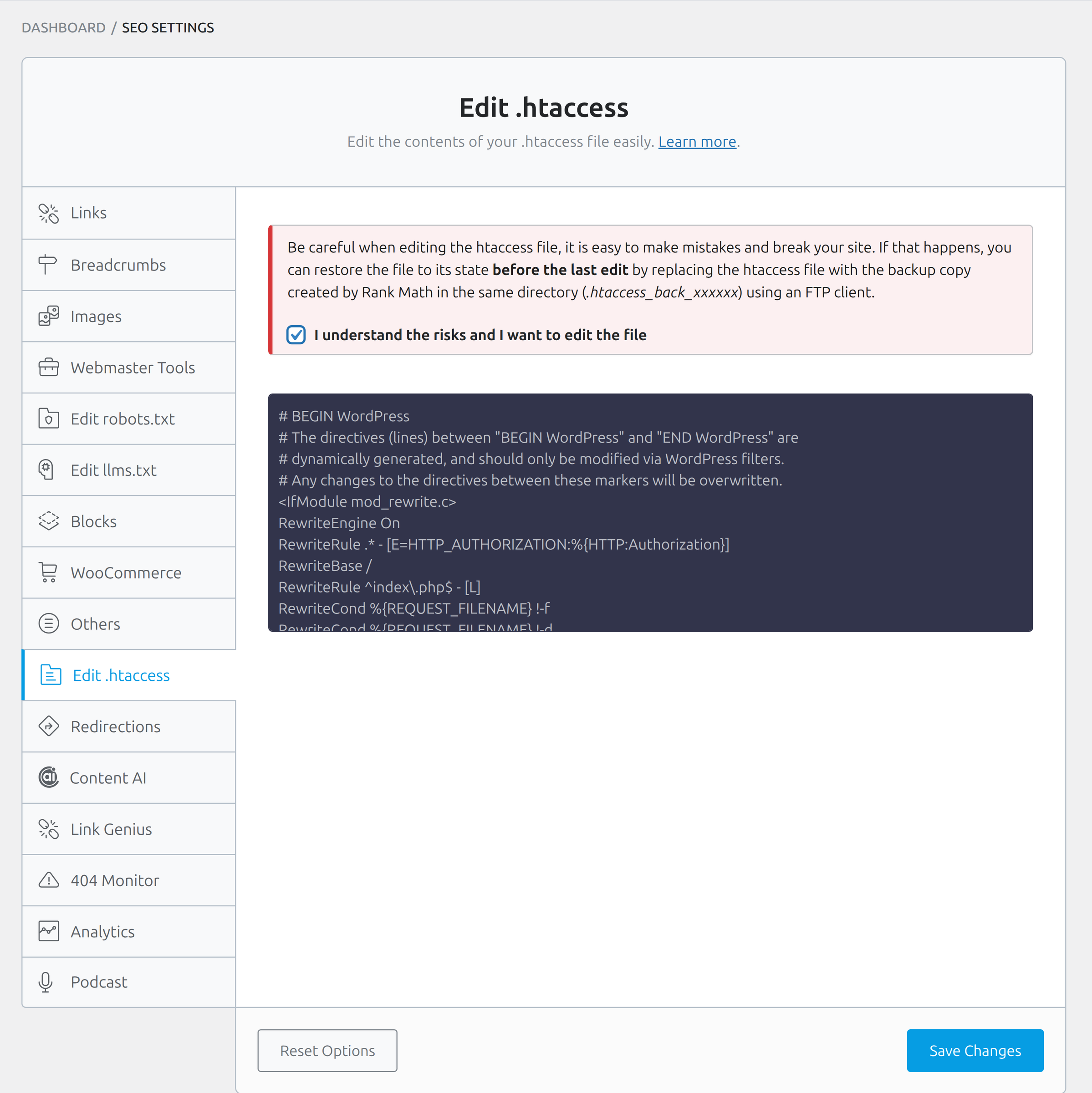
A bad .htaccess line can take the whole site down. Rank Math writes a backup named .htaccess_back_xxxxxx in the same directory before it saves. Restoration is not a button in Rank Math — you copy that backup over the live file with FTP or SSH. Reset Options on this screen does not restore the backup: it clears the plugin’s general settings, and the Apache file stays exactly as you last saved it.
The textarea stays read-only until you tick I understand the risks and I want to edit the file. The editor shows the usual WordPress block between # BEGIN WordPress and # END WordPress. Directives inside that block are regenerated; change them with filters, not by typing between the markers.
Prefer a real server config or the host panel. Use this tab in Rank Math general settings only for a one-line change you cannot make another way, then verify the homepage loads.
404 Monitor and Redirections: Logging Broken URLs and Setting 301s
Part 1 already turned these modules on in the Advanced wizard. This section is the behaviour of the modules, not a second “please enable them” speech. The Rank Math 404 Monitor tab is not the log. The Redirections tab is not the list of rules. Both are defaults. The actual 404 table and the actual redirect list live under their own Rank Math SEO menu items.
Rank Math 404 Monitor: how much to log
The monitor writes to its own database table. On a busy site that table grows. Keep a limit, exclude noisy paths, and do not run Advanced mode as a souvenir. Rank Math 404 Monitor is a log, not a ranking report.
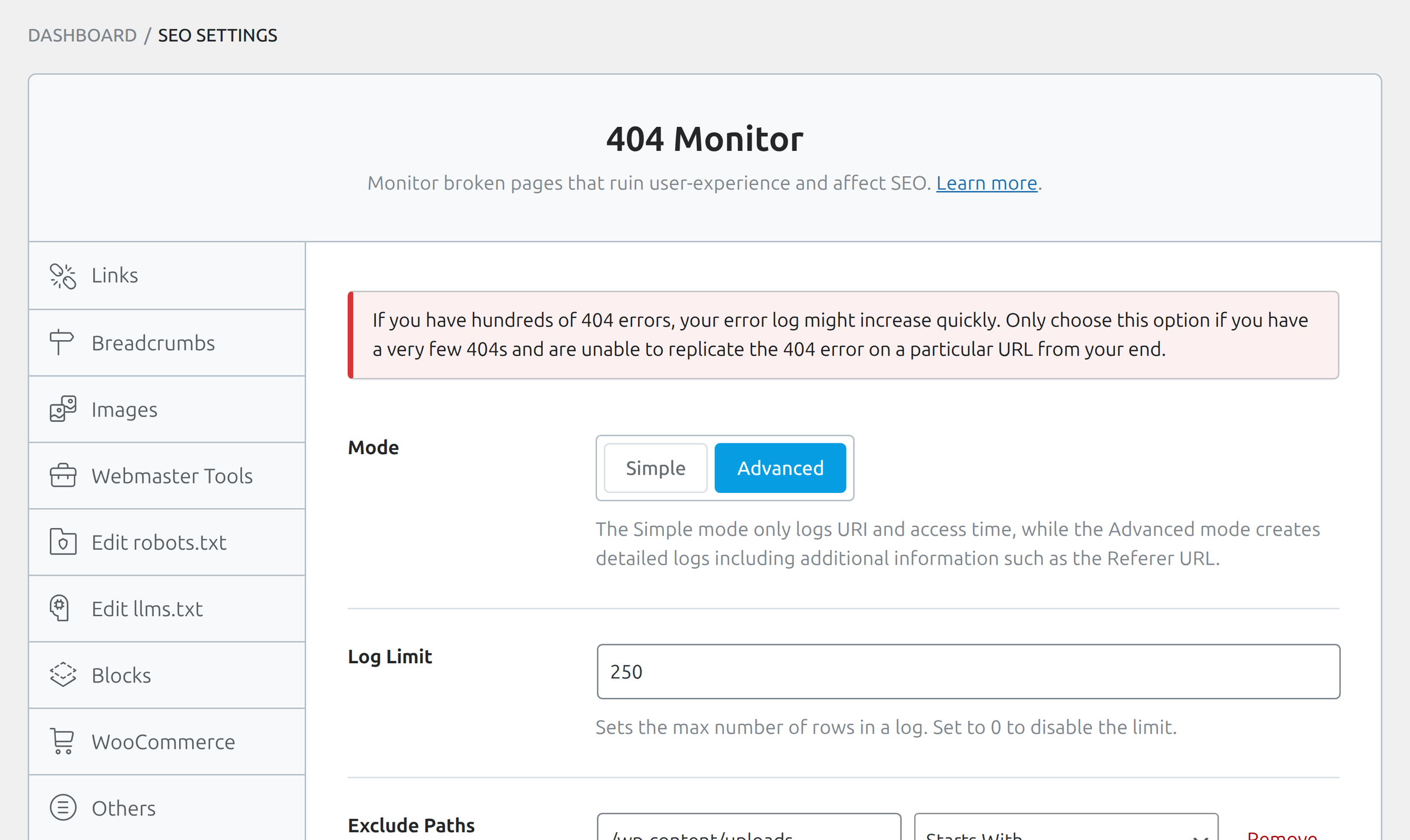
Mode defaults to Simple (URI and access time). Advanced adds details such as the Referer URL and shows a warning: if you have hundreds of 404s, the log grows quickly. Stay on Simple unless you are hunting a specific referrer. Log Limit defaults to 100. 0 means no limit — do not set 0 on production. A demo may show 250; that is not the factory default.
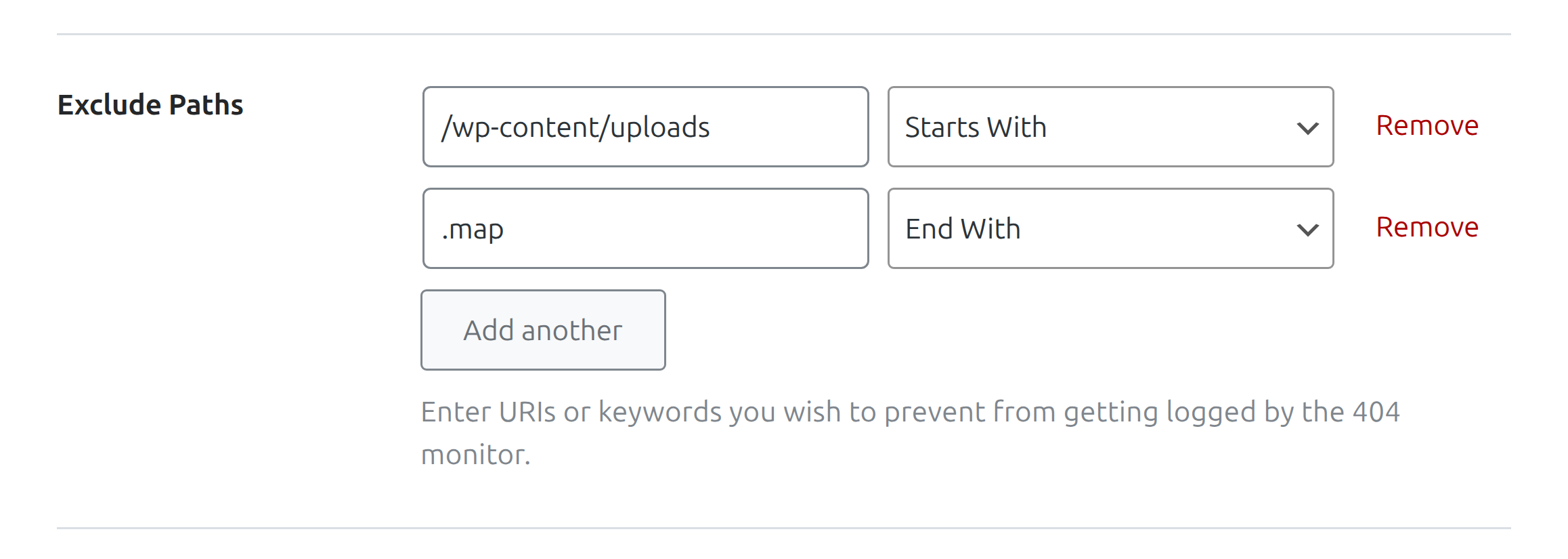
Exclude Paths is a repeating group. Each row is a URI or keyword plus a comparison: Exact, Contains, Starts With, End With (that is the label — not “Ends With”), or Regex. Add another appends a row. Remove deletes one. Follow the hint under the field on your install. Some knowledge-base pages say to omit the leading slash; a working demo often uses /wp-content/uploads with the slash and comparison Starts With. Match whatever the on-screen description asks for, then hit a dummy 404 and confirm Rank Math 404 Monitor ignored it.
Ignore Query Parameters is off by default. Turn it on so /missing/?utm_source=x and /missing/ count as one row instead of a new row per campaign tag. Rank Math 404 Monitor fills up fast on UTM landing pages if you leave this off.
Redirection defaults, not the rule list
Create individual 301s under Rank Math SEO → Redirections. This tab in Rank Math general settings only sets how Rank Math redirections behave when a request misses everything else.
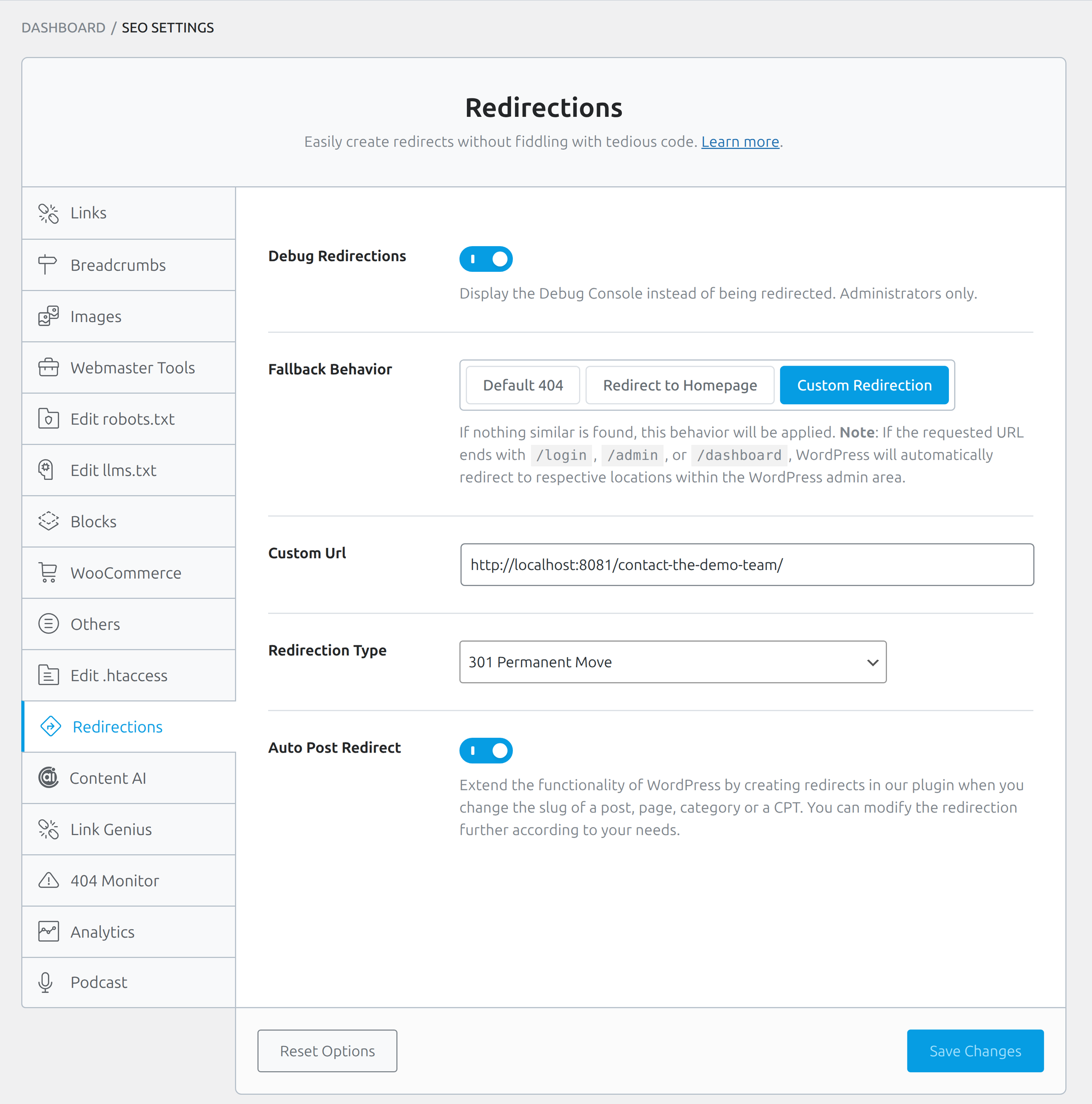
Debug Redirections is off by default. When on, administrators see a debug console instead of being redirected. Leave it off on production; turn it on briefly when a rule fires and you cannot tell why.
Fallback Behavior defaults to Default 404. The other choices are Redirect to Homepage and Custom Redirection. Fallback is what happens when Rank Math cannot find a matching redirect — not a translation quirk, even if some locales render the label oddly. Sending every unknown URL to the homepage is a soft-404 pattern Google has disliked for years. Prefer a real 404 page, then add specific 301s for URLs that used to exist.
Custom Redirection reveals Custom Url (the msgid has a trailing space; the label on screen is still Custom Url). Redirection Type defaults to 301 Permanent Move, with 302, 307, 410, and 451 in the same dropdown. The 410 and 451 choices are gone-for-good and legal-block signals; do not use them as a casual substitute for 301.
The note under Fallback is worth reading once: if the requested URL ends with /login, /admin, or /dashboard, WordPress itself redirects into the admin area. Rank Math will not override that. Auto Post Redirect is off by default. Turn it on when you are about to rename slugs of posts, pages, categories, or CPTs. Leave it off on a stable permalink structure so casual title edits do not spawn redirect chains.
Site owner: permalinks changed after a migration
Challenge: A five-year blog moved from /blog/post-name/ to /post-name/. Search Console started listing 404s, and the 404 Monitor filled with old paths plus a spray of .map and upload probes.
Approach: Keep 404 Monitor on Simple with a 100-row limit. Exclude /wp-content/uploads (Starts With) and .map (End With). Turn Auto Post Redirect on before any further slug edits. Add a handful of 301s for the highest-impression old URLs on the Redirections screen — not a fallback-to-homepage blanket.
Result: The log stays readable, crawlers pick up the 301s, and the homepage does not absorb every unknown path as a fake 200.
Analytics: Search Console and GA4 Inside WordPress
The Analytics tab is useful on a site Google can verify. Until Google has authorized the connection, the rest of Rank Math general settings on this tab stay hidden.
Before anything is linked, the tab asks you to Connect Your Rank Math Account, then Connect Google Services. Skip it on a local stand. On production, connect the Google account that owns the Search Console property and the GA4 stream.
After a successful link, Search Console exposes the site property. Country targeting on that block is PRO. An Enable the Index Status Tab option lives in the same group. GA4 asks for account, property, and (when the UI offers it) data stream. Install Analytics Code injects the GA4 snippet; leave it off if another plugin or the theme already prints gtag, or every visit gets counted twice.
Exclude Logged-in users keeps editors from inflating session counts. Analytics Database defaults to 90 days. On Free, 90 is also the maximum (rank_math/analytics/max_days_allowed). Buttons next to the field are Delete data, Update data manually, and Cancel Fetching. Data lives on your server; Rank Math’s copy is a local cache of Google’s numbers, not a second analytics product.
Frontend Stats Bar defaults to on and adds a stats strip under the admin bar for logged-in users who can see it. Turn it off if the extra chrome bothers editors. Email Reports can send a digest; on Free the cadence is Every 30 days, and changing the frequency is PRO (the field carries a PRO badge).
PRO adds Anonymize IP, a self-hosted Analytics JS file, AdSense, and Include Only Tracked Keywords. Business adds Monitor SEO Performance, Google Core Updates in Graphs, and email-report branding (address, subject, logo, CSS, multiple recipients). Test Connections is an Advanced control that appears after the link exists.
Connect Search Console on the live domain before you obsess over the rest of Rank Math SEO settings. Crawl stats tell you whether robots.txt and the sitemap are doing their job. Until that connection exists, this tab is a pair of buttons, not a report.
Content AI and the Podcast PRO Module: Sitewide Defaults Only
Content AI is Rank Math’s own writing assistant. It does not write attachment alt text or fill empty meta the way the scorecard handoff in part 1 does. Without a Rank Math account the tab is a connect CTA. With an account you get sitewide defaults that individual posts can override. If you write elsewhere, leave this Rank Math SEO settings tab alone.
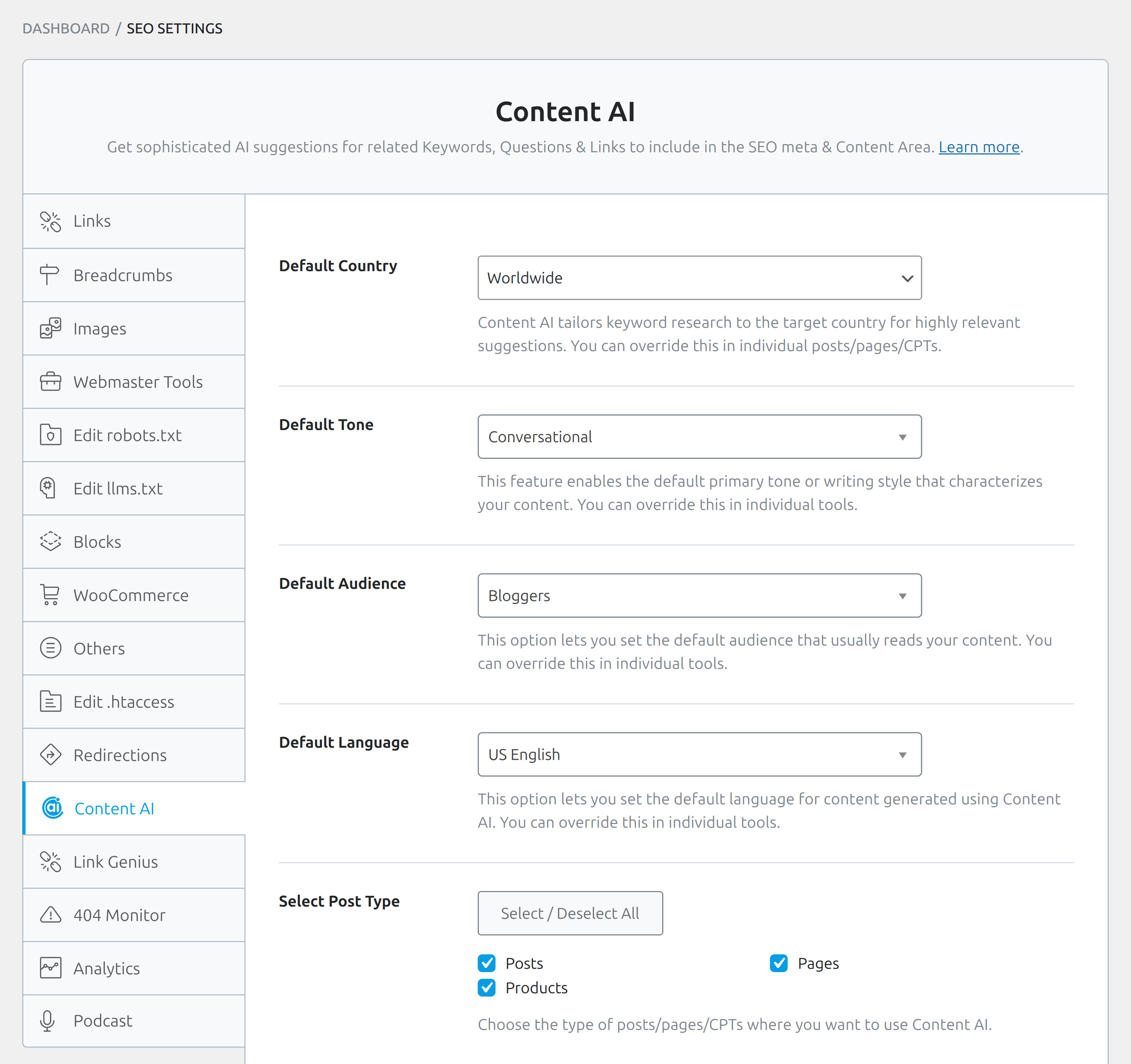
Default Country defaults to Worldwide (all). Default Tone defaults to Formal. Default Audience defaults to General Audience. Default Language follows the WordPress locale; US English is one of the listed choices. Select Post Type defaults to every available type except attachments. A credits line reports how many Content AI credits remain this month.
If you already write with your own stack, leave this tab untouched. Changing Formal to Conversational here does not rewrite old posts. It only seeds the assistant the next time someone opens a Content AI tool. Rank Math SEO settings on this tab do not fill empty titles or alt text.
Podcast is PRO only (Podcast module plus Schema). There is no screenshot because the tab is a form, not a unique UI pattern. Fields include title, description, owner, owner email, category, image, tracking prefix, explicit flag, and copyright text. Rank Math builds a separate podcast feed from those fields, and directories such as Apple Podcasts pull the show from it. Skip the tab in Rank Math general settings if you do not publish a podcast, and turn the module off so it leaves the list.
Saving Changes and Resetting Rank Math General Settings
Nothing in Rank Math general settings autosaves. The footer is the same on every tab: Reset Options on the left, Save Changes on the right. Ctrl/Cmd + Enter also saves, although the screen never mentions it.

Click Save Changes after each tab you edited. Switching tabs without saving drops unsaved fields. Rank Math general settings never write a draft in the background.
Reset Options asks Are you sure? You want to reset settings. Reset wipes every general setting at once — not just the current tab: verification codes, robots.txt contents, breadcrumb settings, redirection defaults, and RSS fields all go. Rank Math general settings come back as factory defaults, not as last week’s export.
Titles & Meta and Dashboard modules survive. Verification IDs, robots.txt, redirect fallbacks, RSS wrappers, and breadcrumb labels do not. Export a backup first from Rank Math SEO → Status & Tools → Import & Export, exactly as in part 1.
Rank Math General Settings FAQ
Why don’t my robots.txt edits show up in the site root?
Rank Math robots.txt is a virtual file. If a physical robots.txt exists in the web root, the editor is locked and Apache or Nginx will keep serving the real file. Remove or rename that file, or edit it on disk. Also check Settings → Reading: if the site is hidden from search engines, WordPress forces Disallow: / and this tab cannot override it.
Why don’t Rank Math breadcrumbs appear on the frontend?
Enabling the function only makes the API available. You still need rank_math_the_breadcrumbs() in the theme or the shortcode in the layout. If the toggle is off, even a correctly placed call prints nothing. If the theme registered rank-math-breadcrumbs support, the toggle is locked and the theme is in charge. Rank Math breadcrumbs will not appear until one of those two output methods is in the template.
Should I strip /category/ from URLs for SEO?
No, not for SEO. Strip Category Base is a permalink preference. It can collide with a Page that shares a category slug, and it does not make the archive more relevant. If you already have /category/ URLs in the index, changing this without 301s creates 404s. Leave the default off unless you have a migration plan. Rank Math SEO settings will not invent those 301s for you.
Does Rank Math write alt text into the Media Library?
No. Image SEO injects alt and title on output. The attachment’s empty alt stays empty in the editor. Filename-based alt is a frontend fallback, not a stored description. Generate real alt on the attachment if you need it in the library, in exports, or in other plugins that read media meta. Rank Math SEO settings on the Images tab will not write the Media Library.
Is it safe to click Reset Options?
Only if you meant to wipe every general setting and you have an export. Reset does not restore .htaccess, does not touch Titles & Meta, and does not ask which tab you are on. If you only wanted to undo one toggle in Rank Math general settings, change that toggle and save.
What to Configure First — and What to Leave Alone
A useful pass through Rank Math general settings is short if you ignore the toggles that look busy and do nothing for a typical site. Do these on the same day you finish the wizard:
- Switch to Advanced Mode if you need robots.txt, breadcrumbs, or 404 controls — Easy Mode hides entire tabs.
- Leave Redirect Attachments on and leave Strip Category Base off unless you have redirects ready.
- Keep global nofollow off on an editorial site; use the include list only for domains that should never pass a citation.
- Paste verification IDs for the crawlers you actually use, then submit the sitemap in those cabinets.
- Confirm robots.txt is virtual (no physical file in the root) and that Reading is not blocking crawlers.
- Set 404 Monitor to Simple with a 100-row limit and a couple of excludes, then add 301s on the Redirections screen for real legacy URLs.
- Connect Search Console on production when the domain can complete Google OAuth; skip Analytics on localhost.
Leave these alone unless you have a specific reason: the frontend SEO score badge (and its follow backlink), global nofollow on a magazine, the .htaccess editor, Content AI defaults if you write elsewhere, WooCommerce base stripping without a redirect map, and llms.txt limits copied from an outdated knowledge-base screenshot that still says 100. Rank Math general settings will not write your titles for you.
Rank Math will keep scoring posts and injecting frontend attributes. It will not fill empty titles, descriptions, or media-library alt text. When the scorecard turns orange, fix the strings in the editor — by hand or with the content tools you already use — rather than hunting for a Rank Math general settings toggle that writes copy. For the install, the sitemap, and the wizard that created this baseline, go back to part 1 of the Rank Math SEO setup guide.